Sorting candidates by rating
Candidate ratings are among the most valuable information you have in Recruitis. Every star rating (or thumbs up or down, depending on which scale your company has set) captures the impression you or your colleagues got from a CV, a phone call or an interview. Only when you can keep working with ratings do they become a real decision-making tool. Thanks to sorting and filtering by rating, your most promising candidates are always in view. You don’t have to click through dozens of profiles, and the selection process moves faster and more fairly.
When is the feature most useful?
- Preparing for the final round: Filter only candidates rated 4★ and 5★ and you immediately know who to invite to the next interview.
- Working with the hiring manager: Display only the candidates rated by a specific colleague and find out how they see them.
- Checking your own work: Select only your own ratings and verify that you have rated all the candidates you have spoken to.
- Searching the talent pool: When filling a new position, sort the talent pool from the best rated. You will often discover great candidates from earlier selection processes this way.
- Tidying up a selection process: Sort candidates from the worst rating and quickly deal with those you can send a rejection to.
Where to find it
You can use both sorting and filtering by rating in two places:
- in the position detail, in the list of candidates who applied for the given position,
- in the talent pool, in the list of all candidates in your database.
It works the same way in both places.
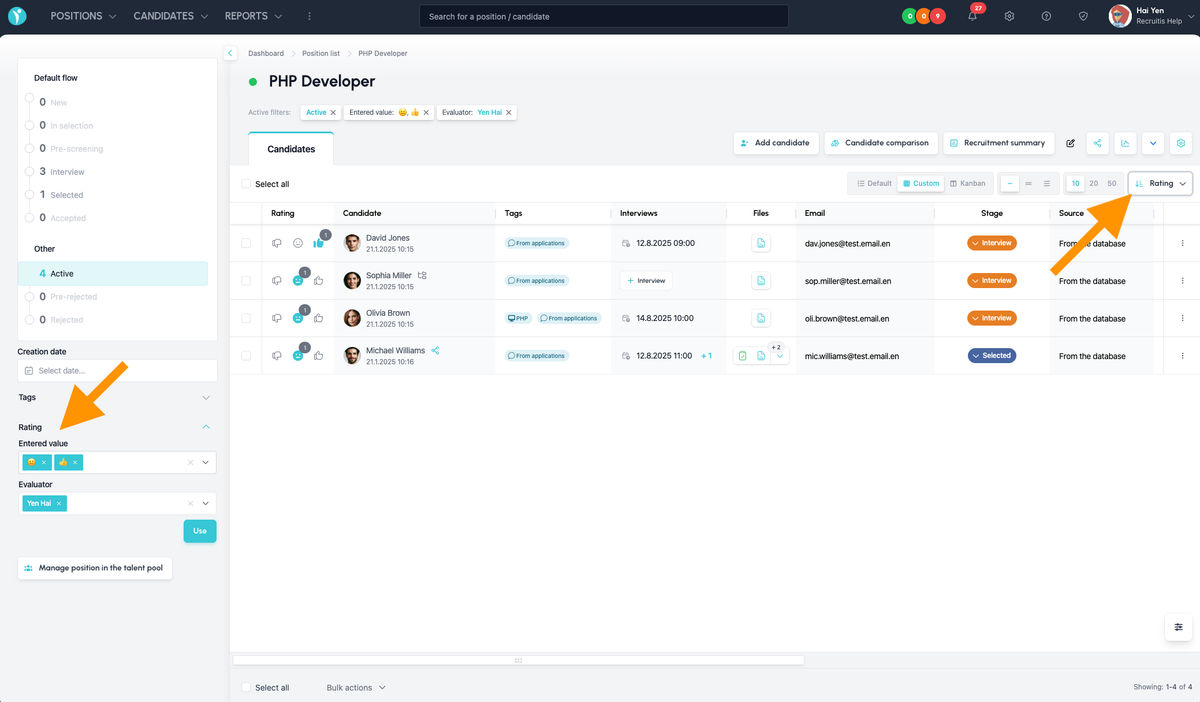
Filtering by rating
You will find the rating filter in the standard left-hand filter panel, together with the other filters.
Filtering by rating value
Select one or more rating values you want to display. For example:
- only candidates rated 5★,
- candidates rated 4★ and 5★.
Filtering by rater
You can narrow ratings down by who gave them:
- one specific colleague: you will see only the candidates rated by the selected colleague,
- several colleagues: select several raters at once, for example all members of the recruitment team,
- only my ratings: only the candidates you have rated yourself are displayed.
Combining filters
You can combine the value and the rater. This lets you display, for example, only the candidates that the hiring manager rated 5★. The rating filter can also be combined with the other filters in the left-hand panel, such as the stage of the selection process or tags.
Sorting by rating
You will find sorting in the usual place, on the right in the header of the table with the list of candidates, together with the other sorting options, such as by creation date or name.
You can choose from two directions:
- from the best rating: the best-rated candidates will be at the top of the list,
- from the worst rating: candidates with the lowest rating will be at the top.
How sorting works
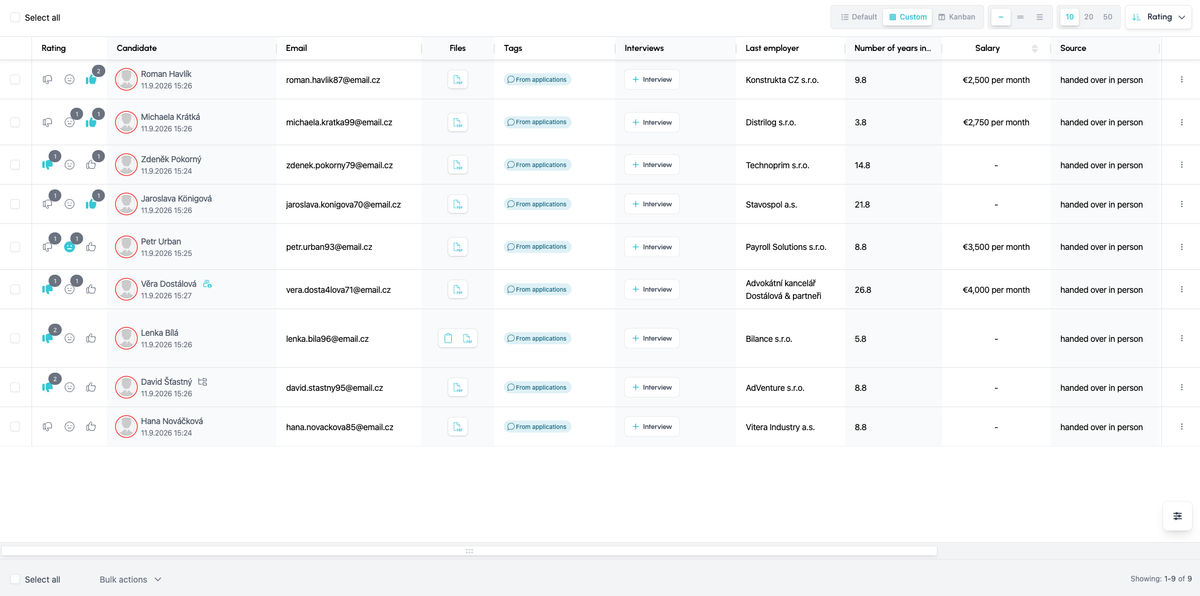
Let’s explain the sorting principles using an example with the scale “thumbs down – neutral smiley – thumbs up” and sorting from the best.
- At the top will be all candidates who have at least one of the highest ratings – i.e. a thumbs up (regardless of the other ratings they have from other raters).
- Next come the candidates whose highest rating is the neutral smiley (i.e. they have no thumbs up).
- Next come the candidates whose highest rating is a thumbs down (i.e. only the lowest rating).
- Within one “group” (e.g. those who have at least 1 highest rating):
- first come those who have the highest number of the highest ratings (i.e. someone with a thumbs up from two people ranks higher than someone with a thumbs up from just one rater).
- if the number of highest ratings is the same, the one with only “pure” highest ratings ranks higher (in other words, the one who has only “pure” thumbs up and no other rating).
- The ratings of all raters carry the same weight – so yours, for example, are not given preference (except, of course, when you filter by rater).
- Unrated candidates will always be at the end, whether you sort in ascending or descending order.
In the image below, you can see the result of such sorting in a practical example where several people gave different ratings.
Filtering and sorting together
You get the most out of the feature when you combine both options. For example, filter the candidates rated by you and your colleague and sort them from the best. Within a few seconds you have the material ready for a joint meeting about the selection.
💡 Tips for working effectively with ratings
- Rate continuously. Rate a candidate right after the first contact, while your impression is still fresh. Filtering and sorting are only as useful as your ratings are complete.
- Involve the whole team. Ask the hiring manager and your colleagues to rate candidates directly in Recruitis. You will get more perspectives and filtering by rater makes more sense.
- Agree on what the ratings mean. Align within the team on what 5★ means and what 3★ means. Ratings from different people will then be comparable.
- Make use of the talent pool. Well-rated candidates who did not end up joining in a given position are ideal candidates for future positions. Sorting by rating will help you find them quickly.
Related articles
Webhooks for the Nelisa portal
Let ATS Recruitis automatically download your candidates from the Nelisa portal.
Impersonation
Combining the answers of a historically depersonalized candidate with a new answer.
Talent database and its possibilities
The talent database does not have to be used only for searching contacts for candidates.