Sharing with External Users
External sharing is a feature that allows you to involve people in the recruitment process who are not part of your internal hiring team – whether they are colleagues from other departments or external collaborators such as recruitment agencies. These users typically don't need full access to your ATS at the recruiter or hiring manager level, but you still want them to actively participate in recruitment and contribute their perspective or contacts. External sharing is therefore an elegant solution for maintaining control over access while preserving the necessary level of collaboration.
💡 External sharing is available in the Premium licence and above.
How it works
External sharing requires the following steps:
- Creating an external user
- Setting up sharing for a position
- The external user signing in
An external user signs in the same way as other users – they receive an activation email and access the system through the standard ATS Recruitis login page. After signing in, however, the system interface looks different from what you are used to. Instead of the full interface, they see only one clear page with a list of candidates that have been shared with them.
What a given user can see and do with the candidates depends on the type of role you assign to them.
Setting up external users
You set up external users in the menu Settings | External Users (link).
Here you can see an overview of active external users and you can also create a new external user from this screen.
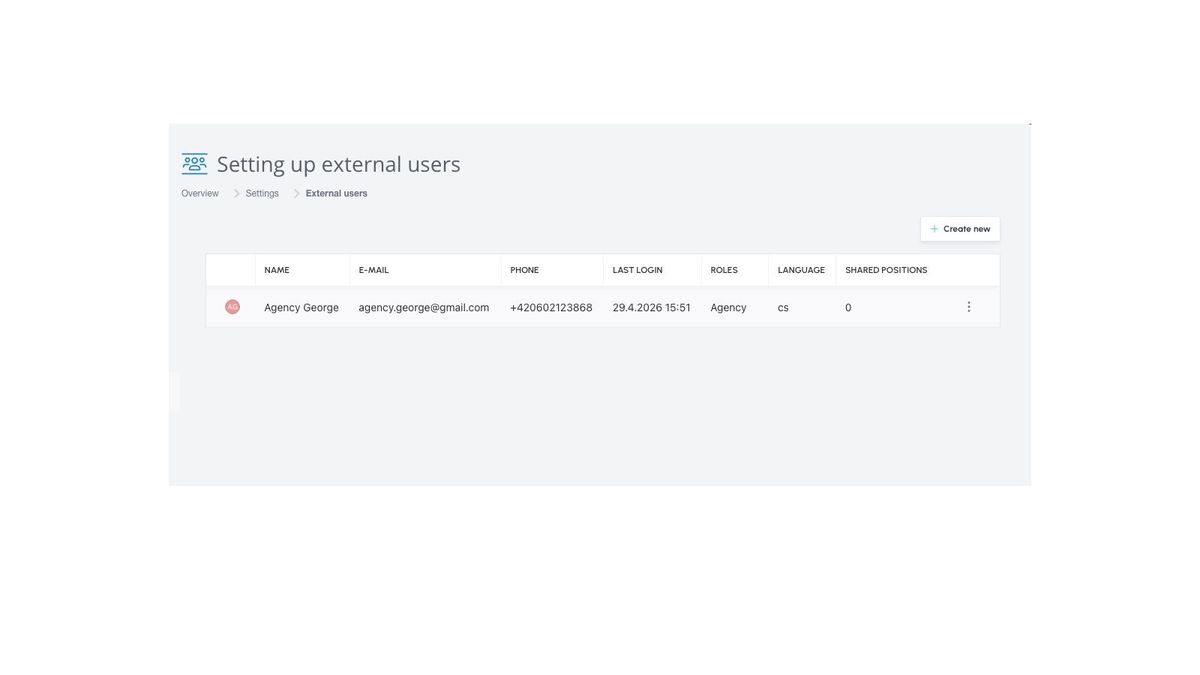
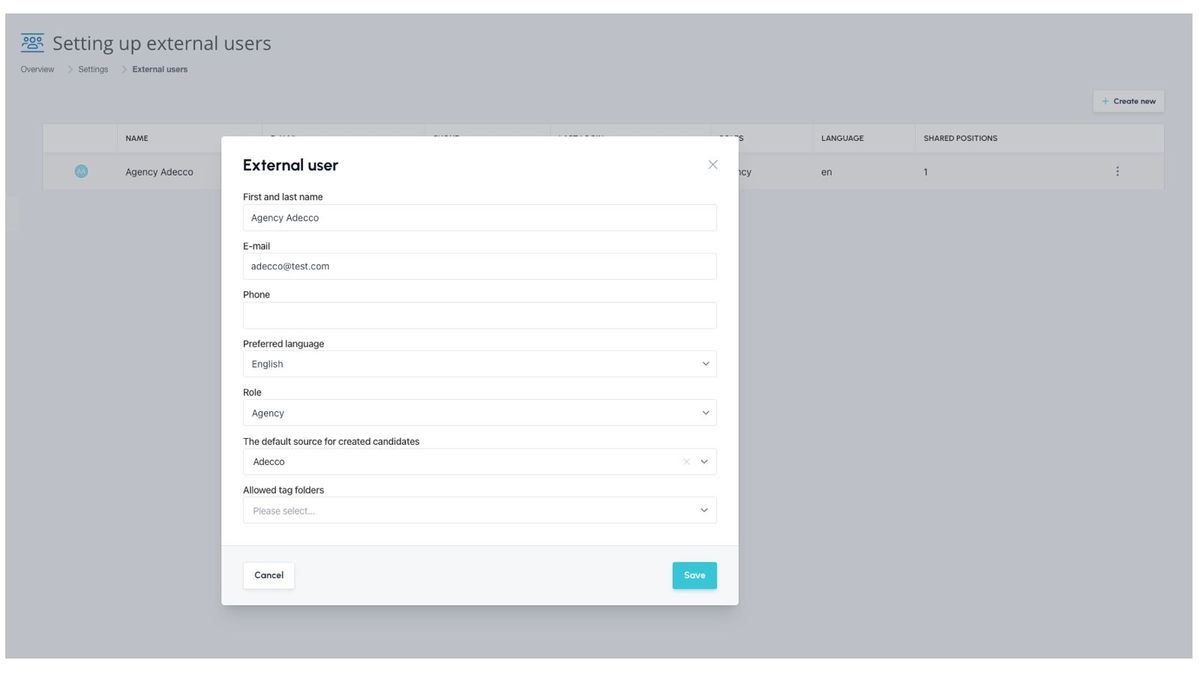
For new users, in addition to contact details, you also configure the following items:
- Preferred languague
- Role
- Allowed tag categories
- Default source for candidates created by them (if you then allow them to upload candidates in the position sharing settings)
Role
The role determines what the user sees and what they can do with the candidates.
There are 3 predefined roles available:
- Caller
- Agency
- Controller
A description of all three views is provided later in this article.
Allowed tag categories
Here you define which tags the external user can see and edit.
A typical example is collaboration with an agency – you want them to label candidates with tags from categories such as “Personality traits” or “Programming languages”, but at the same time you don't want them to have access to your internal tags or to see that you have flagged a candidate with a tag such as “Blacklist”.
Setting up external sharing
Sharing itself is set up at the position level – in the position menu, select “External sharing”, and in the following dialog you choose with whom you want to share candidates from that position and based on which rules.
💡 The “External sharing” item is only available in the new position detail view and the new position list.
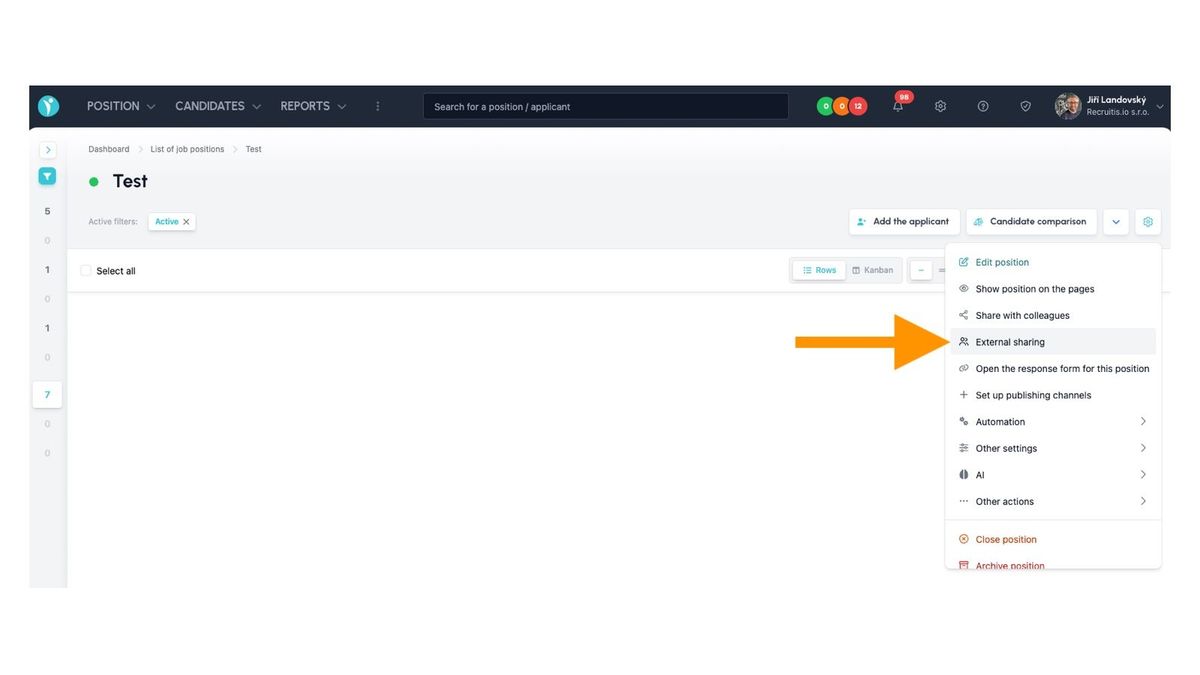
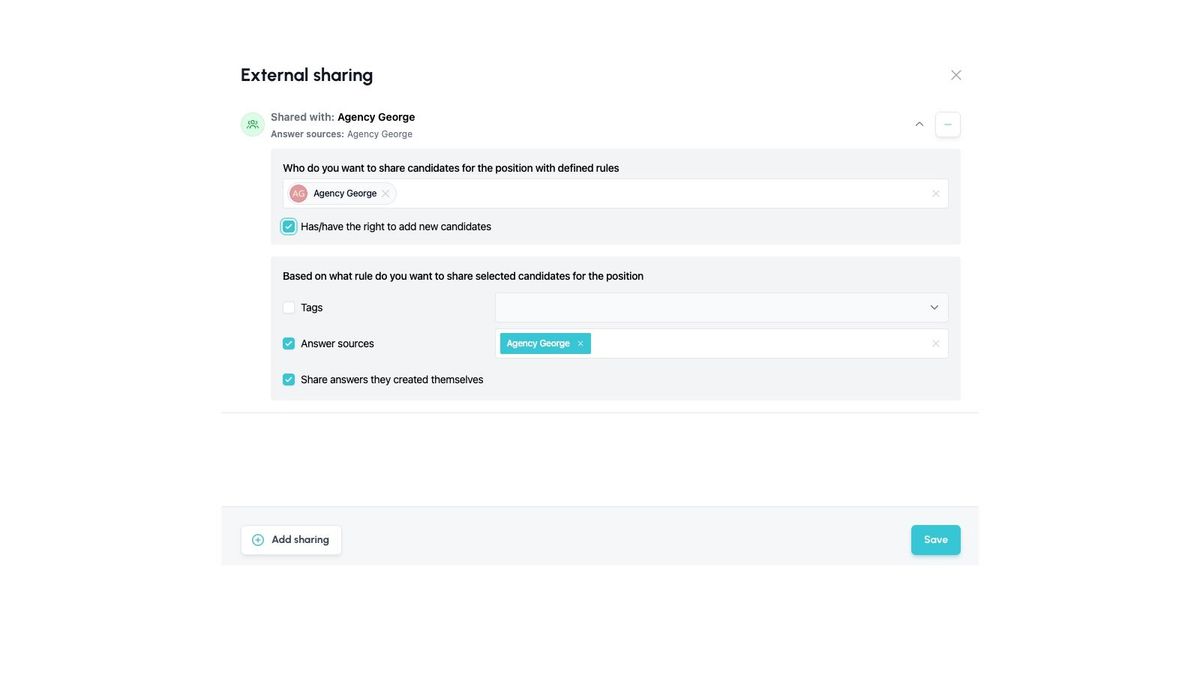
Within the sharing settings you choose the following parameters:
- With whom you are sharing this position (only external users are available for selection)
- Whether they have the right to add new candidates from their external account
- Adding candidates works the same way and through the same dialog as it does for you inside ATS Recruitis.
- If you are considering this for an agency as an alternative to the agency portal, think it over carefully, because this option lacks the candidate existence check that the agency portal has, and it also does not automatically add the candidate source based on the name of the agency portal.
- The sharing mechanism:
- By tags
- Select the tags whose assignment will automatically share a candidate with the selected users.
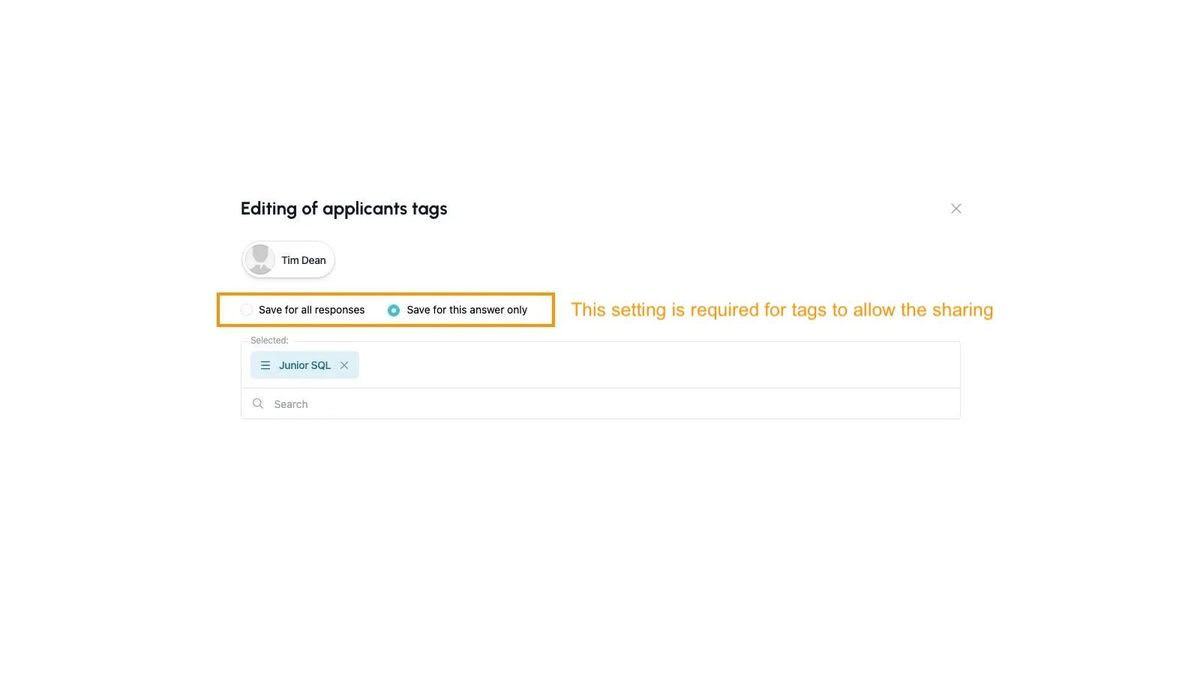
- The sharing only works when you assign tag with option "Save for this answer only”
- By source – select the sources that will automatically share a candidate (typically for an agency you want to share candidates with the source of that agency, so they can keep track of “their” candidates and collaborate with you on the recruitment).
- You can also choose to automatically share their own candidates (i.e. those they created using button "Create candidate" on their external account).
- By tags
Practical examples of use
Example 1: Sharing by source
Candidate Jan Novák applied for the position “Marketing specialist” through the recruitment agency ABC and separately applied through the careers page for the position “Project manager”. Agency ABC has external sharing set up by source. In their overview they will only see the response for the “Marketing specialist” position, because the second response comes from a different source (the careers page).
Example 2: Sharing by tag
Cndidate Petra Svobodová has 3 responses. Recruiter assigns her a tag “For interview” for position “Team leader” with the option “Save for this answer only”. The external user will see only this one response; the other two will not be shown, even if they had sharing configured based on the same tag for them.
Example 3: Combining sharing by source and by tag
If you want agency ABC from the first example to also see Jan Novák's second response (the one from the careers page), you can add a tag (e.g. “Share with ABC”) to that response with the option “Save for this answer only” and configure tag-based sharing for the agency. The agency will then see its original response (thanks to source-based sharing) as well as the second response (thanks to tag-based sharing).
💡 Good to know
- On a single position, only one sharing rule can be created per user.
- Multiple sharing rules can be created on a single position (i.e. for different users with different parameters).
- One sharing rule can be created for multiple users at once on a given position.
- Different sharing methods can be combined within one sharing rule (e.g. by tag and by response source).
The external user's view
The external user sees only one page with an overview of candidates – they cannot click through anywhere or open any other page.
Based on their role, they can see or not see certain items in the candidate list and can or cannot work with them. Below is an illustration of the same shared content displayed for users with different roles:
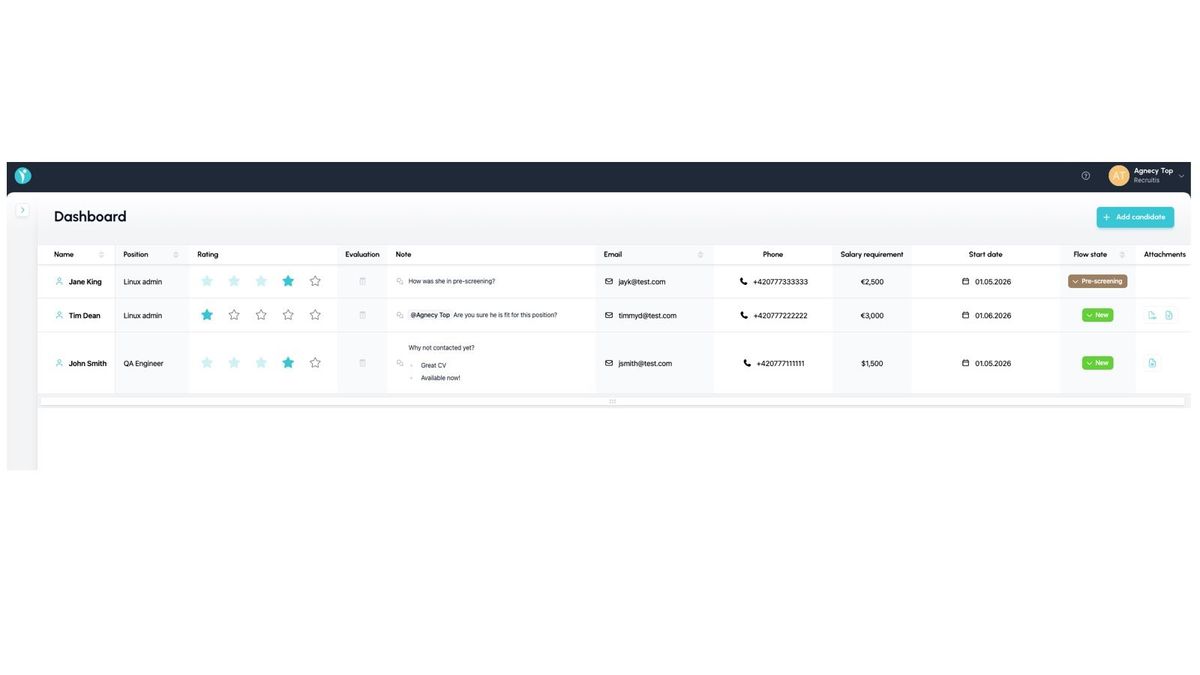
Caller
- Sees only the candidate's name and contact details
- Can add a note
- Sees only those notes in which they are directly mentioned (i.e. they don't see everything you write about the candidate)
Agency
- Sees the candidate's contact details
- Sees notes from the candidate's interviews
- Can rate the candidate (stars / thumbs)
- Can add a note
- Sees only those notes in which they are directly mentioned (i.e. they don't see everything you write about the candidate)
- Sees the candidate's salary expectation and possible start date
- Sees the status in the flow
- Sees the candidate's attachments
- Can add attachments to a candidate
Controller
- Sees the candidate's contact details
- Sees notes from the candidate's interviews
- Can rate the candidate (stars / thumbs)
- Can add a note
- Sees only those notes in which they are directly mentioned (i.e. they don't see everything you write about the candidate)
- Sees the candidate's salary expectation and possible start date
- Sees the status in the flow
- Sees the candidate's attachments
- Sees and can change the candidate's tags (but only within the tag categories permitted in the external user's settings)
💡 You can only enter notes for an external user via the “@” mention if that external user has the specific candidate shared with them (i.e. there is a sharing rule on the position and the candidate meets the sharing condition – e.g. has the defined source or tag assigned).
Related articles
Webhooks for the Nelisa portal
Let ATS Recruitis automatically download your candidates from the Nelisa portal.
Impersonation
Combining the answers of a historically depersonalized candidate with a new answer.
Talent database and its possibilities
The talent database does not have to be used only for searching contacts for candidates.