Saving and editing email templates
A new look for the email templates page
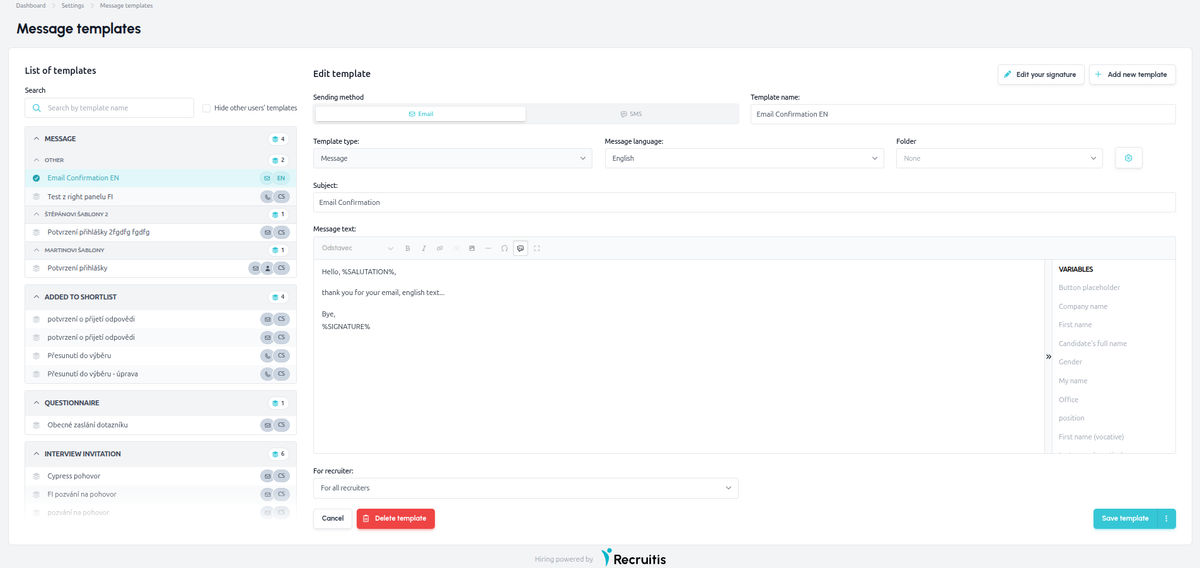
We're gradually moving the entire application to the new design, and now it's the turn of the email template settings page. This is where you prepare the texts you use to reach out to candidates, invite them to interviews or let them know the outcome of the selection process. That's why we wanted it to be a pleasure to work with.
The page is now clearer and cleaner and visually matches the rest of the application. Thanks to the improved UX, you'll find your way around templates more easily and get to what you need faster. Everything is in its place and nothing gets in the way.
Functionally, the page remains unchanged. You create, edit and manage templates just as before, so there's nothing new to learn and you can carry on working right away.
Two handy new features have been added, though:
- The first is searching templates by name. It’s especially useful if you have a lot of templates, for example for different positions, recruitment stages or language versions. Just start typing the name and the template you need appears within seconds, with no scrolling through long lists.
- The second is folders for email templates. You can create and manage them yourself and sort your templates in whatever way makes sense for your team, for example by department, position type or recruitment stage. Folders work for all template types and also appear when you select a template in the sending dialog, so you can quickly find the right one while writing an email.
The two features work well together. Folders keep your templates organized over time, and search helps when you need a specific template right away.
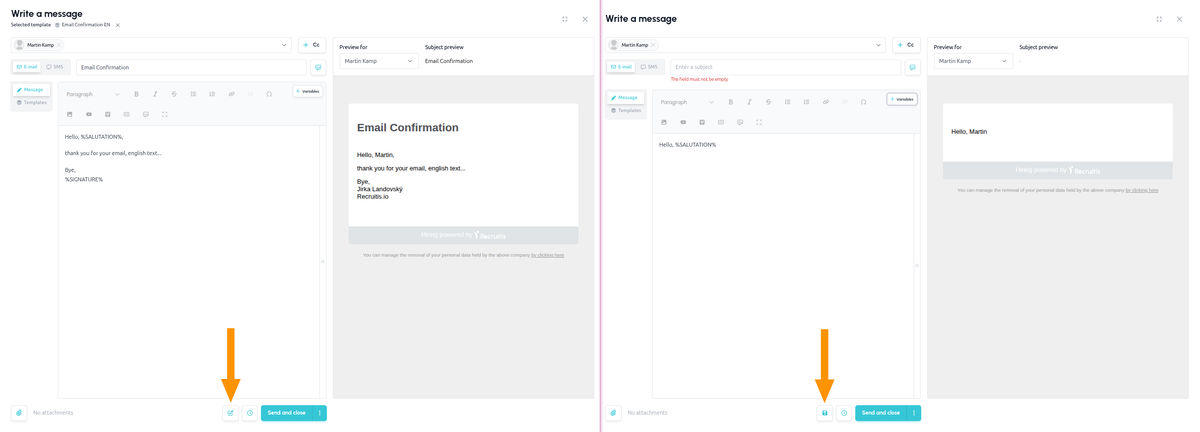
Saving and editing email templates directly from the send dialog
Have you written an email to a candidate that turned out really well and want to use it again next time? Or did you have the text prepared with our "AI draft" feature and it came out exactly the way you wanted? You no longer need to copy the text, go to the settings and create a template manually. You can now edit or create a template right in the send email dialog, without leaving it. Your best wording won't get lost and your templates stay up to date.
How to use it
At the bottom of the send email dialog, you'll find buttons for working with templates. The options available depend on how you started writing the email:
- You used an existing template: you can edit and save the template (i.e. overwrite it).
- You started writing without a template: you can create a new template from the current text.
- You used a system template: system templates can't be overwritten, so you create a new template from them straight away.
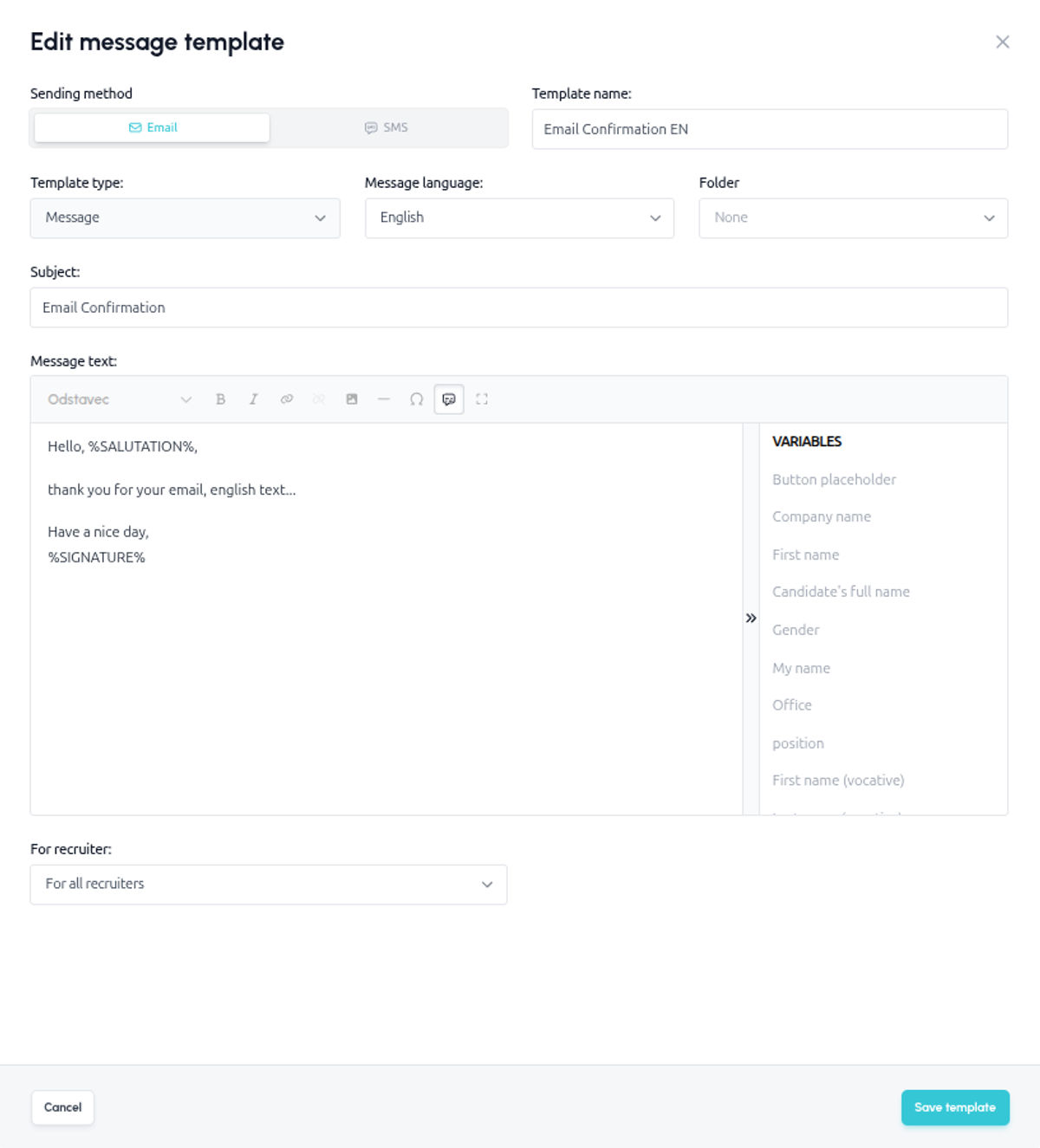
Template settings in the side panel
Once you choose an option, a side panel opens with all the parameters available for that type of email template. Each template type has different options. For example, an interview invitation template contains more settings than a template for sending a regular email.
Check or fill in all the parameters and then either save the template (overwriting the original version) or create it as a new one.
💡 Practical tips
- A template you've just created or edited in the side panel isn't automatically applied to the email that's currently open. If it differs from the text in your send dialog, select it again in the template selection dialog. Only then will the most recently saved version be loaded into the email.
- Using AI draft? If you like the generated text, save it as a template right away. Next time, you'll have a quality starting point in one click.
- Give your templates descriptive names, for example by purpose and recruitment stage, so you can find them quickly.
- If your colleagues use the template too, consider whether you really want to overwrite it. It's often better to create a new version and keep the original template.
Related articles
Webhooks for the Nelisa portal
Let ATS Recruitis automatically download your candidates from the Nelisa portal.
Impersonation
Combining the answers of a historically depersonalized candidate with a new answer.
Talent database and its possibilities
The talent database does not have to be used only for searching contacts for candidates.