Position statistics
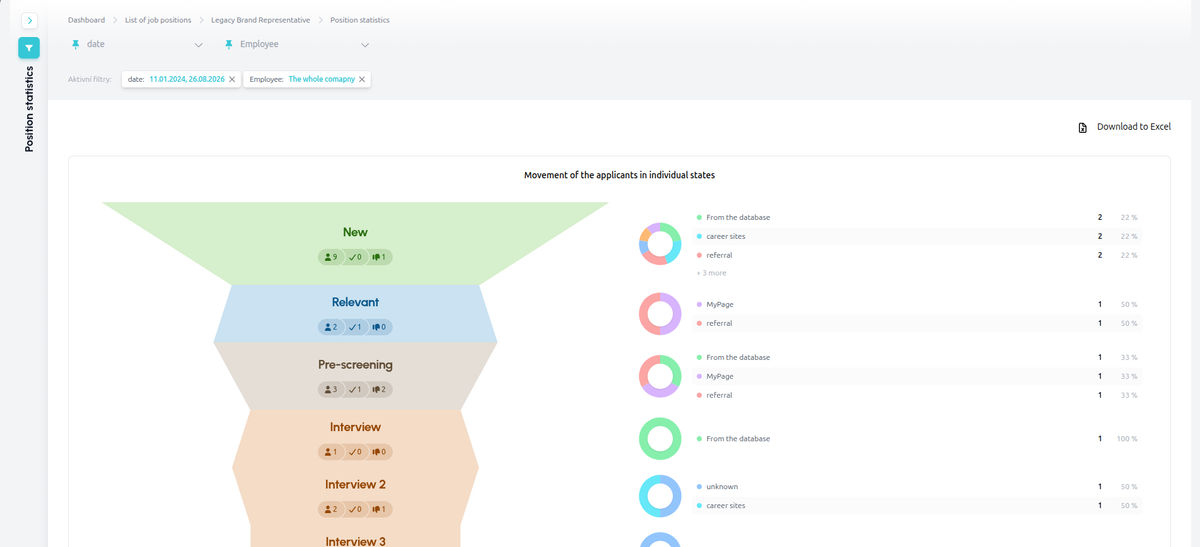
Position statistics show:
- The number of candidates moving through the recruitment flow for the position
- The number of active candidates in each stage of the recruitment flow
- The number of rejected candidates in each stage of the recruitment flow
- Recruitment speed
- Rejection reasons
- Male/female ratio
- NPS
Besides the new look, the new design also separates candidates who are still in the flow, hired and rejected. You can also click any funnel segment to see its detailed breakdown.
How do I access the statistics?
a) Via the menu
In the position detail, click the gear icon (Position settings) and select Position statistics from the Other actions menu.
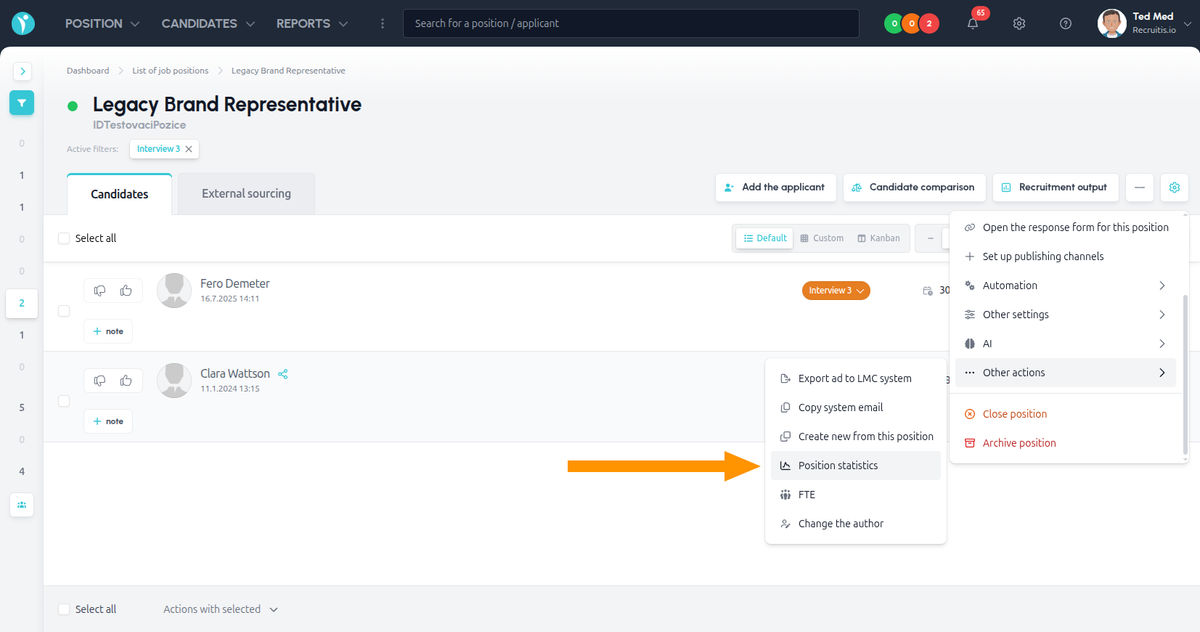
b) Quick access via a shortcut
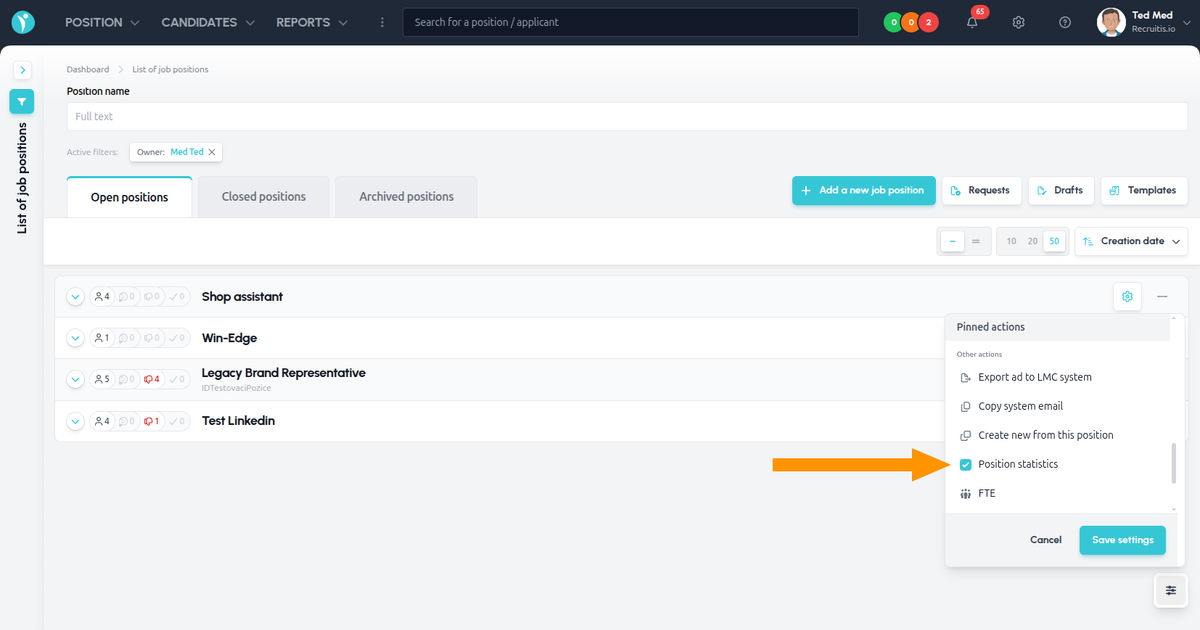
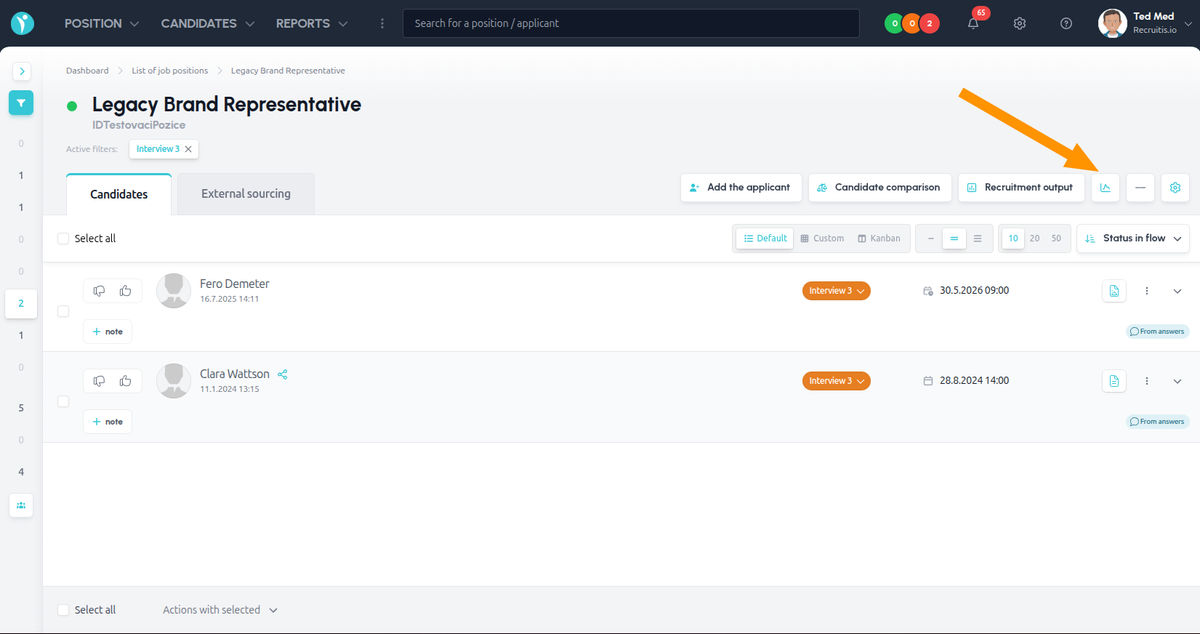
If you use the statistics for a specific position often, the new flexible design of the position list and position detail lets you set up a shortcut directly in the position list. In the position list, open the Pinned actions / Other actions menu for the position and check Position statistics.
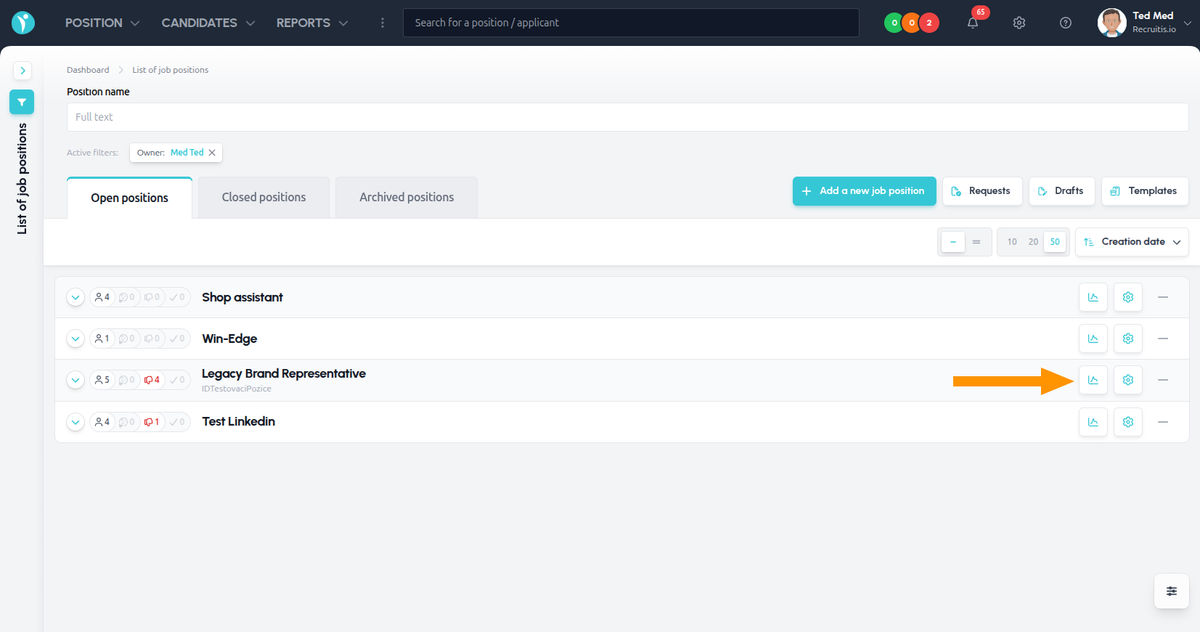
Once saved, a statistics icon appears directly in the toolbar of the position detail, giving you one-click access to the statistics.
What's new in the statistics?
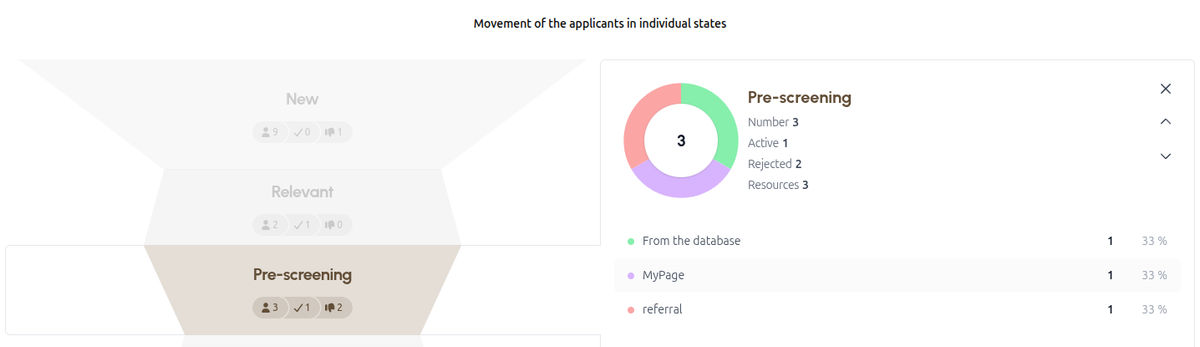
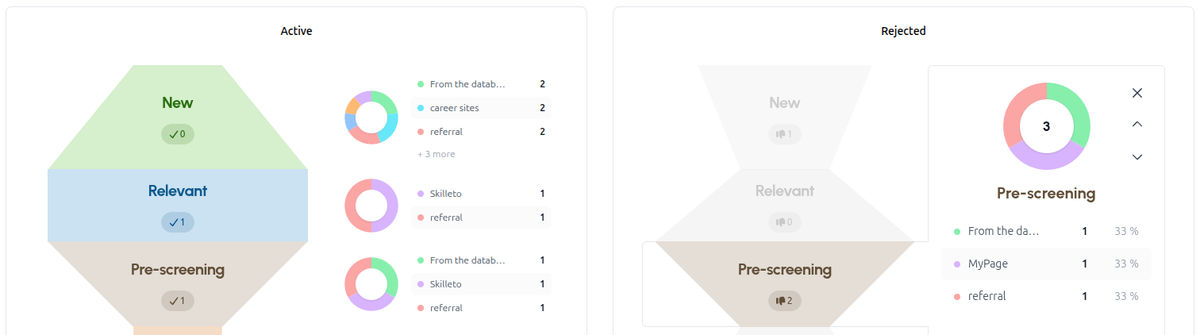
Besides the new look, the biggest change compared to the older combined funnel is that candidates are now split into separate branches. You now see, separately, a funnel showing candidates moving through the flow stages, a funnel with active candidates, and a funnel with rejected candidates.
Clicking any funnel segment also shows its detailed breakdown by the source the candidates came from.
Adding statistics to the dashboard
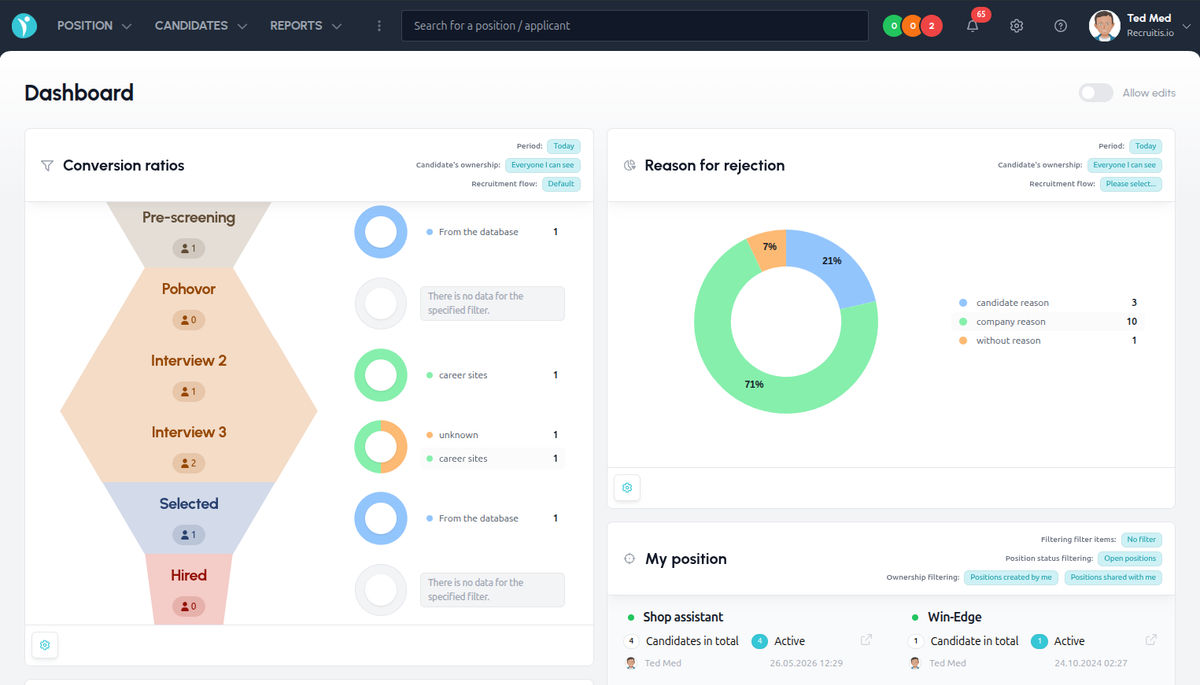
Position statistics (as well as other combinations of position parameters, such as the recruitment flow, filter items or author, combined with a date range) can also be shown as a widget directly on the main dashboard.
On the dashboard, turn on the Enable editing toggle, click + Add and select Position statistics from the menu.
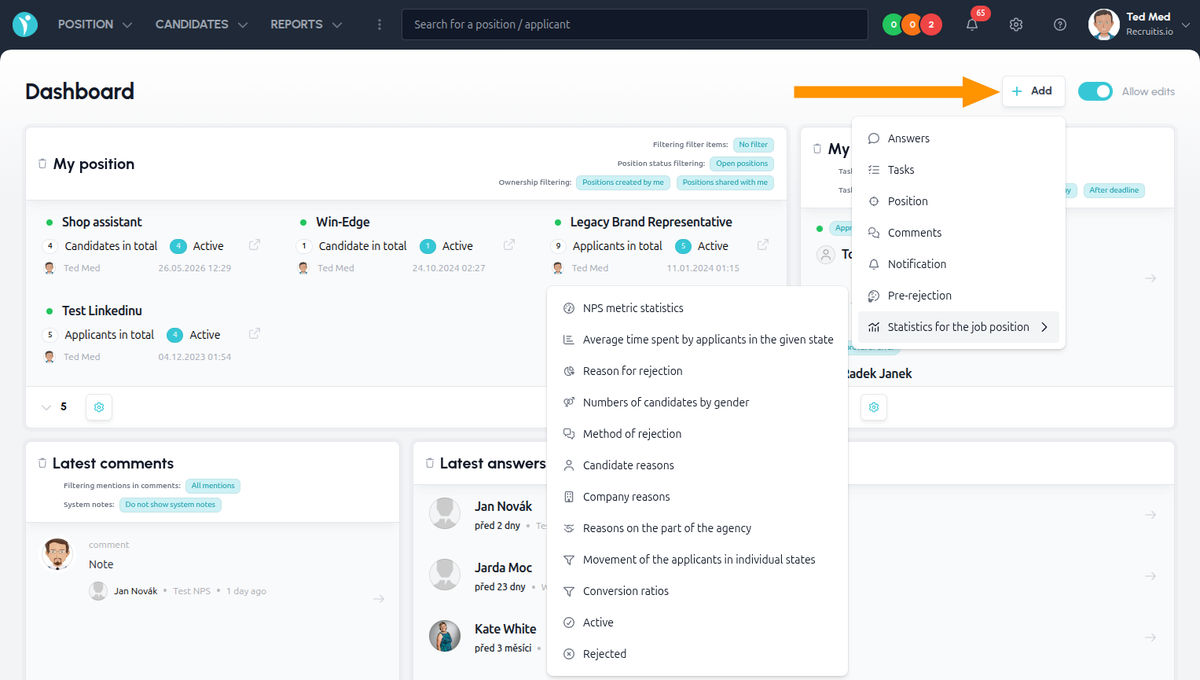
The widget will then appear directly among the other widgets on the dashboard.
Related articles
Webhooks for the Nelisa portal
Let ATS Recruitis automatically download your candidates from the Nelisa portal.
Impersonation
Combining the answers of a historically depersonalized candidate with a new answer.
Talent database and its possibilities
The talent database does not have to be used only for searching contacts for candidates.