Integration with the InstaView platform
InstaView is a platform for voice AI agents. They conduct phone conversations on behalf of companies in recruitment, sales, support and operations. Below we cover only the recruitment part, i.e. phone prescreening and video interviews.
You can learn more directly on their website https://www.instaview.sk/
What InstaView does in ATS Recruitis
The AI agent calls the candidate itself (the main channel is the phone) at the time you set for the candidate in ATS Recruitis when moving them to the status that activates AI prescreening.
The agent asks the candidate predefined questions, evaluates the answers and writes the results back to the ATS, including moving the candidate to the next status in the recruitment flow, so you know right away who has already completed the interview.
What needs to be done for the integration
To use the InstaView integration in ATS Recruitis, you first need to have a contract concluded directly with InstaView.
Once the contract is concluded, they will provide you with a so-called company_id in a format such as: 31XX7x94-68x2-4x1X-Xff6-67efxxx04e68
Send us this ID and we will activate the integration for you, together with the option to use the “Pre-screening” action in the recruitment flow, which is able to use the InstaView integration.
Agent settings
The calls are made by so-called agents.
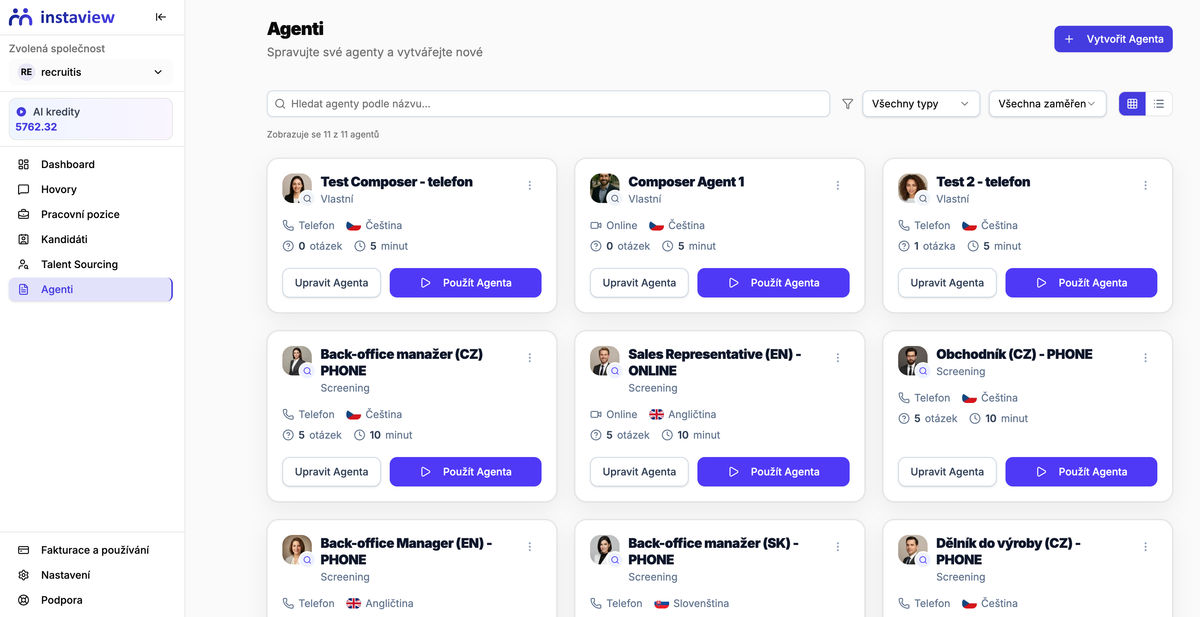
You can either set them up in a structured way directly in the InstaView platform, or describe them in your own words in ATS Recruitis and create a so-called Composer agent.
Setting up a Composer agent
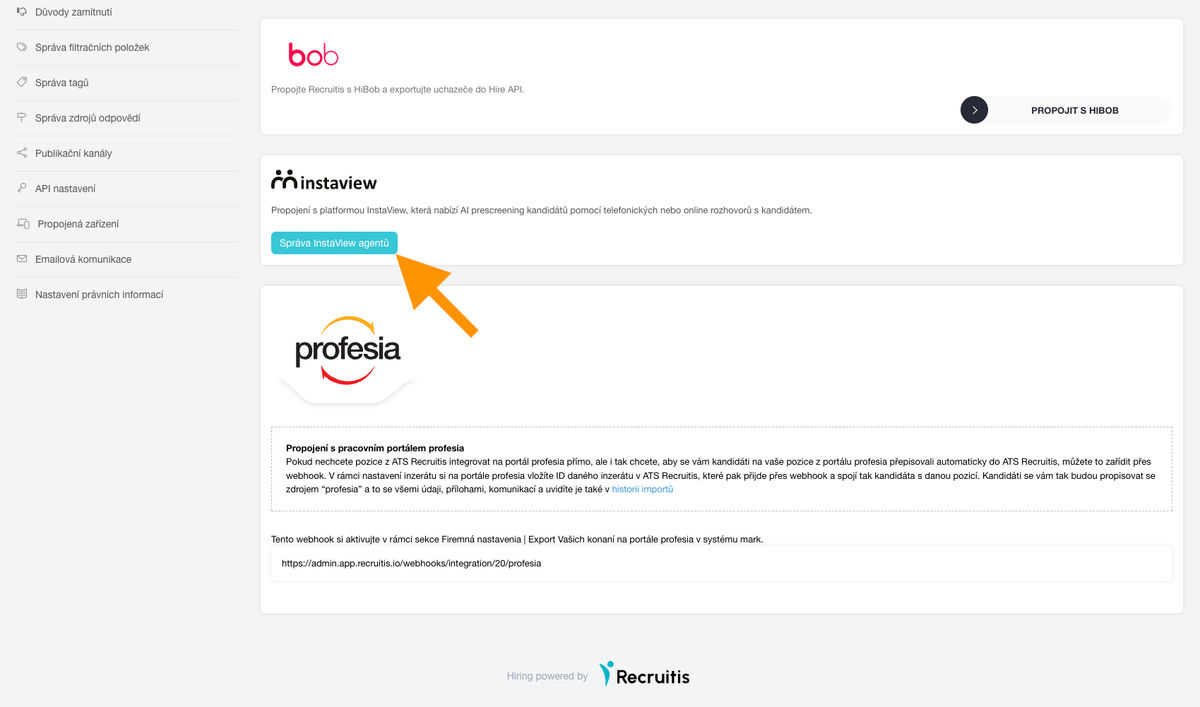
You set up an agent of this type in ATS Recruitis in the menu Settings | Integrations (link), in the InstaView section:
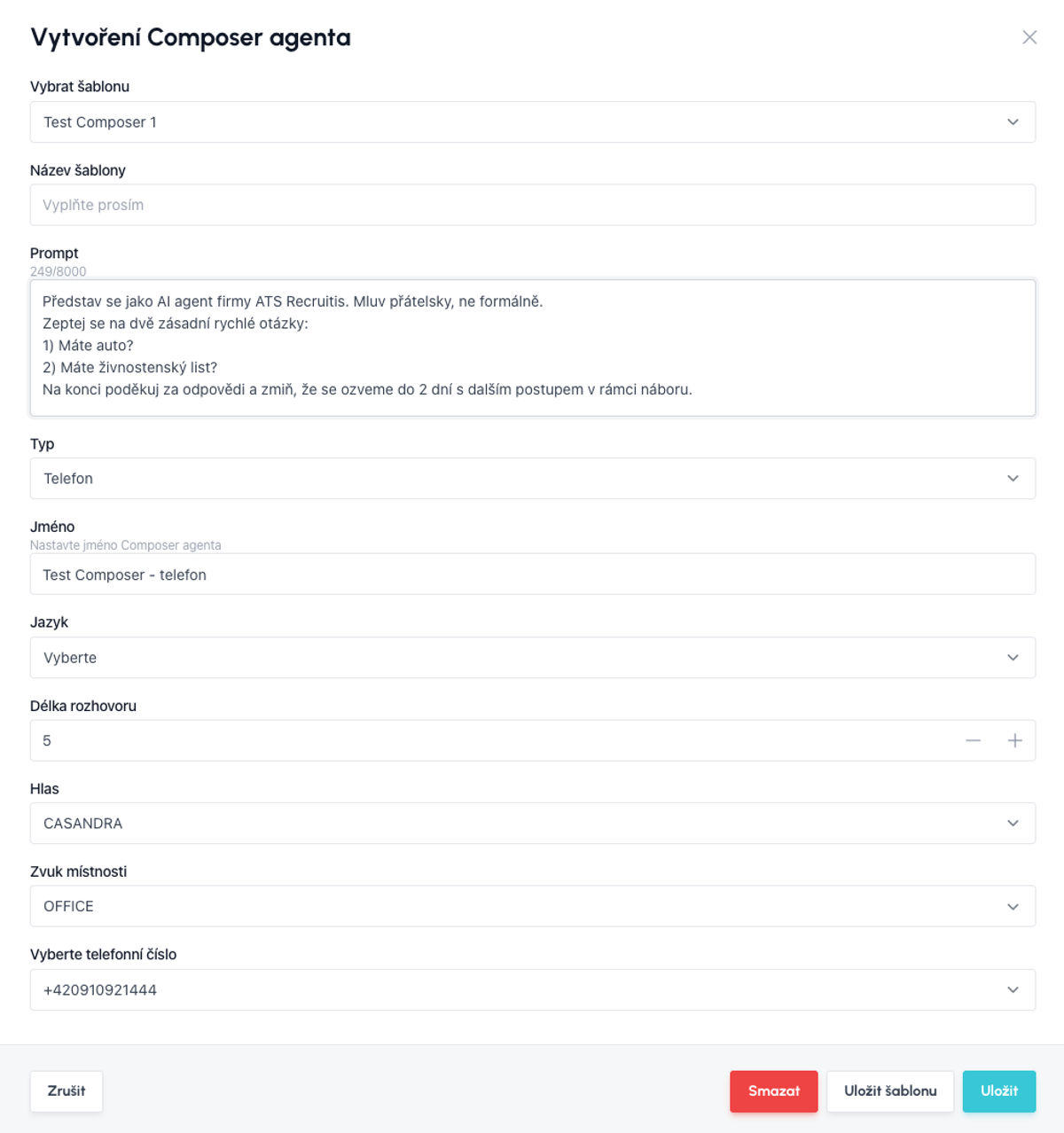
After you choose to edit an existing agent or create a new one, a window opens with all the parameters you can use.
The key field is the Prompt, where you define in your own words everything you expect from the agent – what it should ask, what it should say, how it should communicate, etc.
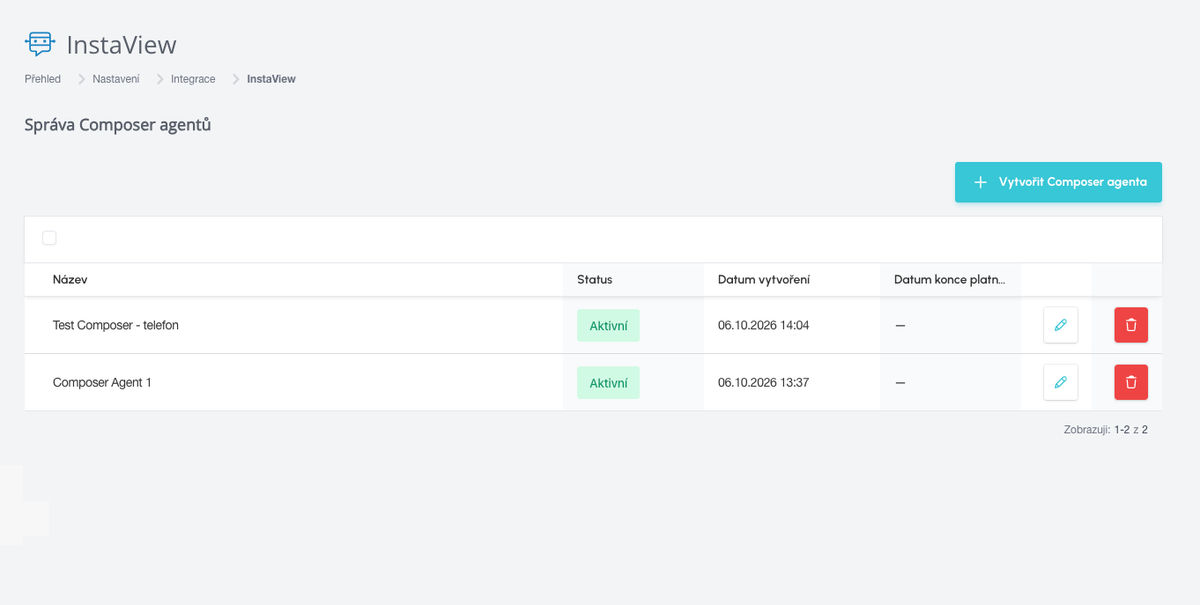
💡 After saving, the agent appears as “Draft”, and only once it has been written to the InstaView platform via the API does it appear as Active. The write typically takes just a few seconds, so it is usually active as soon as you refresh the page.
How to use the agent
Once your agent is ready, you can start using it to screen candidates.
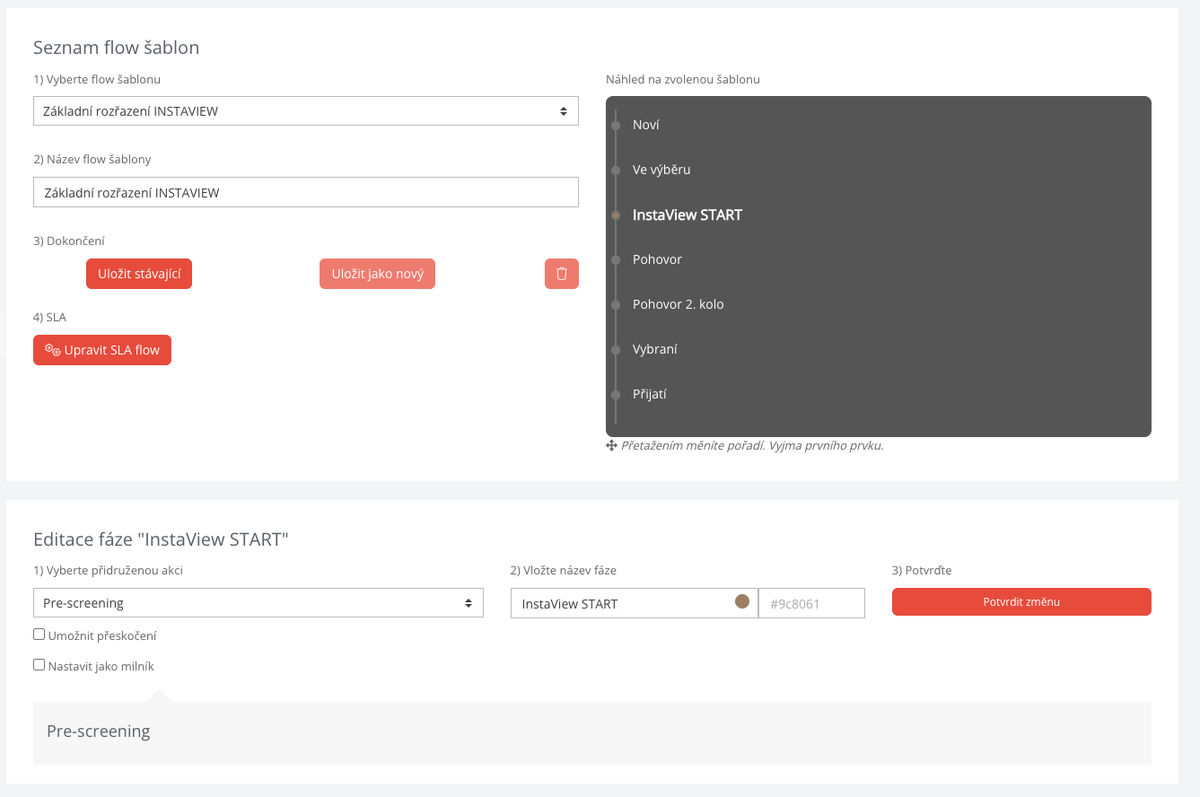
Recruitment flow with the “Pre-screening” action
Setting up an AI call
If you move a candidate to a status in the flow that has a “Pre-screening” action defined (and you have the InstaView connection activated), a right-hand panel pops up where you select the parameters for the AI interview / call.
The essential thing here is to choose which agent you want to use for the call (whether a Composer agent or a traditional one created in the InstaView environment) and when the call should take place.
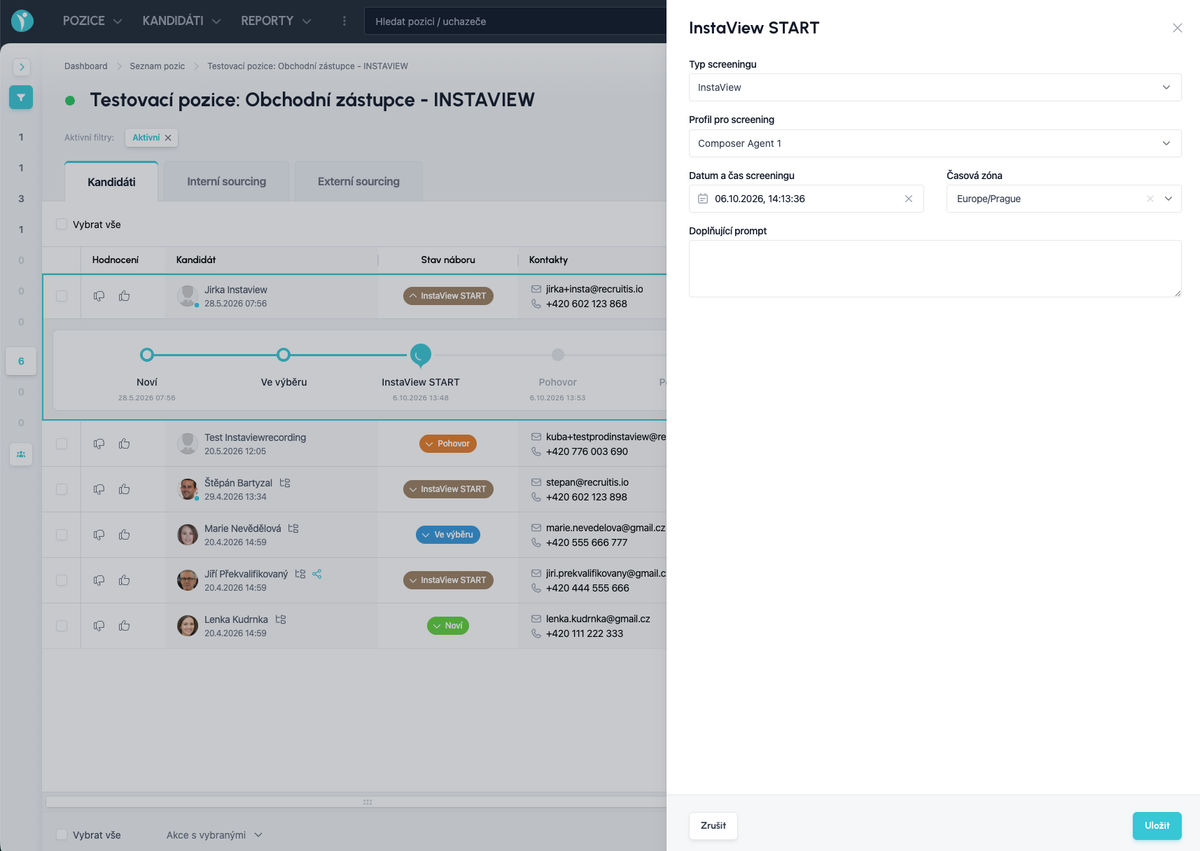
💡 If the call setup does not finish successfully, or if you do not complete it, the candidate returns to the previous status. Only candidates whose AI interview has been successfully scheduled get into the status with the “Pre-screening” action.
Result
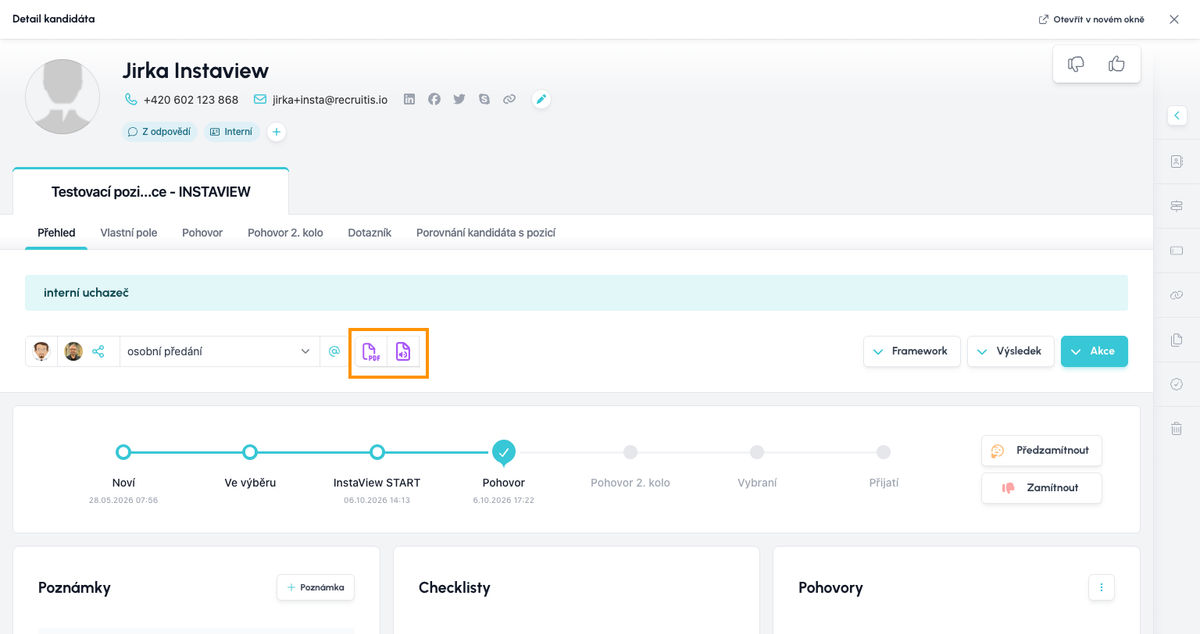
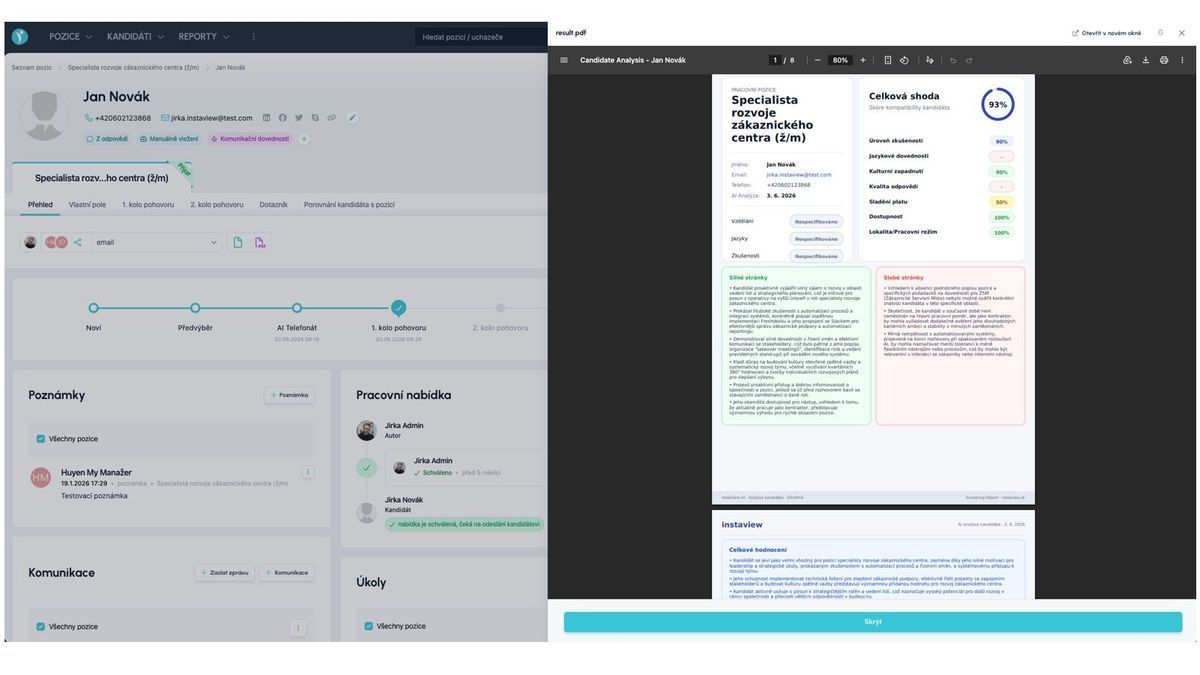
After the interview has been successfully completed and the data processing time has elapsed, you will see the following on the candidate card in ATS Recruitis:
- A PDF with the output from the call
- An audio file with the call recording for your review
The files are marked as “Sensitive attachments” and are deleted after the period you have set for them in the GDPR settings (link)
💡 Good to know
Composer lets you design an AI agent by describing in plain language what it should do. You don’t have to assemble the conversation script manually or know its technical structure.
How does Composer work?
- Brief (prompt): You describe in your own words what the agent should do. For example, “prescreen candidates for a warehouse operative position, verify the forklift licence and willingness to work shifts”.
- Preview: Composer prepares an agent draft. At this point it is neither created nor active.
- Fine-tuning: You can keep adjusting the draft with instructions in plain language, such as “add a question about the start date” or “be more informal”. The number of edits is unlimited. Each instruction is processed separately.
- Creation: Once you are happy with the draft, you create the agent from it. Only now does it come into existence in your account. In ATS Recruitis, this is the save in the second step of the dialog.
What does Composer generate?
- The conversation script: the opening message, the individual parts of the conversation and the closing message
- The persona and communication style of the agent
- The evaluation: what information it should extract from the conversation, by which criteria it should assess the candidate and what the possible call outcomes are
- The call settings: how many times and when to call again, and at what times
- The agent name: it suggests one itself, or you enter your own
- A summary of the agent’s behaviour in a maximum of 10 sentences
What can I set?
- Channel: phone or online. The channel cannot be changed later.
- Language: Czech, Slovak or English. If you don’t specify it, the agent adopts the language of your brief.
- Target call length: 1 to 180 minutes
- The agent’s voice and background sound (office, or no sound)
- Optionally the agent name. You can still overwrite the name, type, language and length right before creation.
What are the limits?
- A draft is valid for 30 days. If you don’t create an agent from the draft by then, it is deleted automatically. A created agent no longer has any limited validity.
- Brief length: the initial description can have up to 8,000 characters, each further edit instruction up to 4,000 characters.
- Processing time: drafting an agent usually takes up to 1 minute (about 2 minutes at most), an edit roughly up to a minute.
- Edits can only be made sequentially, one after another. You can send the next instruction once the previous one has finished.
- Edits in Composer change only the draft. An agent that has already been created cannot be edited via Composer.
- A failed edit doesn’t break anything. If an edit fails, the previous version of the draft remains unchanged.
- Request limit: a maximum of 6 new drafts per minute (60 per hour) and 10 edits per minute (120 per hour). For an ordinary user, this plays no role in practice.
Can I see the agent anywhere other than in ATS Recruitis?
The entire “conversation” with Composer stays with the created agent and is visible in the InstaView dashboard. So you can look up at any time why the agent is set up the way it is.
InstaView AI features and the Artificial Intelligence Act (AI Act)
The feature for AI evaluation of phone prescreening and video interviews is built on the platform of the Slovak company InstaView, which is available to you in Recruitis thanks to the integration. The EU Artificial Intelligence Act (AI Act) divides responsibility among three roles:
- InstaView is the provider of the AI system. It is responsible for the system meeting the requirements of the regulation: risk management, data quality, technical documentation, logs of operation, transparency, conformity assessment and ongoing monitoring.
- Recruitis is the distributor. It makes the feature available to you within the application and verifies that the provider has supplied the necessary documentation and conformity marking.
- You, as the customer, are the deployer. You use the AI system in your own recruitment and therefore have obligations associated with its use.
Under the AI Act, AI systems used to evaluate and select applicants are classified as high-risk. The deployer’s obligations apply to them from 2 December 2027. When using the feature, you need to:
- Use the feature in accordance with the instructions and for the purpose for which it is intended, i.e. as support in evaluating phone prescreening and video interviews.
- Ensure human oversight. A human always decides on the applicant’s next steps. The AI evaluation is a basis for the decision, not the final decision. Only users who understand its capabilities and limitations should work with the feature.
- Make sure the inputs are relevant. The questions and evaluation criteria should correspond to the requirements of the position.
- Inform applicants that their phone prescreening or video interview will be evaluated with the use of AI.
- Inform workers’ representatives (e.g. trade unions) if you also use the feature for your own employees, for example in an internal selection procedure.
- Monitor how the system works. If you find that it behaves unexpectedly or poses a risk, stop using it and let us or InstaView know. Serious incidents are also reported to the supervisory authority.
- Keep the logs of operation for at least 6 months. We keep the logs for you within the application, as does InstaView.
- Support the AI literacy of the users who work with the feature. This obligation already applies now.
Related articles
Webhooks for the Nelisa portal
Let ATS Recruitis automatically download your candidates from the Nelisa portal.
Impersonation
Combining the answers of a historically depersonalized candidate with a new answer.
Talent database and its possibilities
The talent database does not have to be used only for searching contacts for candidates.