Form and questionnaire builder
We have completely rebuilt the tool for creating custom application forms from the ground up! The result is a solution we call “dynamic forms”, which not only looks much better and is more intuitive, but also offers much more than you are used to.
A wide range of new field types has been added, so you can tailor the form exactly to the information you need from candidates, employees or colleagues.
The biggest new feature, however, is the option to use a form directly within questionnaires. In questionnaires, you are no longer limited to a “question / answer” structure – you get the power and complexity of an application form, with its connection to specific data fields on the candidate card.
The new tool therefore gives you full control over what you ask and how you then use the answers.
💡 Custom application forms are available from the Premium license.
What new things can you do?
Unlike the original form settings, dynamic forms offer a number of new options:
- Dynamic forms can also be used within questionnaires.
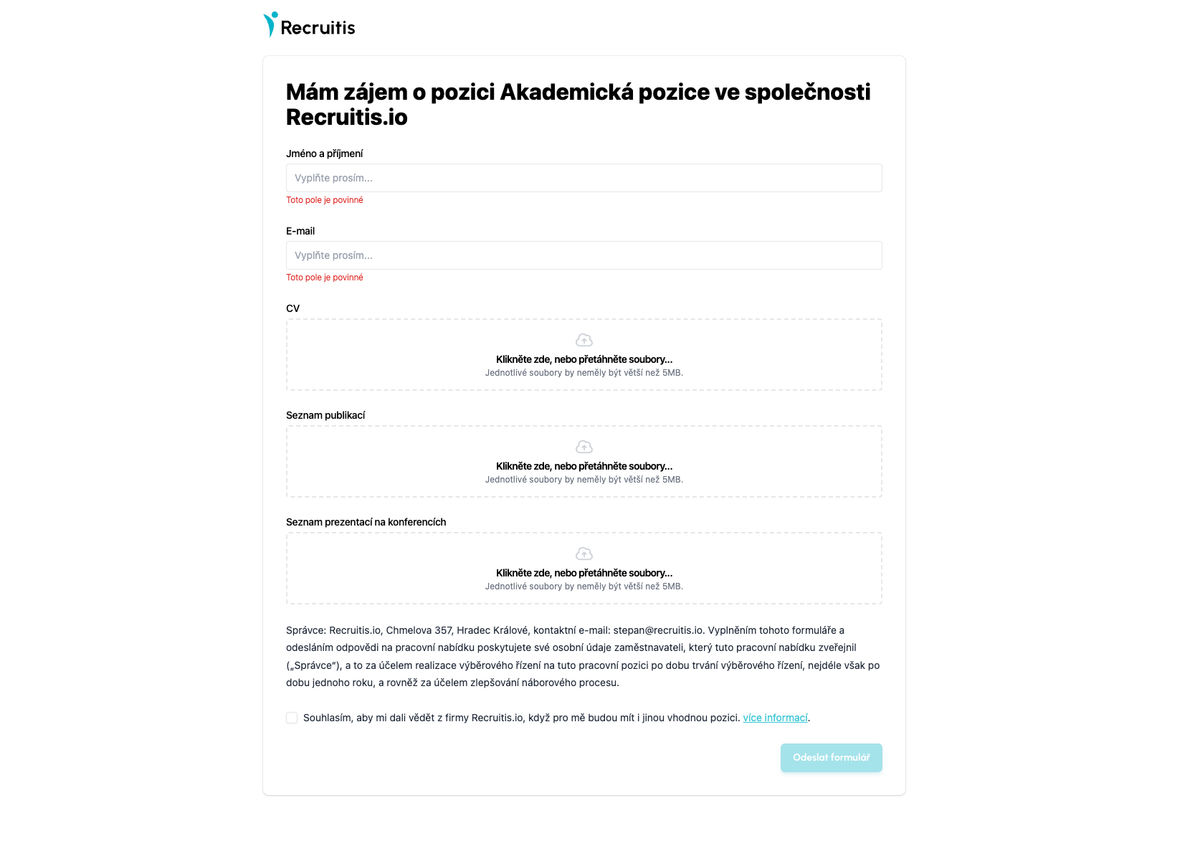
- You can insert several attachment fields into a form – not just one for the CV, but as many as you need.
- Files of up to 50 MB and PPT attachments, which are blocked elsewhere, can also be uploaded.
- Larger files take longer to upload – you can let your candidates know in an information text, which you can adjust however you like.
- In addition to questions, you can insert information texts with instructions or a description for the candidate.
- You can insert questions that the candidate answers with a video, so-called video questionnaires (link to their documentation).
- Several elements can be placed on one row (up to 4), visually grouping the ones that belong together.
- You can copy the structure of an entire form and paste it into another one to speed up creating new forms.
- You choose the language of each form yourself, and you can also create several language versions of the same form or questionnaire.
- You have full control over the texts around the individual elements – you set the description, subtitle, default value and more exactly according to your needs and the tone you use with candidates.
- For text fields, you choose the validation type and the wording of the validation messages.
- The settings also include a preview of the resulting form.
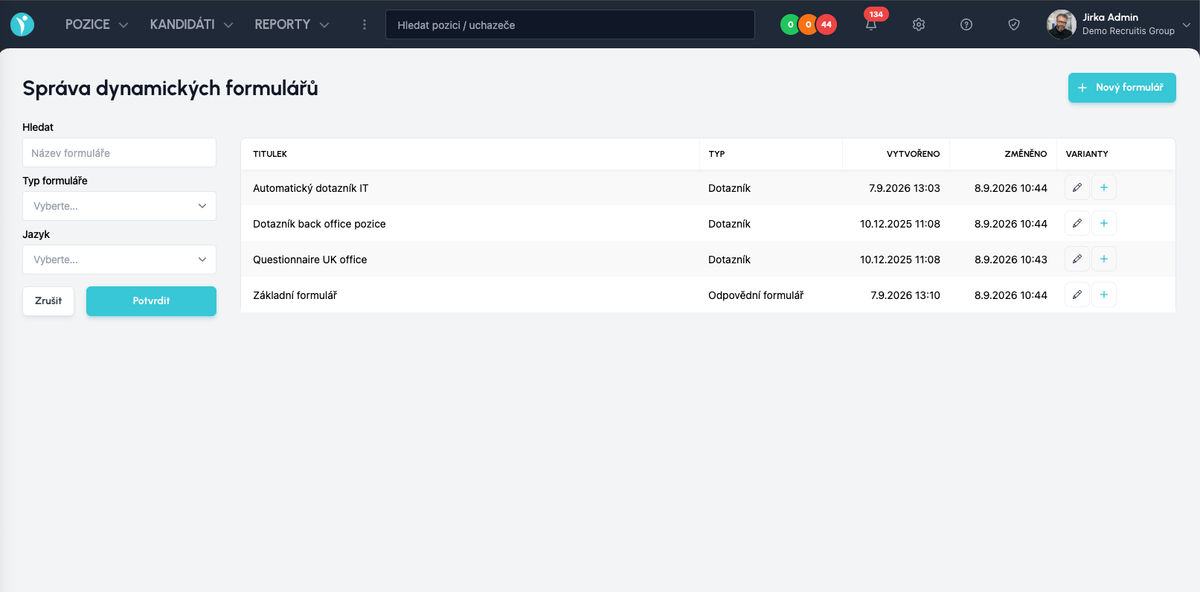
- In the template list, you can search not only by text but also by template type and language.
Settings
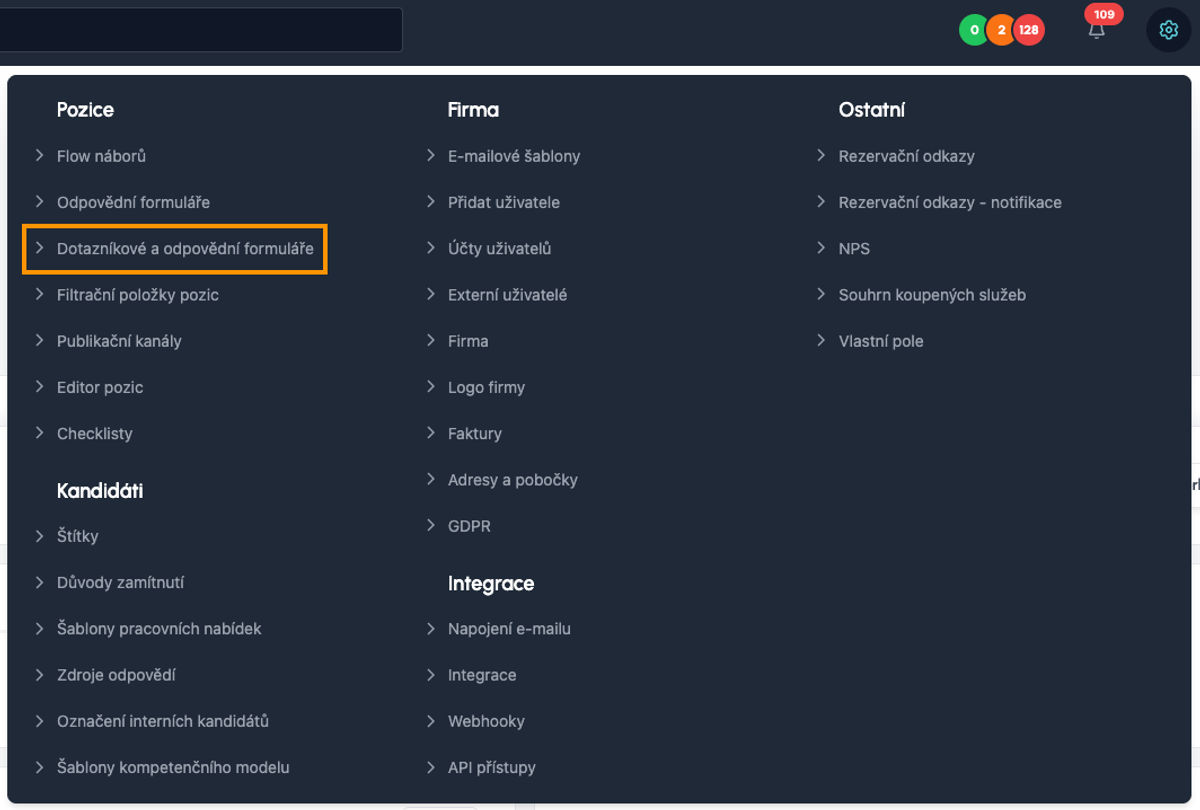
Dynamic forms are set up in the menu Settings | Positions | Questionnaire and application forms (link).
The start screen shows an overview of existing templates, where you can search, edit and create new templates.
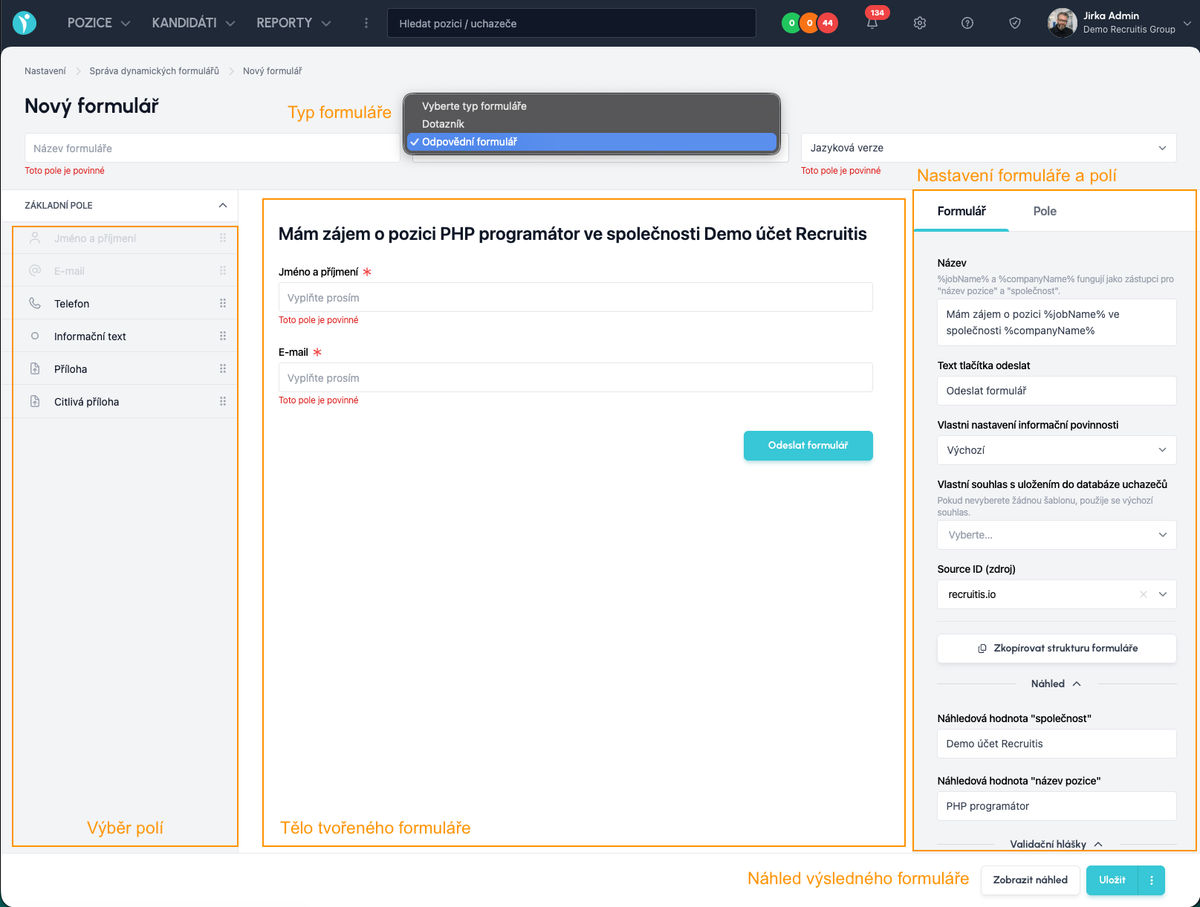
When you choose to edit a template or create a new one, the editing window opens, divided into several basic parts:
- In the header, you choose the name, the type (application form, questionnaire or landing page), the language of the form and the company design (if you have any set up).
- In the left column, you choose the fields you want to insert into the form.
- In the middle, you see the current form in editing mode – in the footer on the right, you can then display a real visual preview of the form.
- On the right, you set the parameters of the form or of the currently selected element.
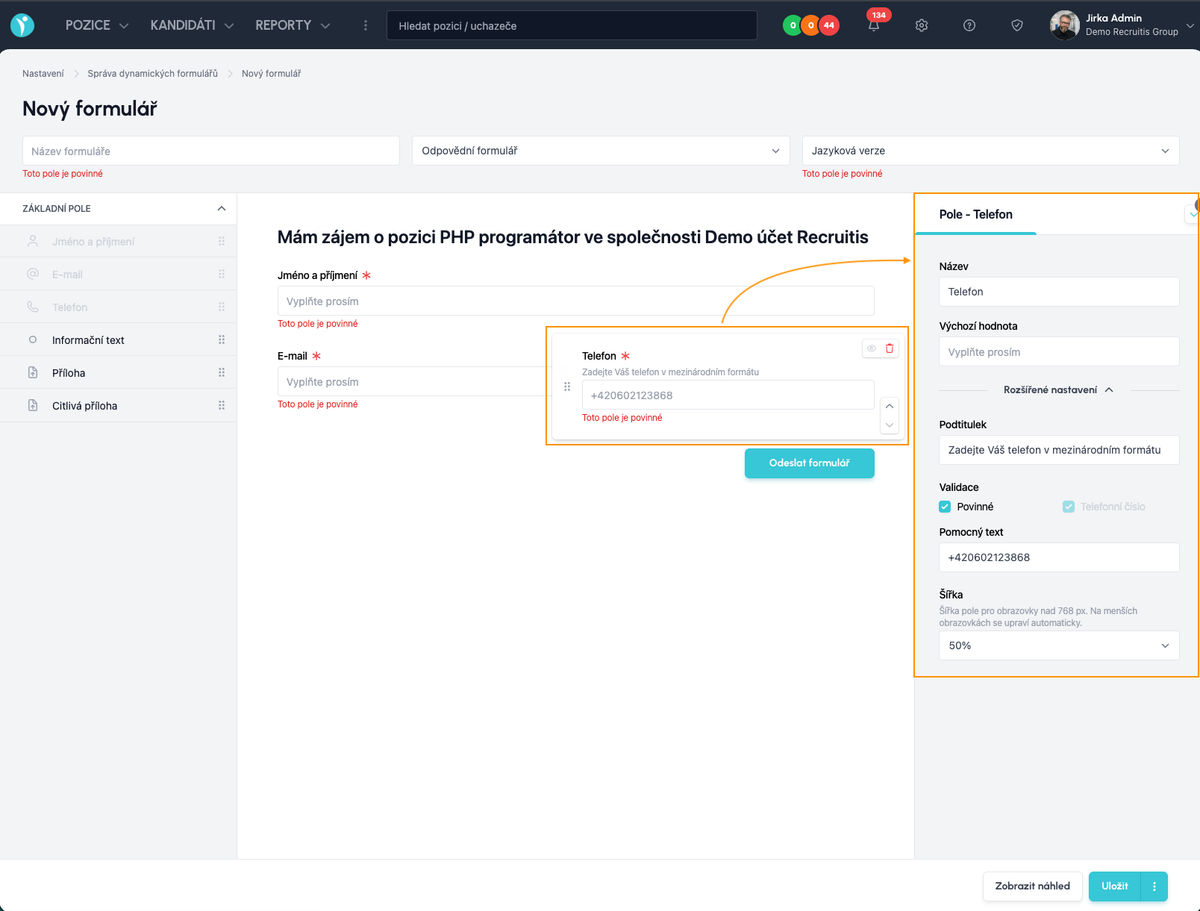
After selecting a specific field in the form, you can set its properties:
Using it for application forms
If you want to use a dynamic form created as the Application form type for a specific position, just go to Position settings | Application form.
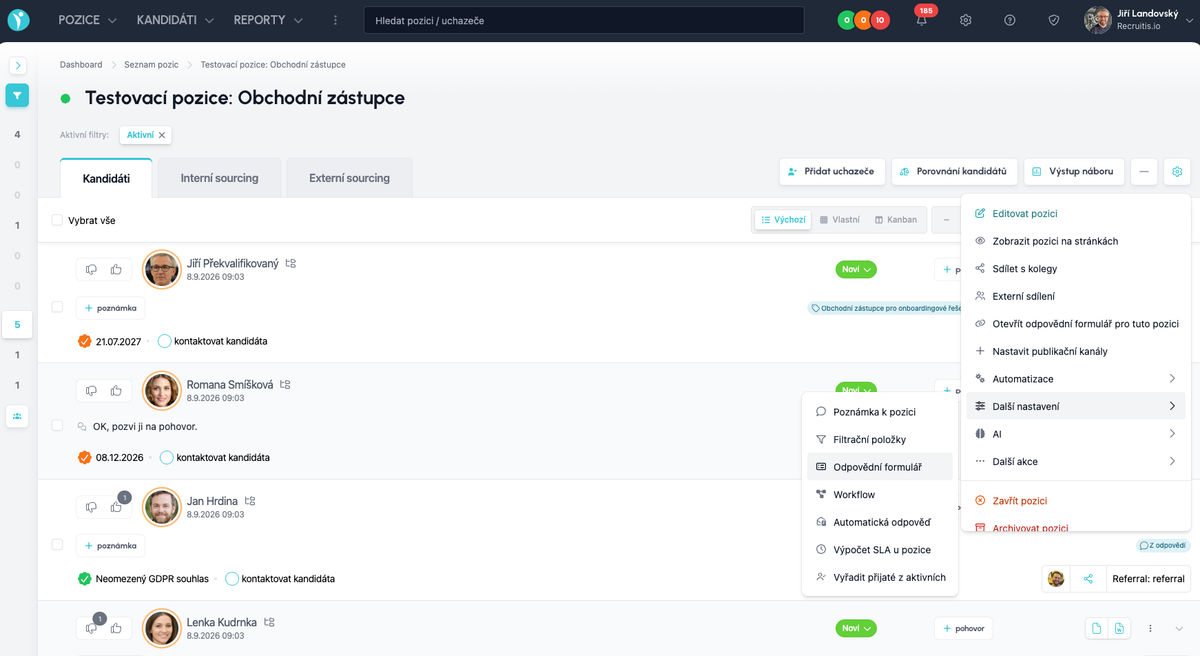
There you can then choose the “Advanced” type, where the defined dynamic forms are offered.
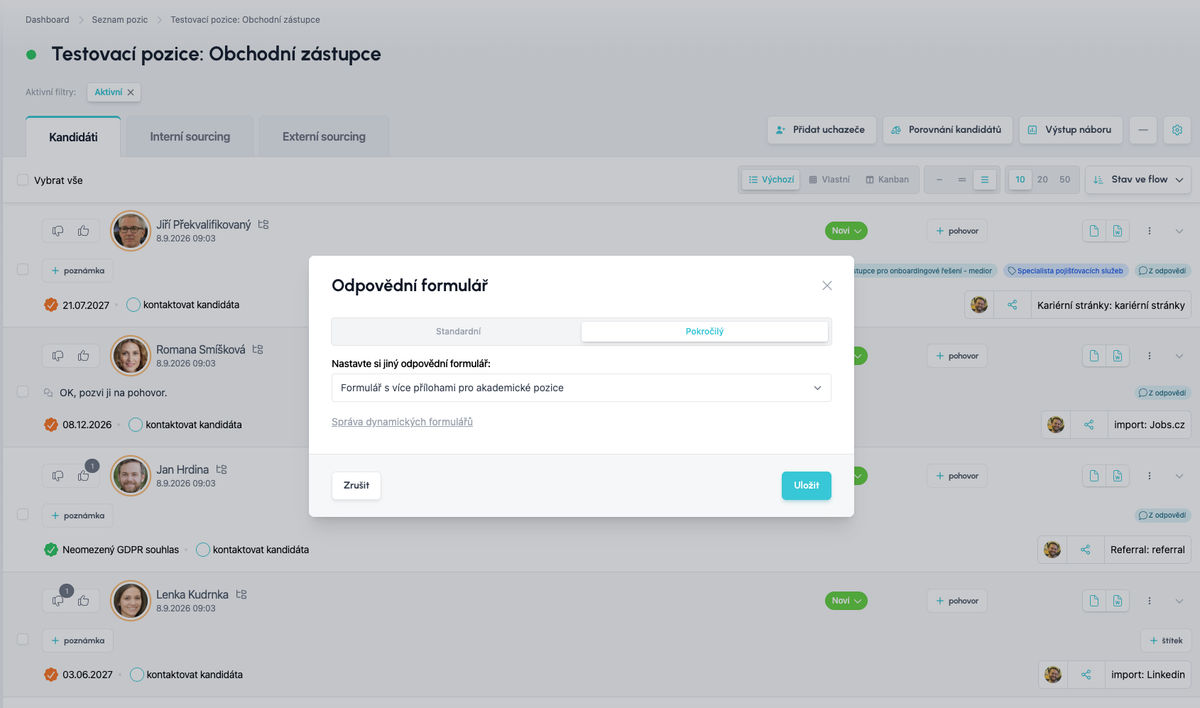
After saving, the new form becomes the application form of the given position.
You can check it, for example, with the Settings | Open the application form for this position function.
💡 The application form keeps the same URL even if you change its content – so you don’t have to worry that a change will break any connected integrations.
Using it for questionnaires
A huge added value of the new dynamic forms is that they can also be used as questionnaires. This means you can create several questionnaire templates, for example for different recruitment stages or different types of positions, and then send them to candidates during the selection process.
Questionnaires are assigned to a candidate via an email template – for each questionnaire template, you can create one (or more) email templates.
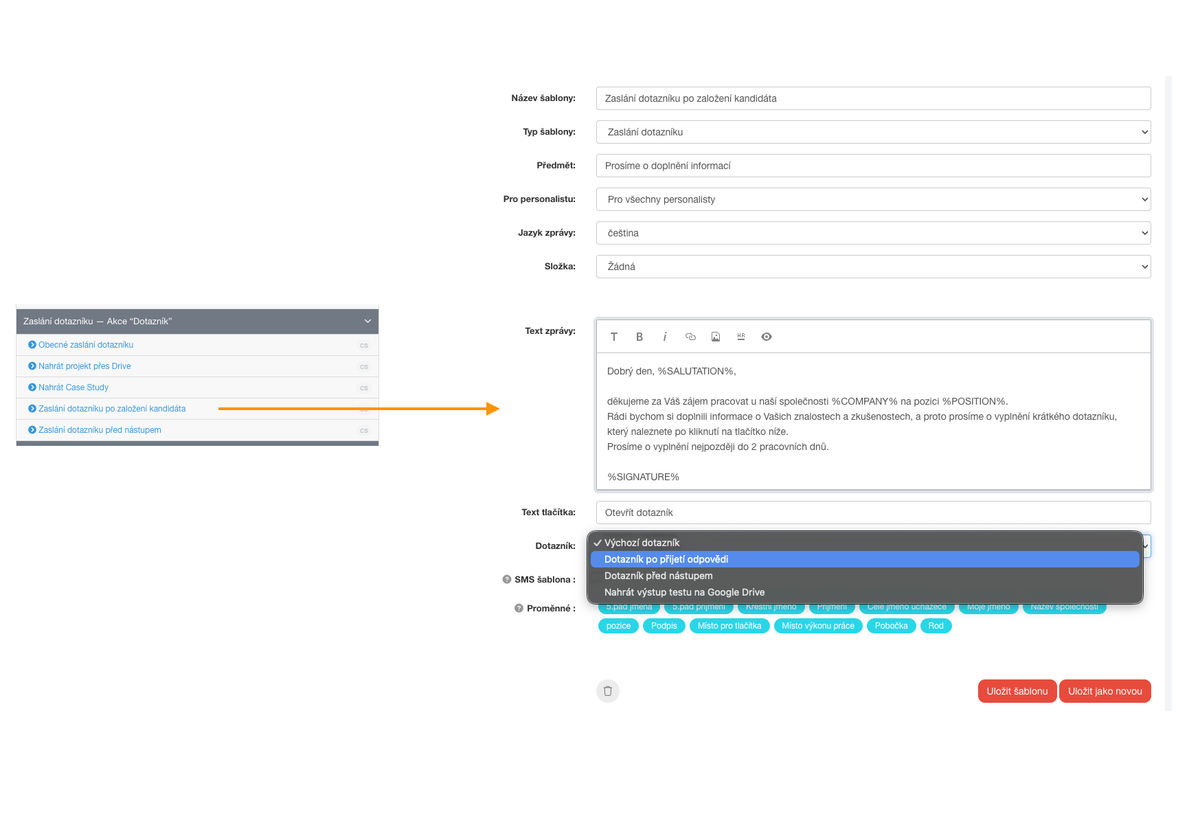
You then simply send the email template to the candidate either the “classic” way, as part of a flow status action that triggers sending questionnaires (i.e. the “Candidate is waiting for a questionnaire / call” action), just as with the existing ordinary questionnaires.
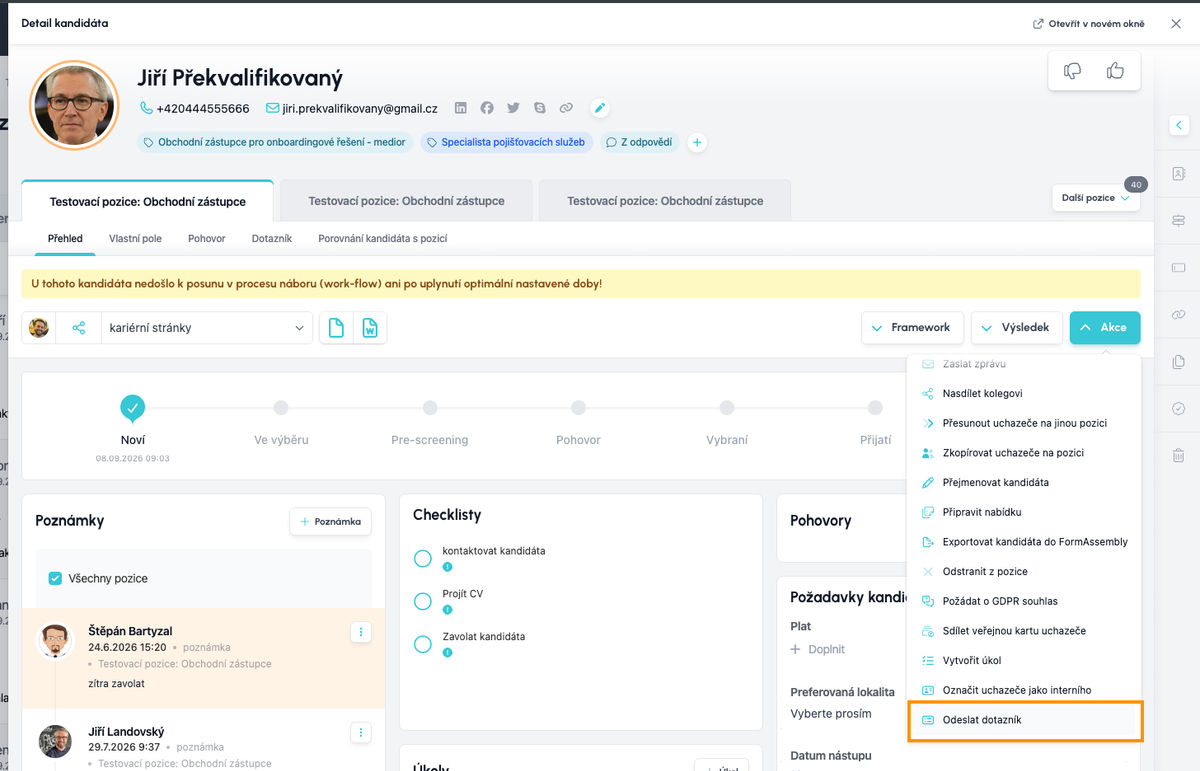
For questionnaires created from dynamic forms, you can also use a separate “Send questionnaire” action in the menu on the candidate card.
💡 A questionnaire can also be inserted into an automatic reply template, so you can fully automate sending it if it is an integral part of your recruitment process – this way you can speed up and simplify the pre-selection of candidates (not everyone will reply, only those who are seriously interested).
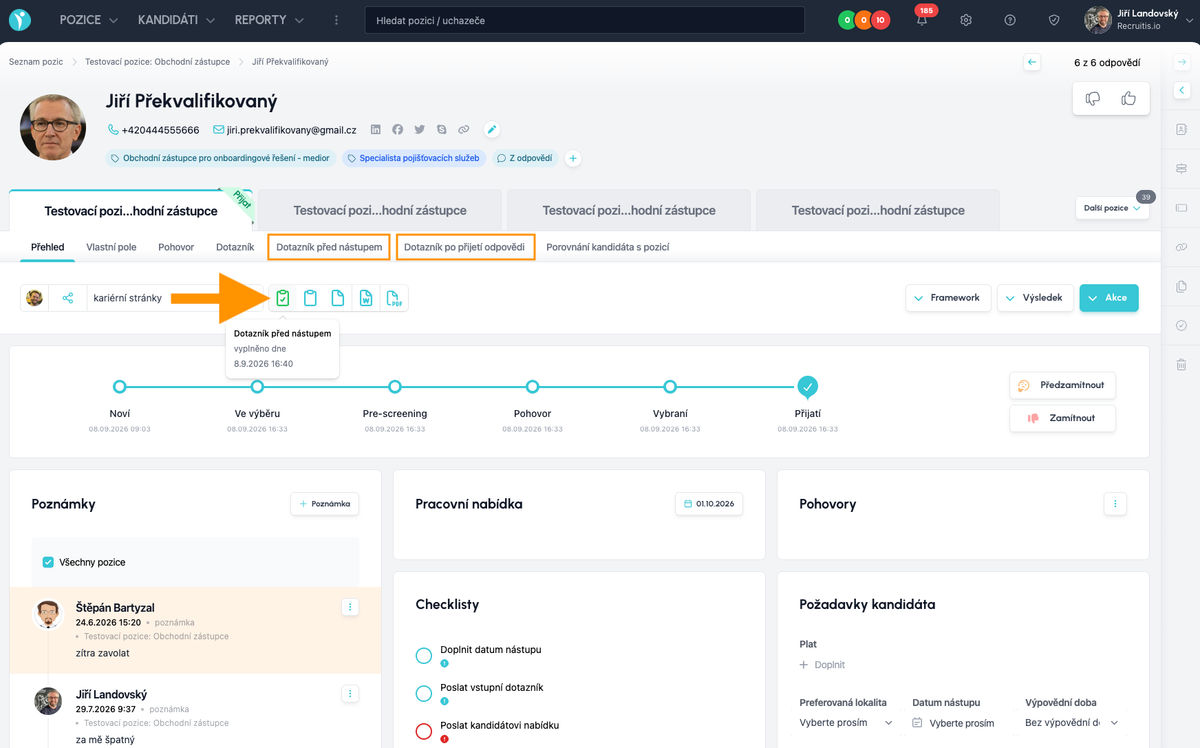
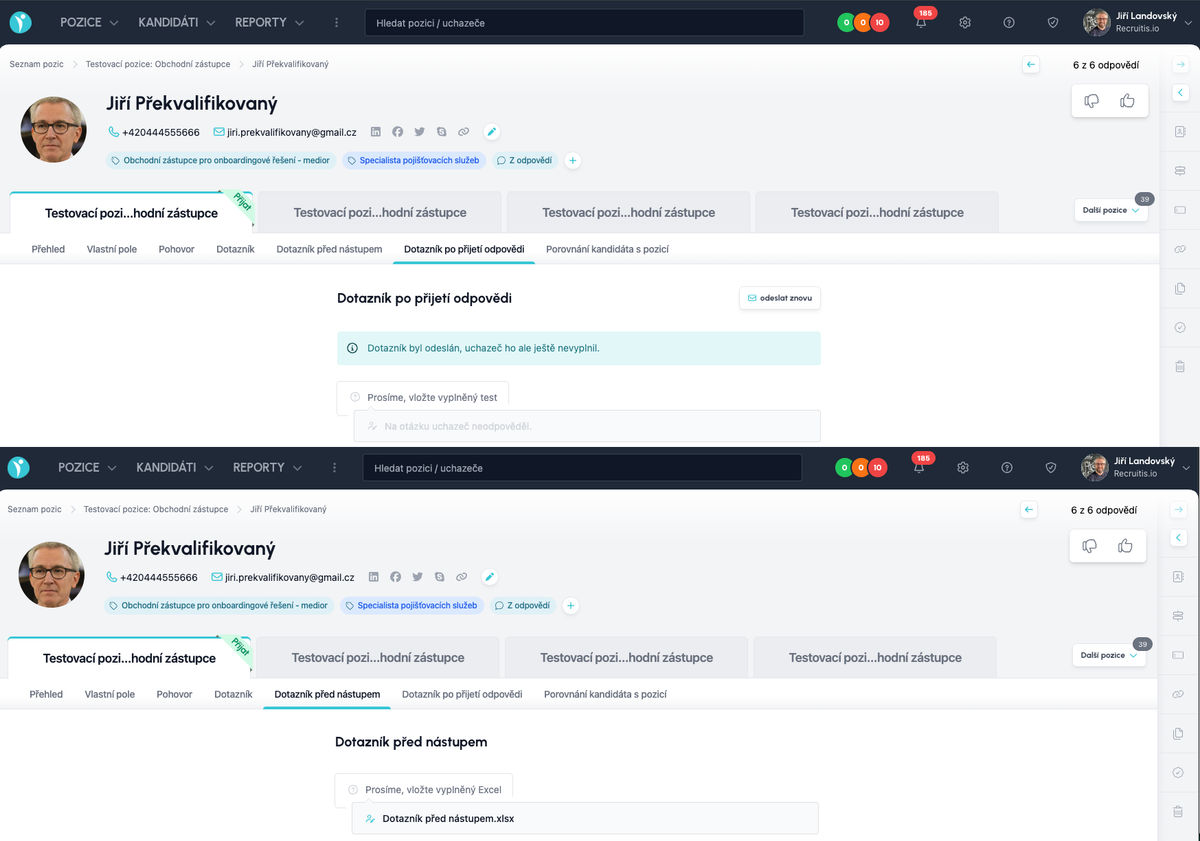
Questionnaires created from dynamic forms are added as separate tabs on the candidate card, so you always see which questionnaires were sent to the candidate and what values they filled in – or that they didn’t fill in the questionnaire.
💡 The tabs take over the names of your forms, so it pays to give them clear and meaningful names.
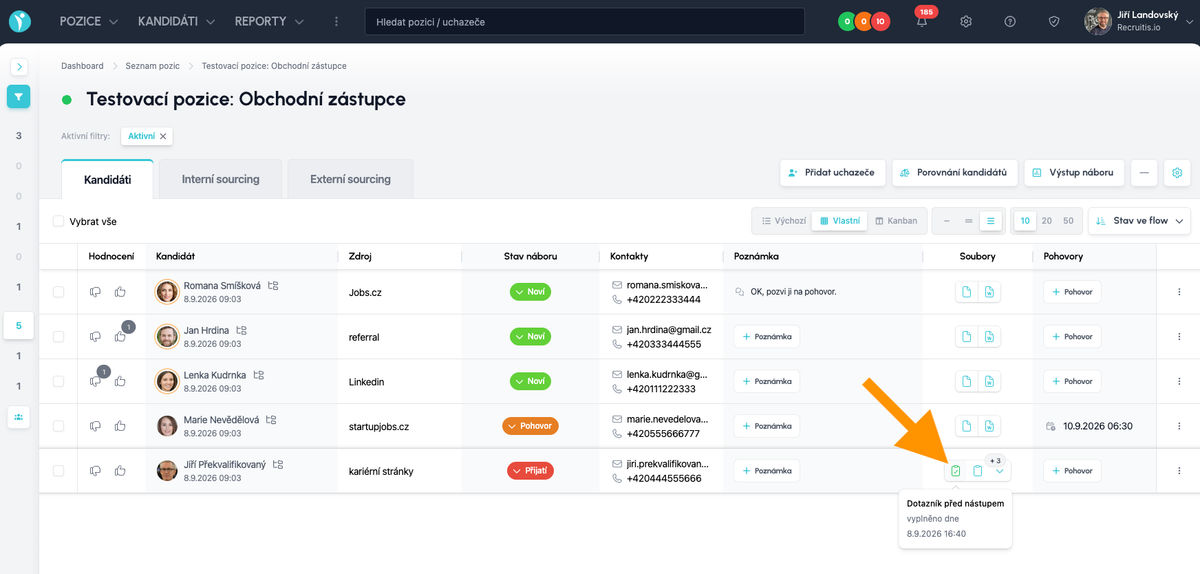
💡 “Clipboard” icons in the attachments section tell you whether a questionnaire has been filled in or not – on the candidate card as well as in the position detail and the talent pool. On mouse-over, you will see the name of the questionnaire and the completion date. The icon of a completed questionnaire has a tick and is green.
Using it for landing pages
Do you want to reach candidates outside a specific selection process too, for example at a job fair, during a university visit, at a networking event or as part of a competition? Just like the original application forms, the new form builder lets you create a landing page with a selected form.
People register through it and are saved directly to your talent pool, so you have them at hand as soon as a suitable position opens.
How to build a landing page
You put the page together from two types of elements:
- Description field: a text block with an editor (WYSIWYG), where you insert an introductory text, information about the company, benefits, links or images.
- Form placeholder: the place where you insert one of the forms you have already created.
Unlike the previous version, you are no longer tied to a fixed header – form – footer structure: you can insert description fields as many times as you like and anywhere. So you can put text above the form, below it, split it into several blocks, or leave it out completely and keep only the form itself on the page.
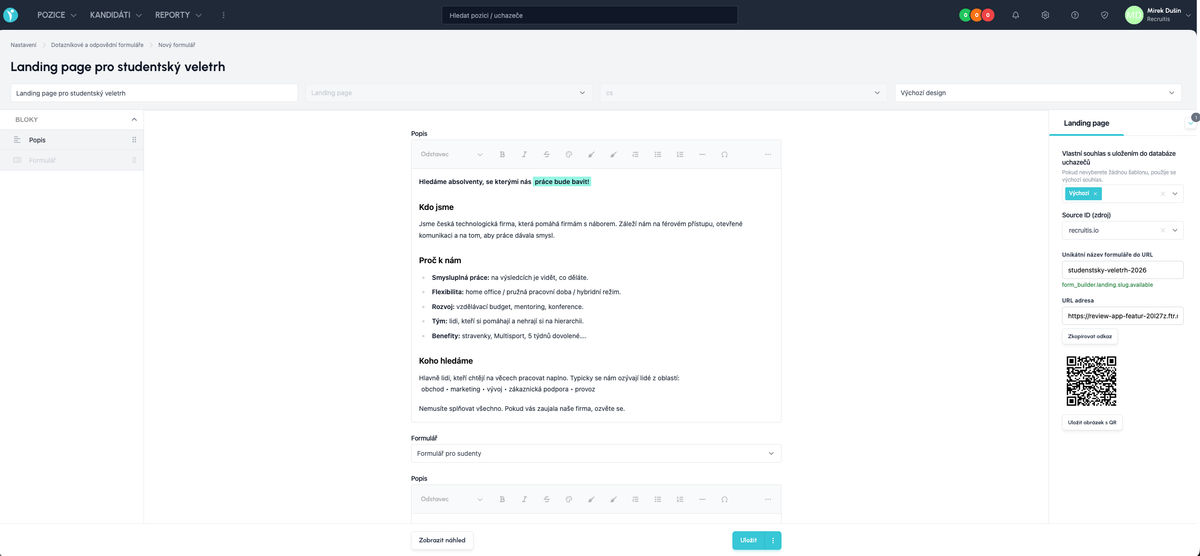
💡 If the form is for quick registration at events, where people have only a few seconds to fill it in, it is better to put only a short text above the form (or none at all) and more detailed information below it. That usually works better than a long text the candidate has to wade through before reaching the form.
How a landing page differs from a form
The main difference is where candidates are saved. An ordinary application form is tied to a specific position. A landing page saves candidates to the talent pool, i.e. without a link to a specific selection process.
This leads to one important condition: a landing page must have a GDPR consent and a source assigned. Without them, it cannot be saved, and without agreeing to the consent, the candidate cannot sign up. The candidate must confirm the consent when filling in the form. This way, the data in your talent pool is always backed by consent and you can safely contact candidates later too.
Custom URL and QR code
You can now set your own “nice” URL ending (the part after the last slash). Instead of a random string, the address can look like this, for example:
…/veletrh-jobchallenge-2026 or …/staze-cvut
Such an address is clearer for candidates, easier to share, and you immediately know which event the page belongs to.
In addition, a QR code is generated automatically for the landing page, which you can download as a PNG and use on roll-ups, flyers, business cards or presentations. The candidate scans the code with their phone and is in your talent pool within moments.
💡 Create a separate landing page with its own URL, QR code and source for each event. You can then easily evaluate which fair or university brought you the most candidates, and next time you will know where to invest your time and budget.
💡 Good to know
- You can use different company design settings for forms, questionnaires and landing pages – see the documentation: Company design
Related articles
Webhooks for the Nelisa portal
Let ATS Recruitis automatically download your candidates from the Nelisa portal.
Impersonation
Combining the answers of a historically depersonalized candidate with a new answer.
Talent database and its possibilities
The talent database does not have to be used only for searching contacts for candidates.