Connect your AI assistant to Recruitis via MCP
AI assistants are a normal part of work today, and they can help with recruitment more than you might think. Until now, though, you had to copy data from Recruitis to them by hand. That’s why Recruitis now supports MCP (Model Context Protocol), a common language between AI assistants and applications.
You can connect your assistant, for example Claude Code or Codex, to Recruitis in a few minutes.
Then you simply ask it: “How many new candidates do I have on my open positions?” or “Summarise this candidate’s CV.”
The assistant always acts as you and sees only what you see.
Where to find it
MCP is built right into Recruitis – you don’t have to install anything or set up another service. The connection is set up in your AI client.
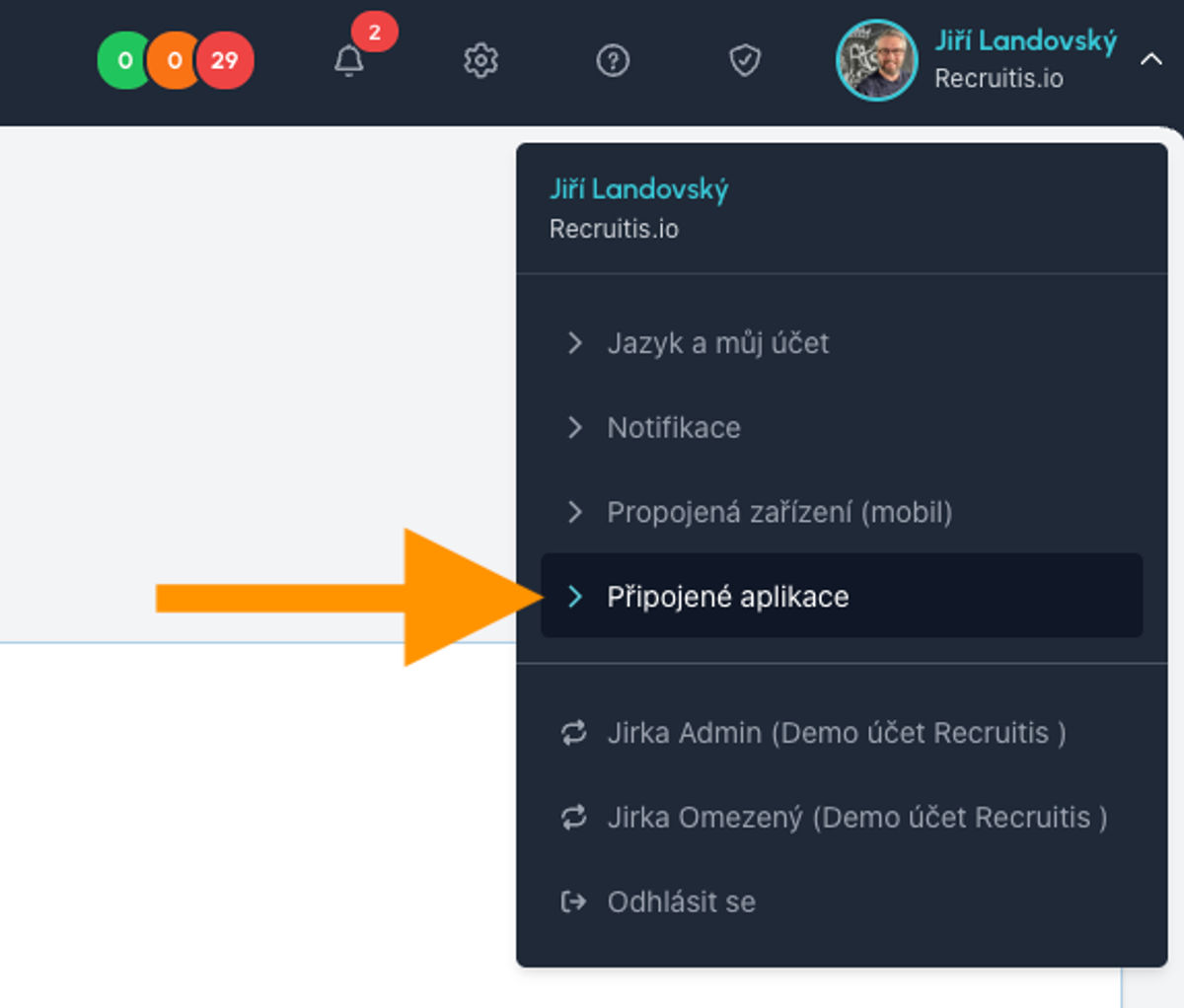
In Recruitis, you then manage it by clicking your name in the top right → Connected apps. There you will find:
- an overview of all your connections and instructions on how to set up the client,
- tool editing, which lets you take permissions away from the assistant at any time,
- revoking a connection, which cancels the assistant’s access immediately.
Who can use MCP
MCP is turned off by default for every account.
If you want to turn it on, write to us at podpora@recruitis.io.
- Once it is on, all active internal users of your account can connect.
- External users cannot connect.
- Your account administrator can see the connections of all their colleagues.
💡 The feature is available from the Premium license.
How to set up MCP
1. Add Recruitis to your AI client
The server address is https://app.recruitis.io/mcp:
# Claude Code
claude mcp add --transport http recruitis https://app.recruitis.io/mcp

# Codex
codex mcp add recruitis --url https://app.recruitis.io/mcp
2. Sign in to Recruitis
The client works out how to sign in by itself and opens a browser for you. If you are already signed in to Recruitis, this step is skipped. The assistant never sees your password. It only gets a temporary pass (a so-called token), which Recruitis can invalidate at any time.
3. Approve what the assistant may do
On the consent screen, you will see the name of the client, your account and a list of tools with checkboxes:
- Tools that only read are pre-ticked. If you don’t want to give the assistant access to one of them, untick it.
- The two tools that write (adding a note and moving a candidate to another round) are not ticked. If you want the assistant to change anything in Recruitis, you have to allow them deliberately.
- At least one tool must remain ticked.
Confirm your selection with the Allow button and you’re done. Now you can start asking the assistant.
How long the connection lasts
As long as you use the assistant, the client keeps renewing the sign-in by itself.
The connection expires only after 30 days without use.
Renewal never adds new permissions. The assistant always has at most what you have approved.
Changing or cancelling the connection
- Removing a tool takes effect immediately, from the assistant’s very next request.
- Adding a tool is only possible with new consent. The client sends you to the consent screen again. The same applies when a new tool is added to Recruitis.
- Revoking: in the Connected apps menu, untick all tools and click Revoke.
💡 Watch out: If you remove Recruitis only in your AI client, the connection in Recruitis remains valid. If you no longer need it, revoke it in the Connected apps section as well.
What the assistant can do
In Recruitis, the assistant has 15 tools at its disposal:
- Overview and positions: information about the connection, your open positions with candidate counts, the recruitment status of a position and position details (including closed ones).
- Candidates: candidates on a position with a filter by status and round, the latest applications, search by name, email or phone, candidate details and their history.
- Documents: reading the CV and cover letter.
- Interviews: your upcoming interviews, for the next 7 days unless specified otherwise.
- AI Reporter: plain-language questions over the reporting of the whole company, such as “How many people did we hire in the last quarter?” This tool is only available if you have AI Reporter and Reporting turned on. The AI Reporter doesn’t return candidates’ names, only their IDs.
- Writing: adding a note to a candidate and moving a candidate to another round. Recruitis enforces the rules of your recruitment process, for example it won’t let you skip a mandatory action.
What can you ask the assistant?
You ask in plain language. The assistant picks the right tool by itself:
- “How many new candidates do I have on my open positions?”
- “What interviews do I have this week?”
- “Summarise this candidate’s CV and cover letter.”
- “Find the candidate Jan Novák and show me his history.”
- “How is recruitment going for the Account Manager position? How many people are in which round?”
- “Add a note from today’s call to the candidate.”
- “Move the candidate to the In-person interview round.”
🛡️ Security first
- The same permissions as you. The assistant sees only the positions and candidates you see. The only exception is AI Reporter, which works with company-wide figures.
- Checks on every request. Recruitis verifies the connection, the allowed tools and your permissions every single time.
- It gives nothing away. The assistant gets the same answer for a hidden record as for a non-existent one, so there is no way to find out that something exists.
- Protection against fraudulent links. The consent screen cannot be embedded in someone else’s website, so nobody can trick you with a fake “Allow” button.
💡 Tips from practice
- Start with read-only. Allow the writing tools once you have tried out how the assistant works.
- Check whether the assistant asks you before writing. Recruitis carries out a note or a move without its own confirmation. Whether the assistant asks you depends on the settings of your AI client.
- Don’t blindly repeat an unclear write. If a write ends unclearly, first check in Recruitis whether it went through. Otherwise the note could be created twice.
- Expect an incomplete history. For emails, the assistant sees only the subject. It doesn’t see text messages and incoming emails at all yet.
- Keep things tidy. Revoke connections you no longer use.
Related articles
Webhooks for the Nelisa portal
Let ATS Recruitis automatically download your candidates from the Nelisa portal.
Impersonation
Combining the answers of a historically depersonalized candidate with a new answer.
Talent database and its possibilities
The talent database does not have to be used only for searching contacts for candidates.