Tasks
What are tasks for?
Tasks are an important tool for coordination between recruiters and hiring managers during the recruitment process.
For recruiters, they help maintain overview, efficiently distribute tasks within the team, or even tasks for themselves, such as reminders or notes for easier work organization.
On the other hand, the Hiring Manager receives a clearly structured assigned task, thanks to which they know what is expected of them and visually see on the candidate card what task they need to complete.
Where can you find tasks?
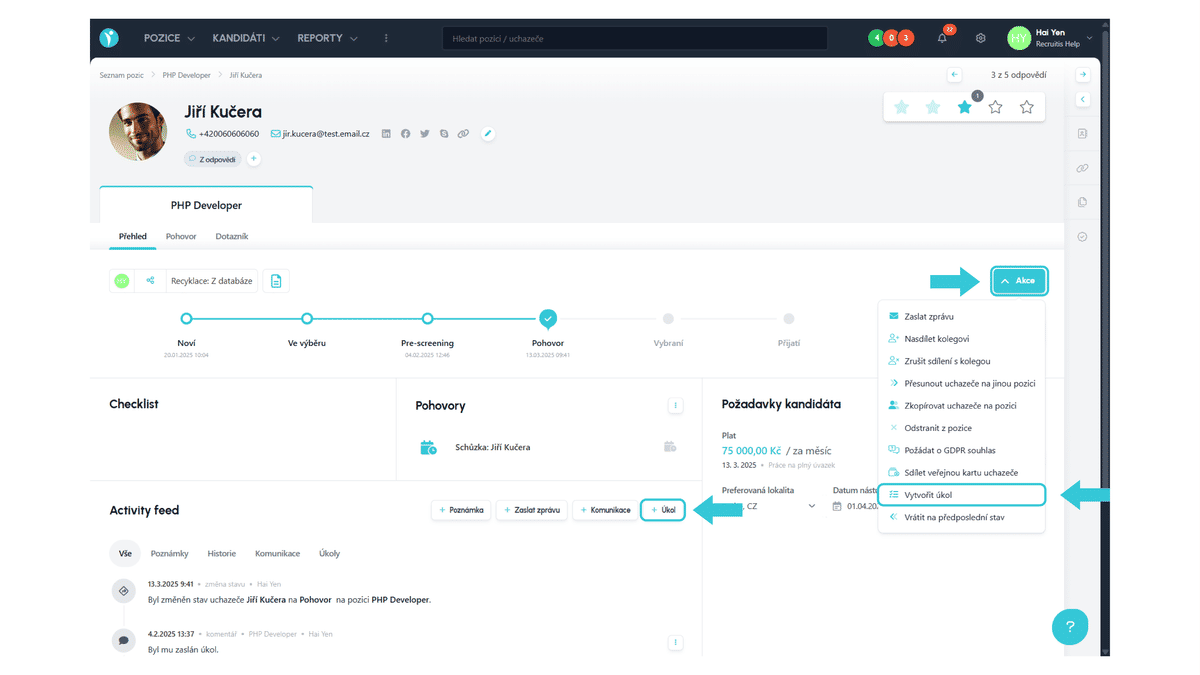
Adding tasks can be done on the new candidate card using the "+ Task" button or by expanding the "Actions" menu, where you will find "Create Task" among the options.
You can also add the My Tasks overview to the Dashboard as a widget, where you can manage and complete them directly. You can learn where you have access to completing tasks here.
How to work with tasks?
Tasks are added on the candidate card using the "+ Task" button or by selecting "Create Task" from the available actions. After clicking, an adding dialog appears.
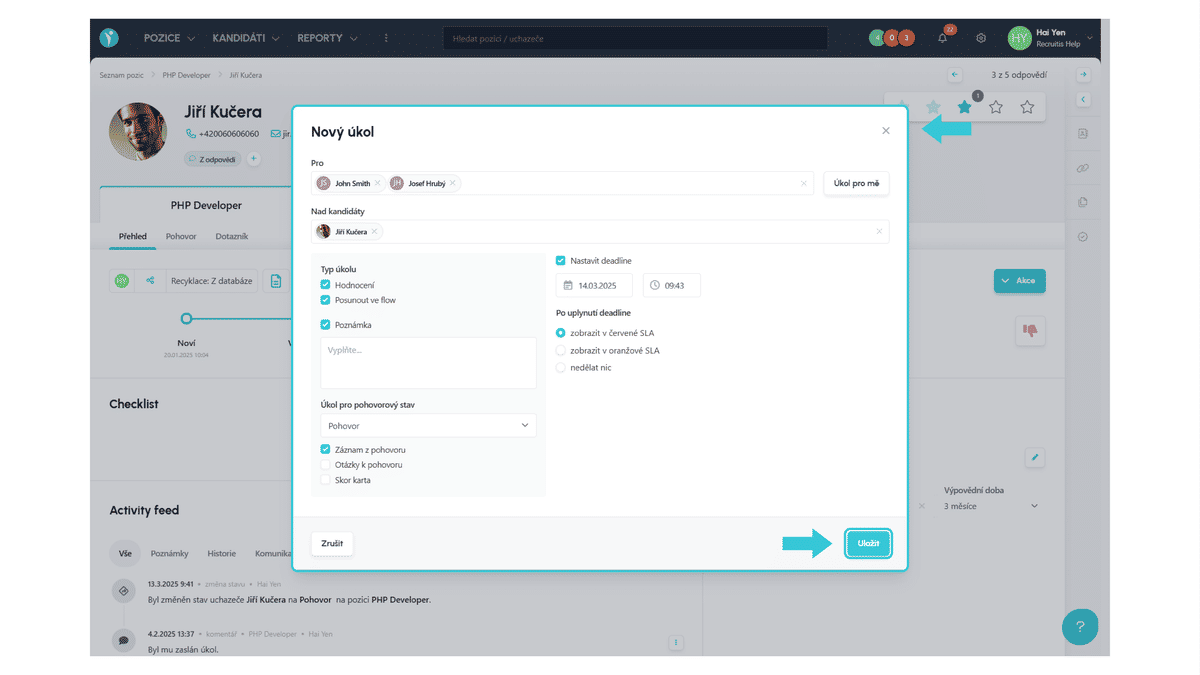
Here you first need to choose who the task will be assigned to. The task can be assigned to yourself by checking "Task for me" at the end of the row. Alternatively, you can search for your colleagues (you need to enter at least 3 characters in the text field to search and select them) and assign tasks to them.
The next part contains information about which candidates the given task is created for. Currently, a task can only be created for one candidate.
Next is the task selection. Here you can select which tasks can be created for candidates. You can ask a colleague or colleagues for:
- candidate evaluation,
- moving the candidate in the flow,
- leaving a note or feedback.
If it is a task related to an interview stage, you need to select the given stage in the flow (there can be multiple interview stages in one workflow) and then you can ask a colleague to fill in:
- interview record,
- interview questions,
- candidate scoring.
You can also set a deadline here, which can be selected from the next day.
Finally, you choose what action will be performed after the deadline expires within the SLA. Here you can choose from these options:
- show in red SLA - even though from the SLA perspective the candidate is not yet red (in critical time), after the task deadline expires it will turn red,
- show in orange SLA - even though from the SLA perspective the candidate is not yet orange (in critical time), after the task deadline expires it will turn orange,
- do nothing.
Then you need to complete the task creation by clicking the "Save" button.
Good to Know
- If you are the author of a task, you can edit or delete it by clicking on the three dots next to the specific task in the Activity Feed of the candidate to whom it is assigned.
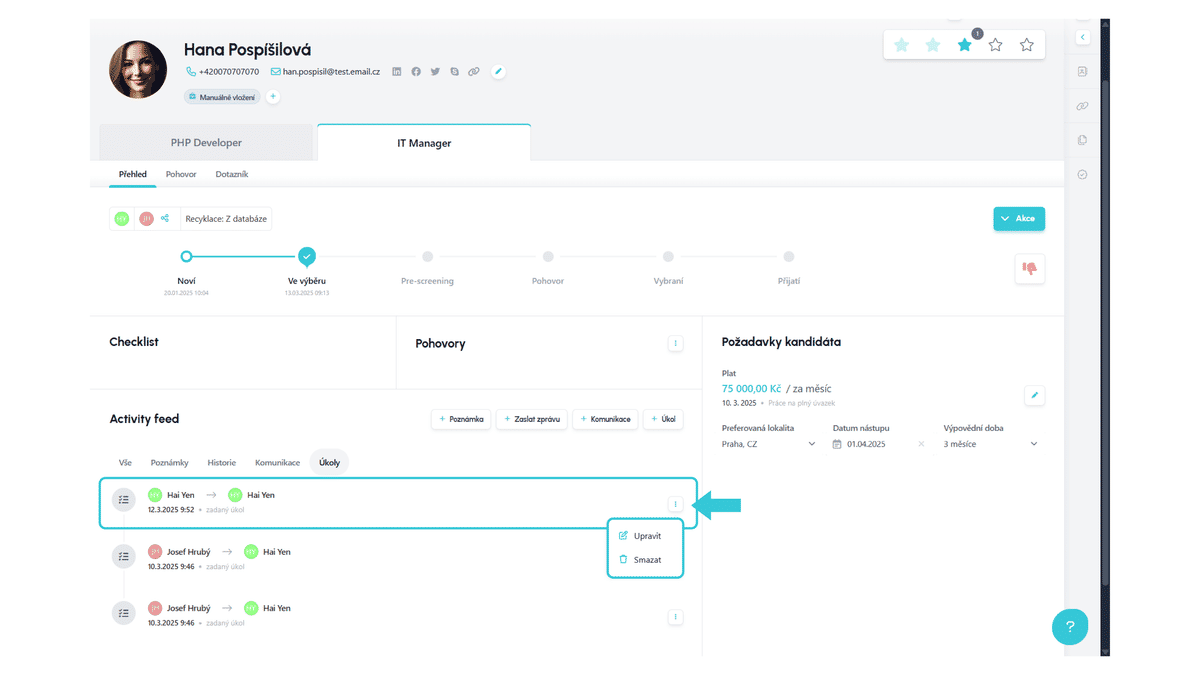
- When editing, you cannot change the task type - you can only edit the note text (if the task type is "note"), the deadline setting and the action after it expires.
Links to related articles:
Short promo video showcase for new tasks:
Related articles
Webhooks for the Nelisa portal
Let ATS Recruitis automatically download your candidates from the Nelisa portal.
Graphics and system appearance
Basic settings of graphic elements - logos and background.
Position editor settings
Select the optional items in the position editor that you want to display.