Working with Tags
What is tagging for?
Tagging is used for quick filtering and evaluation of candidates.
Using tags, you can mark and categorize candidates, for example, based on:
- skills (e.g., "English B1", "MS SQL", etc.)
- experience ("Junior", "10+ years of experience", etc.)
- other criteria that you have set up within your company (e.g., "Contractor", "full-remote", "Has XY certificate", etc.)
And they can also be used for:
- marking the candidate's status in the process (e.g., "Call in January 2025", "Send position offers", etc.)
- creating micro-pools within your talent pool (e.g., "Jiri's talent pool", "Graduates 2025", "Students for internship", etc.)
In general, tagging can be used for searching by all parameters that are relevant in your company - so before you start creating tags and their categories, list all parameters that you would like to use for searching in the talent database.
But at the same time, we recommend staying practical - it is not necessary to create tags for absolutely everything that comes to mind if you don't actually use it for searching.
Where do we find tags?
An overview of individual candidate tags can be found in the candidate database.
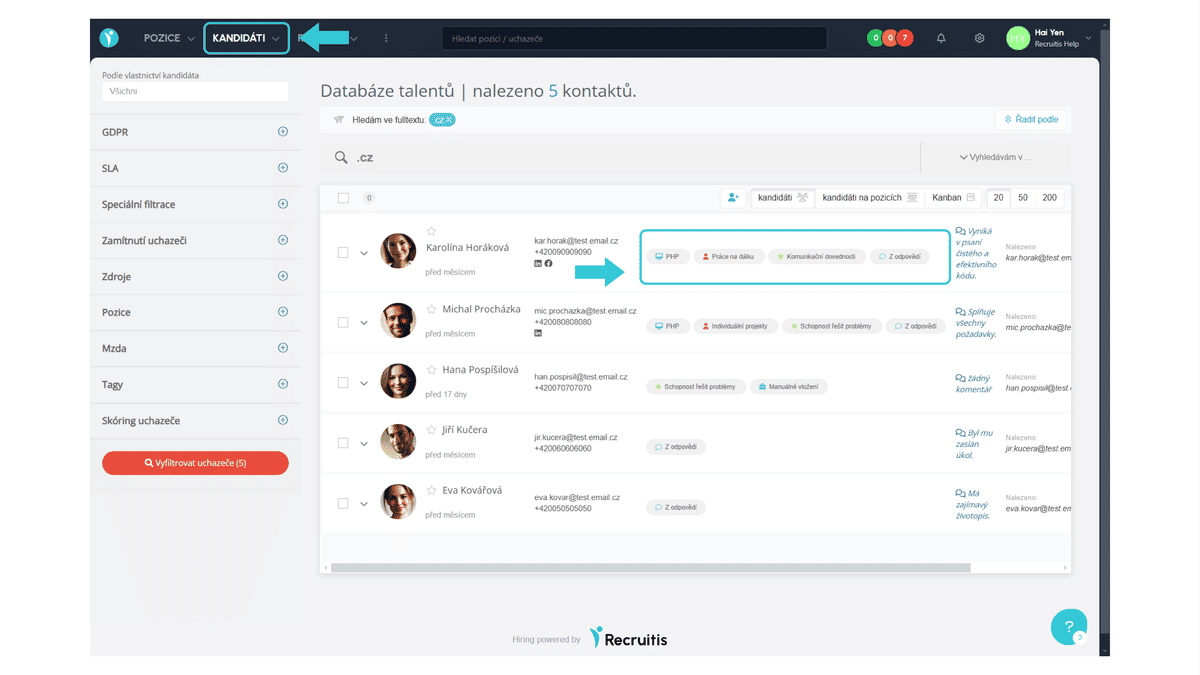
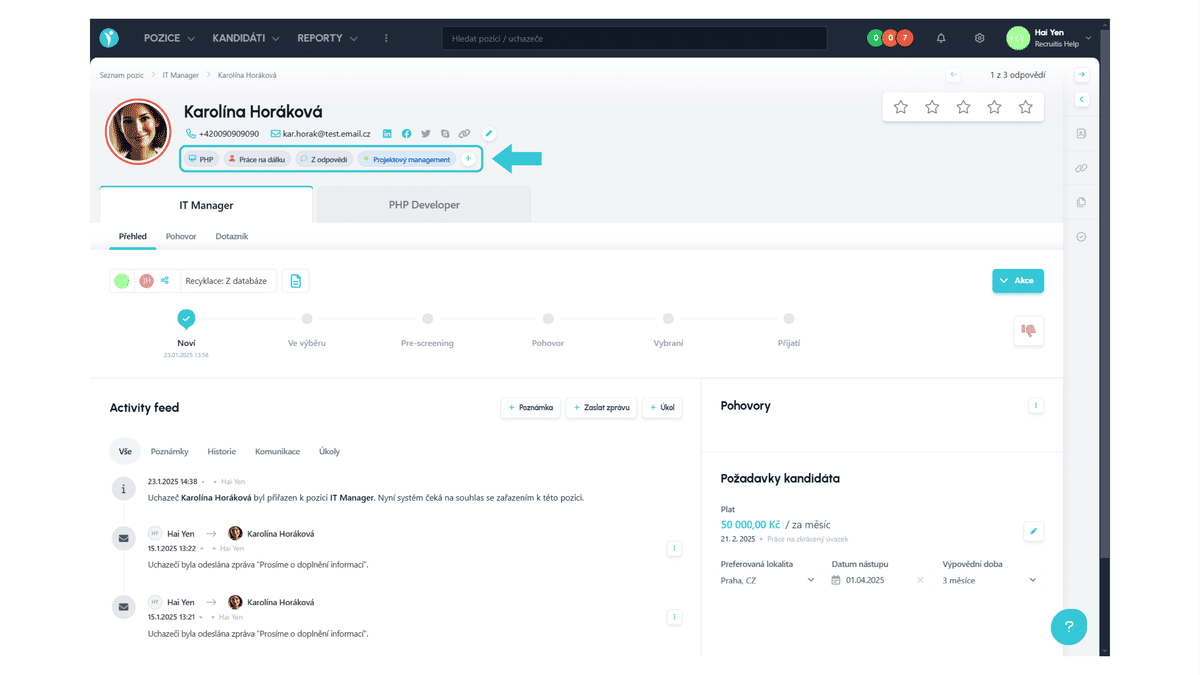
Or directly on the candidate card under their name and contact information.
How to work with tags?
Assigning tags
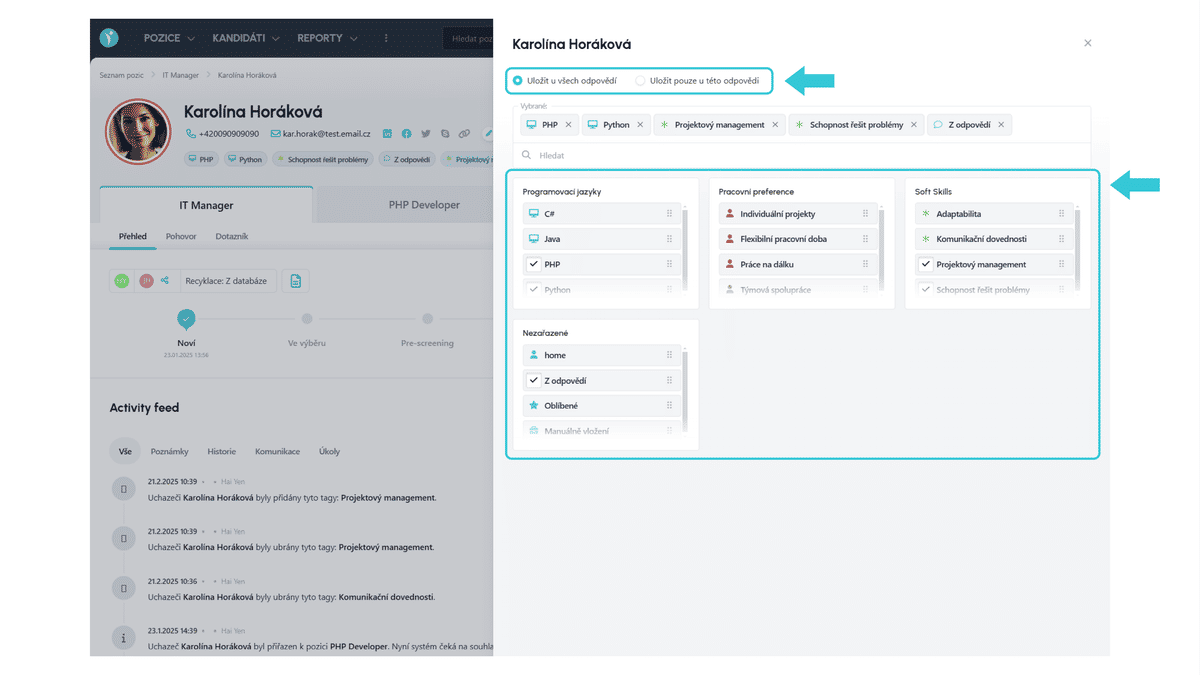
Tags can be easily assigned to a candidate by clicking on the + button, which you will find after the tag overview on the candidate card or by clicking on the tag listing in the candidate database. This step will open a side panel where you have the option to add and also remove tags.
When adding tags, there are two options. You can either add a tag that relates generally to the candidate. You can recognize this on the candidate card by the gray background. Or you have the option to add a tag directly to a specific position the applicant is applying for. Such a tag is displayed with a blue background. Depending on which type of tag you want to add, check the appropriate option at the very top of the settings.
After selecting the option, select the tags you want to add to the candidate by clicking on the appropriate tags.
Searching for tags
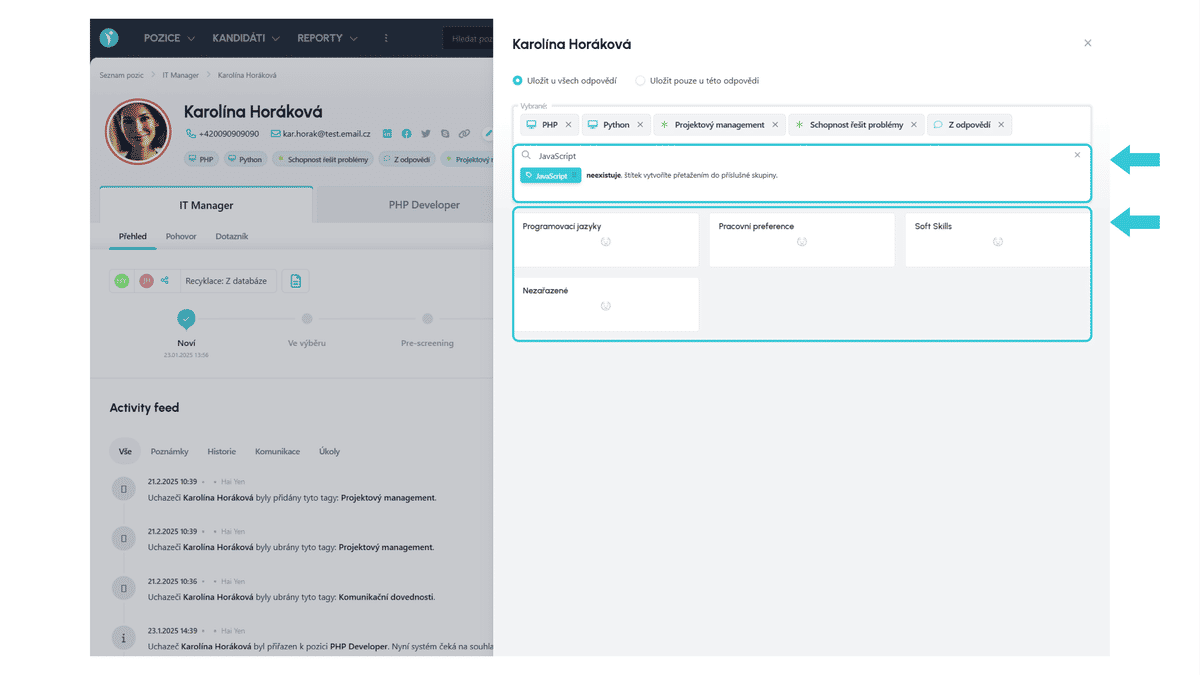
If you have a large number of tags created within your company, you can use the search. However, if you don't find the given tag and need to use it, you can create it right away. Just hold and drag the new tag (blue rectangle under the search) to the selected category. This will create the tag and you can add it to the candidate by clicking on it.
Deleting tags
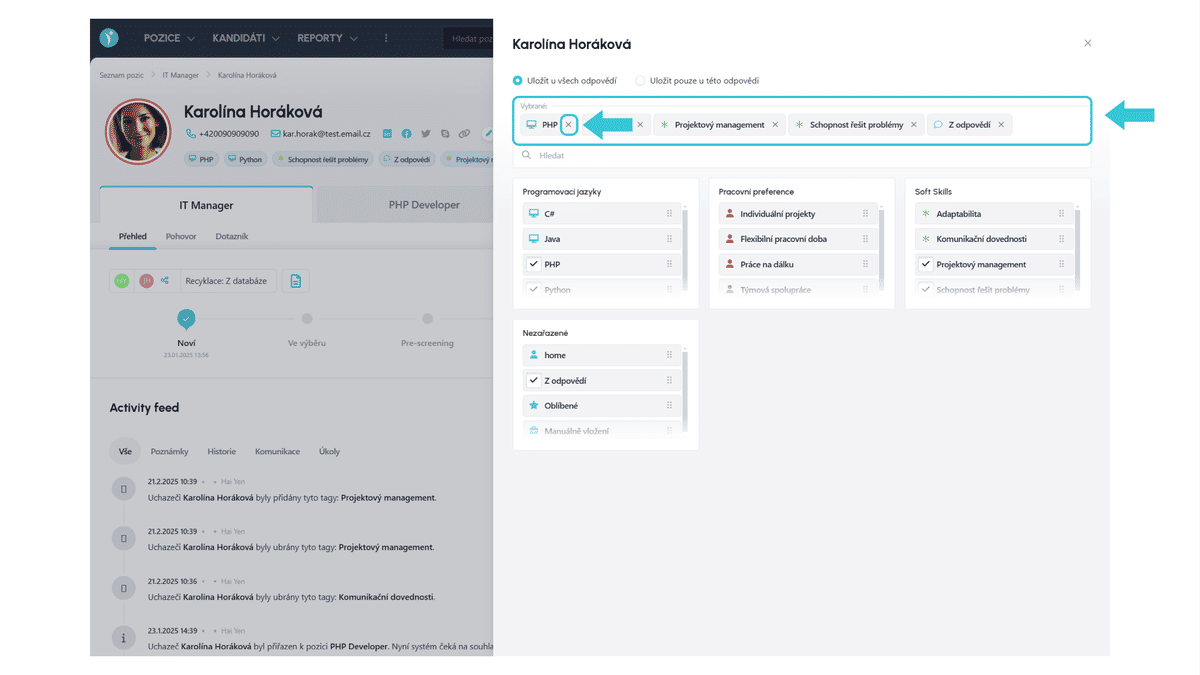
In case you assigned a wrong tag to a candidate or it is no longer relevant, you can delete it by clicking on the cross of the given tag in the selected tags overview.
Here it doesn't matter which option (save for all responses, or only for this response) you have selected, that only relates to saving. When deleting, the tag is deleted where it exists - so if it exists for the candidate, it is deleted for the candidate in general, if it exists only for a specific position, it is deleted for the given position you are currently on.
Good to know
- On the old candidate card, there was no option to add tags to a specific position, so all tags were tied to the candidate in general - e.g., candidate Josef responded to two positions: IT Manager and PHP Developer. If you assigned the unsuitable candidate tag to candidate Josef on the IT Manager position, then this tag was also on his response for the PHP Developer position, even though he might have been a suitable candidate for the PHP Developer position.
Related articles
Webhooks for the Nelisa portal
Let ATS Recruitis automatically download your candidates from the Nelisa portal.
Graphics and system appearance
Basic settings of graphic elements - logos and background.
Position editor settings
Select the optional items in the position editor that you want to display.