Working with Attachments
What are attachments for?
The files tab is used for storing all files such as a resume or cover letter that the candidate uploaded when responding to a position.
However, you can also upload other files that you need to keep for the candidate for recruitment purposes (e.g., profile photo, completed assignment, offer for the candidate, etc.).
Where do we find attachments?
We find attachments displayed in all places where candidate information is displayed. Specifically:
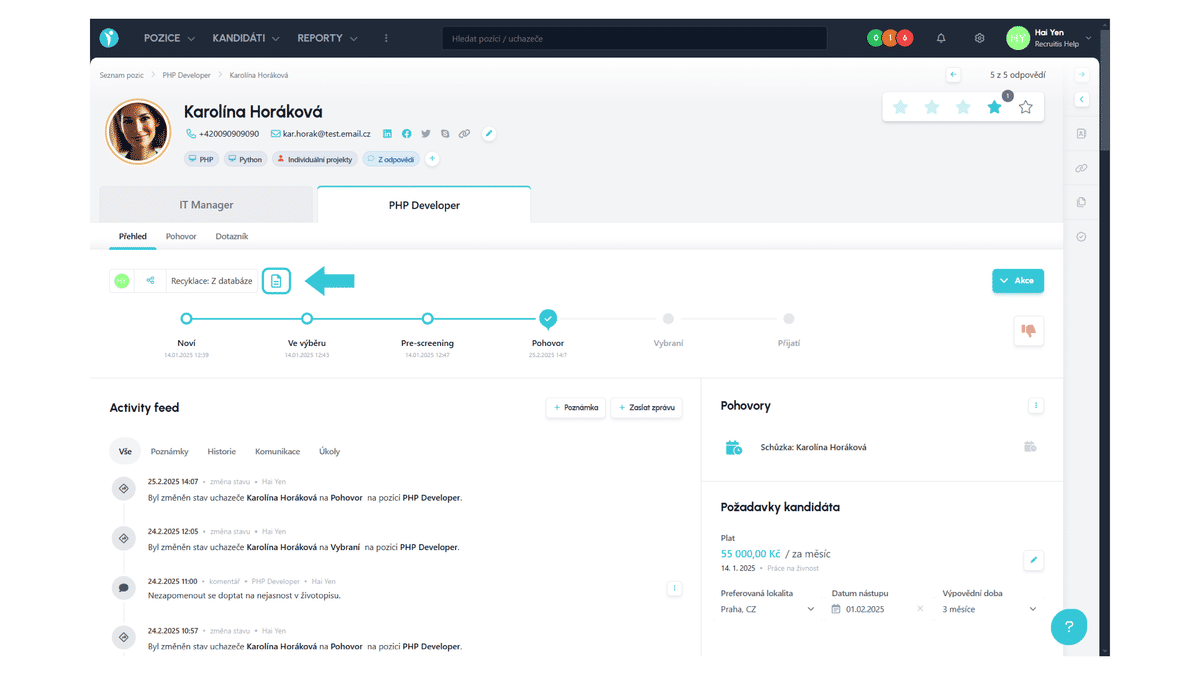
- on the candidate card in the left part above the recruitment flow (clicking on it displays the attachment)
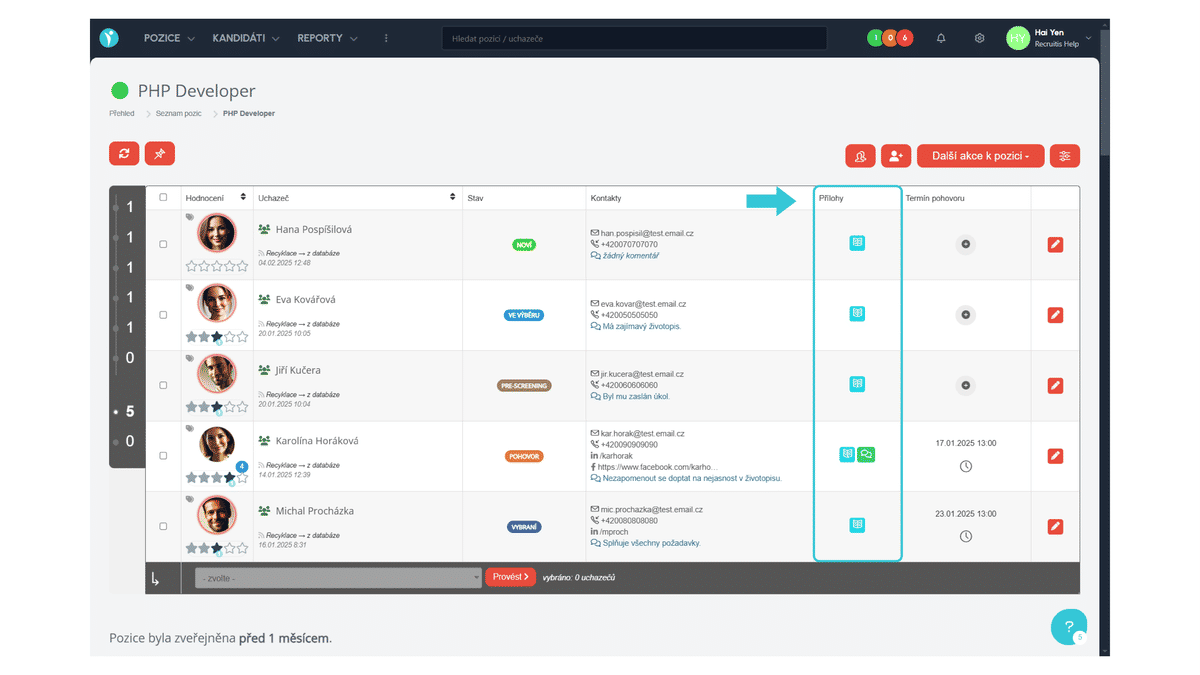
- in the candidate listing table in position detail
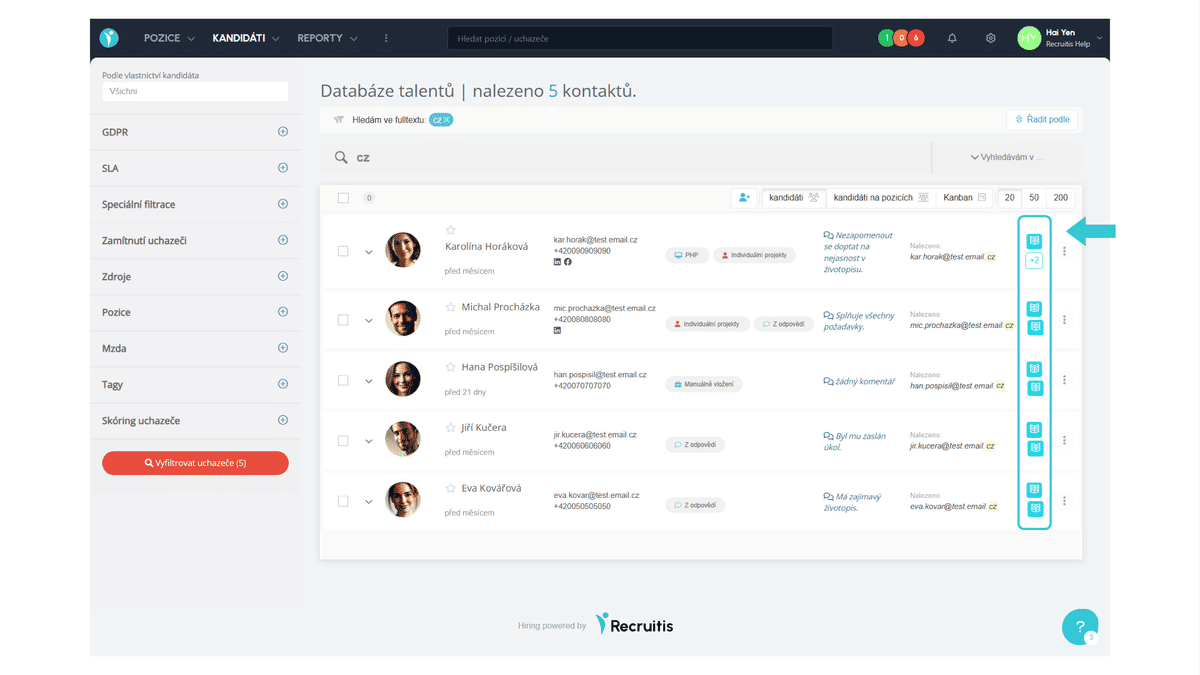
- in the talent database
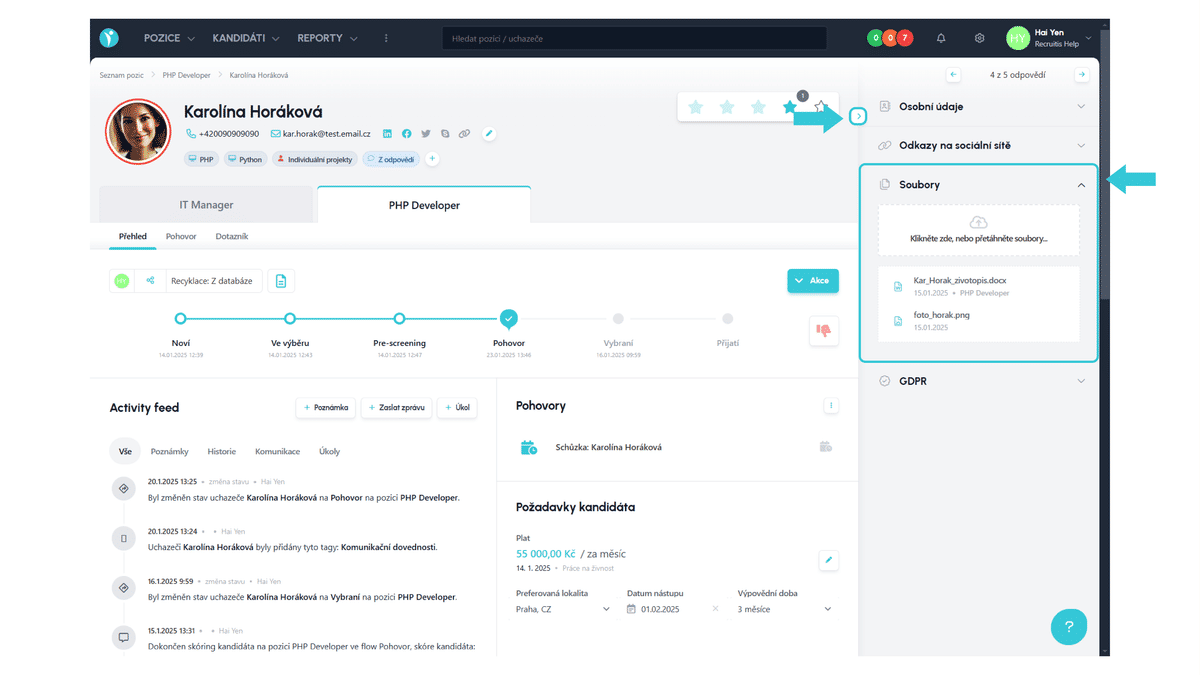
The attachment management tool can be found on the candidate card after opening the side menu (so-called sidebar) in the tab called "Files".
How to work with attachments?
Files can be added by clicking or dragging files into the file upload window. Uploaded files can then be found below this window.
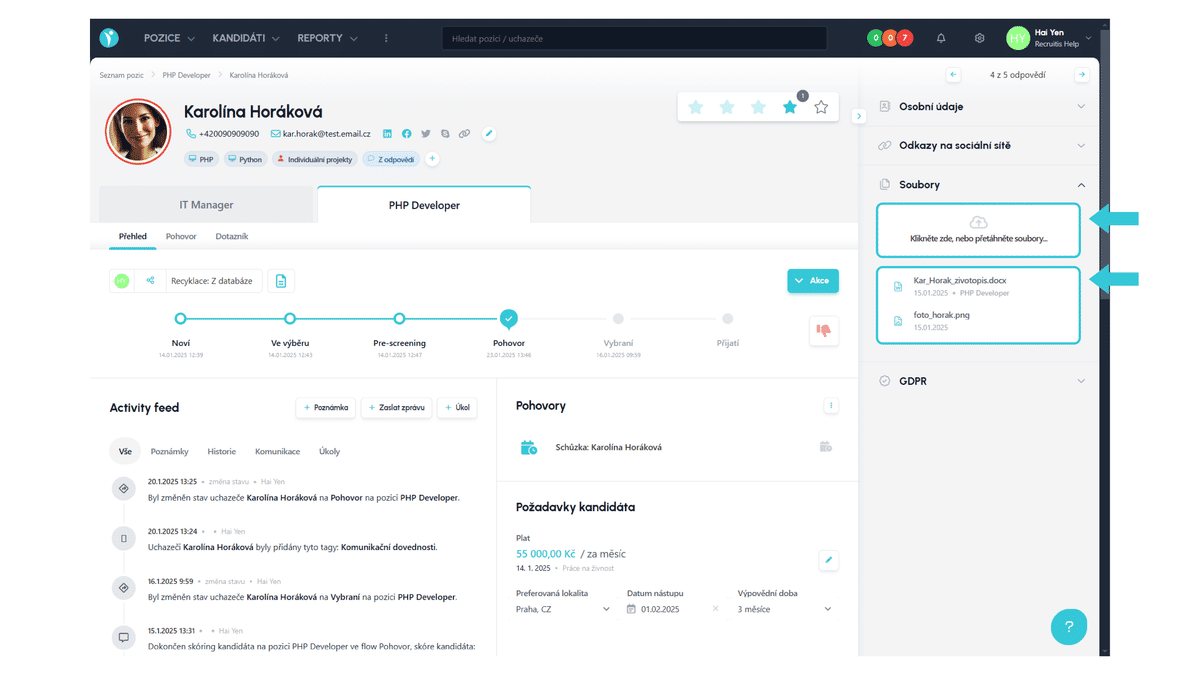
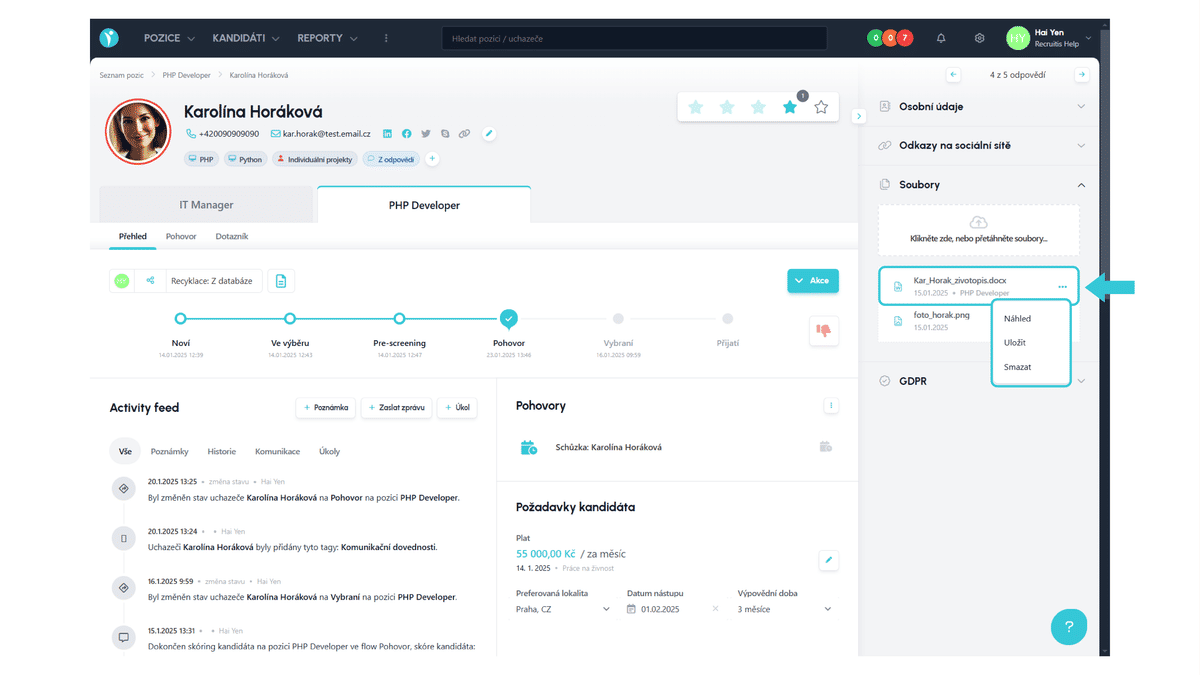
You can then work with individual files further by clicking on the three dots that appear when hovering over the given file. Here you can:
- preview the file
- save the file to your computer
- delete the file
What attachments do I see?
In the sidebar in the position management tool, you see all files from all positions you have access to (whether from your role - e.g., as an administrator or chief recruiter you see all positions, or from sharing of the given position if you are, e.g., a hiring manager).
Good to know
- Not all attachment types can be displayed in preview after clicking - if the attachment cannot be displayed, the option to save to disk will be offered, where you can then open the file in an associated application on your system.
- Basic files with documents (PDF, DOCX), images (JPG, PNG), HTML can be displayed.
- On the other hand, files like spreadsheets (XLSX, NUMBERS) and presentations (PPTX, KEY) typically cannot be displayed.
- Similarly, not all attachment types can be uploaded to the candidate card. In addition to file type limitation, the size is also limited to 10 MB.
- Files that the candidate sends by email are also automatically uploaded to attachments if they keep the copy to their system email address.
- If you use the offer functionality within ATS Recruitis, offers sent to candidates are also automatically uploaded to attachments.
Related articles
Webhooks for the Nelisa portal
Let ATS Recruitis automatically download your candidates from the Nelisa portal.
Graphics and system appearance
Basic settings of graphic elements - logos and background.
Position editor settings
Select the optional items in the position editor that you want to display.