Activity Feed
What is the Activity Feed for?
The Activity Feed serves as an overview of all actions and information related to a given candidate. Here you will find notes, action history, communication with the candidate and tasks. The initial view aggregates all these categories together and arranges them in chronological order, providing context and continuity of individual actions.
Where can we find the Activity Feed?
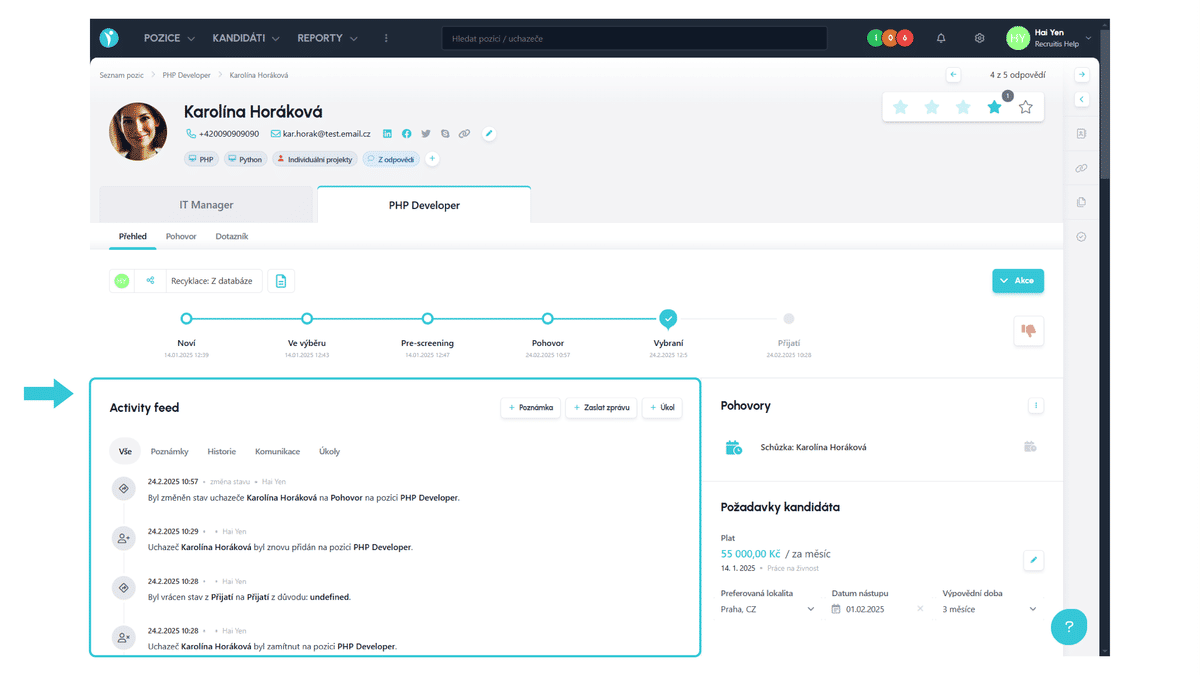
The Activity Feed block is displayed dynamically depending on the displayed blocks on the candidate card and the size of the browser window, but generally you will find it in the lower left part.
How to work with the Activity Feed?
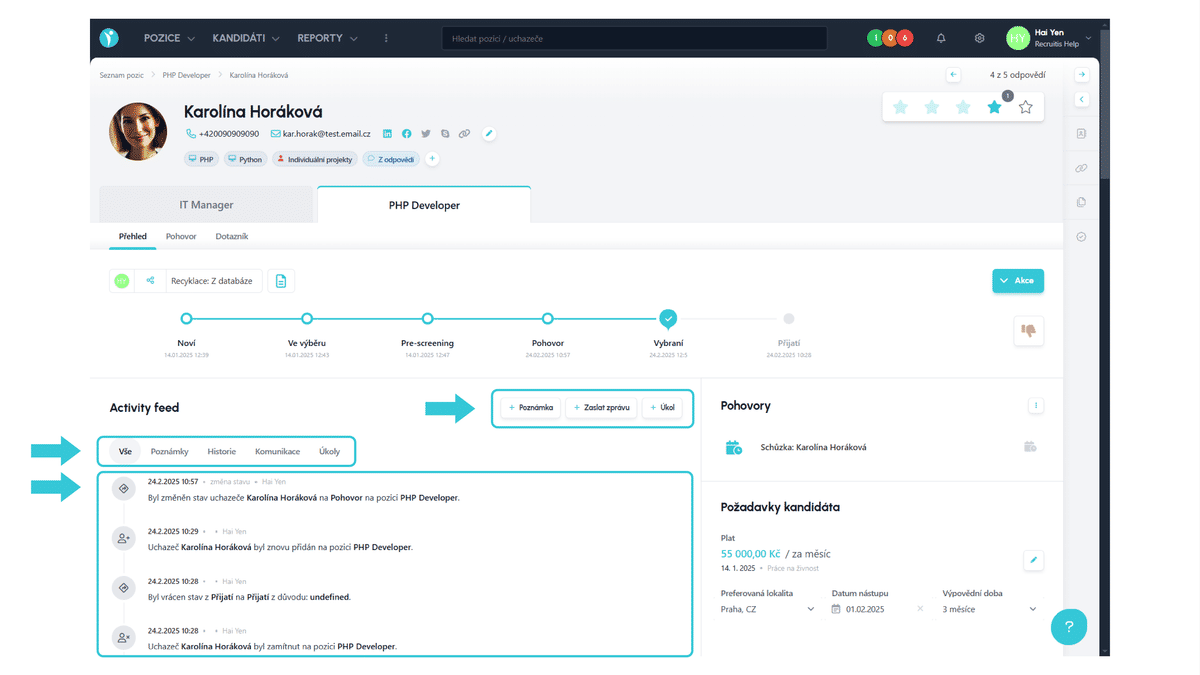
The Activity Feed block can be divided into three areas.
In the top right, actions that can be performed appear, such as adding notes, sending messages and adding tasks.
Below are the individual Activity Feed categories, which can be filtered by clicking on a specific category.
Under these categories, you will find the specific records. Each record contains a timestamp, possibly an action it relates to, the name of the person who performed the action and a detailed description of the action.
Notes
The notes category contains all your notes that you or your colleagues have written about the candidate.
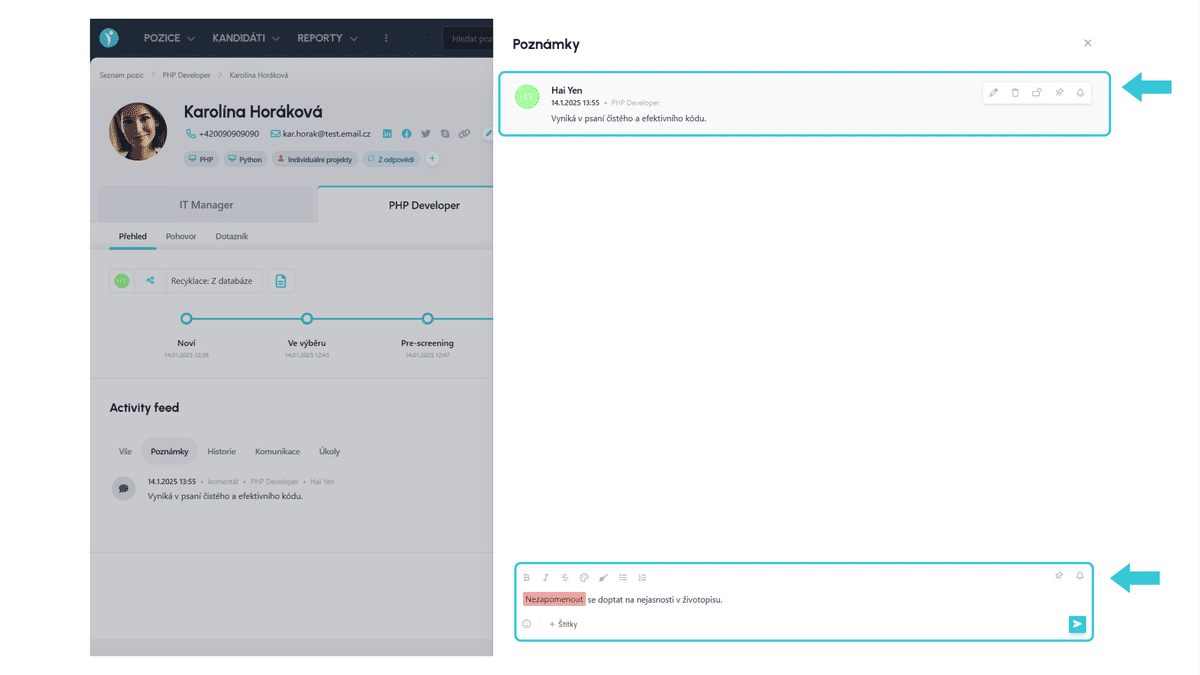
As already mentioned, in the top left of the Activity Feed block you will find the "+ Note" button for adding a note. Clicking on it displays a side panel with an overview of all notes and below them you will find an editor for adding a new note. Here you will find typical styles such as bold text, italics or strikethrough text, but also color variations of text along with its background and styling using lists. Emoticons and the option to add tags are also available.
Notes in this side panel can also be edited, deleted, have their visibility changed, pinned/unpinned or set notifications. All these actions can be found by hovering over the given note.
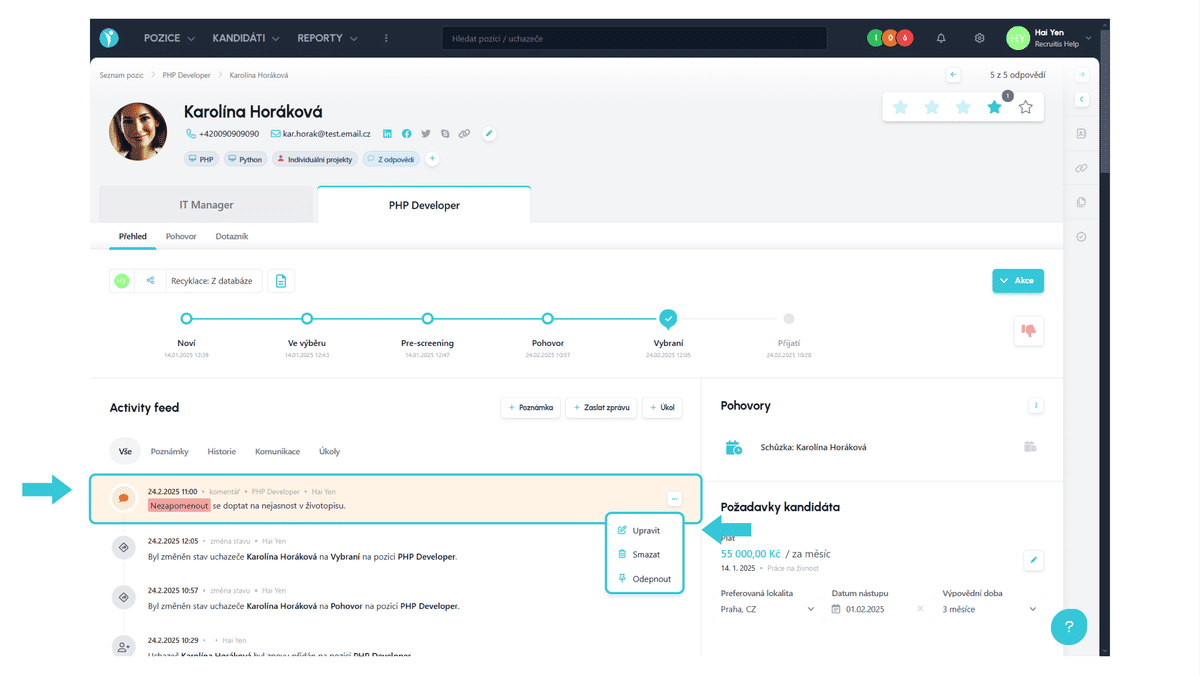
Notes can also be edited, deleted and pinned/unpinned from the Activity Feed itself. The action menu can be found by clicking on the three dots next to the given note.
When pinning notes, you need to keep in mind that this slightly disrupts the chronological ordering of the Activity Feed. You can recognize such a note by its orange background.
Action History
The action history category contains information about individual actions that have been performed with the user, including assignment to a position, status changes, adding/removing tags, etc.
Communication
The communication category contains an overview of all email and SMS communication between you and the applicant.
In the block, you will also find a button for sending a message, which is used to send an email/SMS to the applicant outside the recruitment flow. This is the same button you will find among the options after clicking the "Actions" button.
Email communication is recorded on this card only if you have the "Use system email in copy" functionality enabled in your company settings.
Tasks
The tasks category contains an overview of all tasks related to the given candidate and position. More about tasks can be found in the article Tasks.
Related articles
Webhooks for the Nelisa portal
Let ATS Recruitis automatically download your candidates from the Nelisa portal.
Graphics and system appearance
Basic settings of graphic elements - logos and background.
Position editor settings
Select the optional items in the position editor that you want to display.