HiBob integration
Connecting Recruitis with HiBob (HRIS)
The HiBob integration lets you send hired candidates from Recruitis directly to HiBob. When you mark a candidate as Hired and export them, HiBob receives a new-hire event and guides your HR team through the New Hire flow to create the employee profile. Candidate data and attachments (e.g. CV) are transferred together with the candidate.
The connection is one-way: data flows from Recruitis to HiBob.
What you need
- Admin access to Recruitis (Settings → Integration).
- Admin access to your HiBob account (Marketplace and Integrations).
Step 1: Start the connection in Recruitis
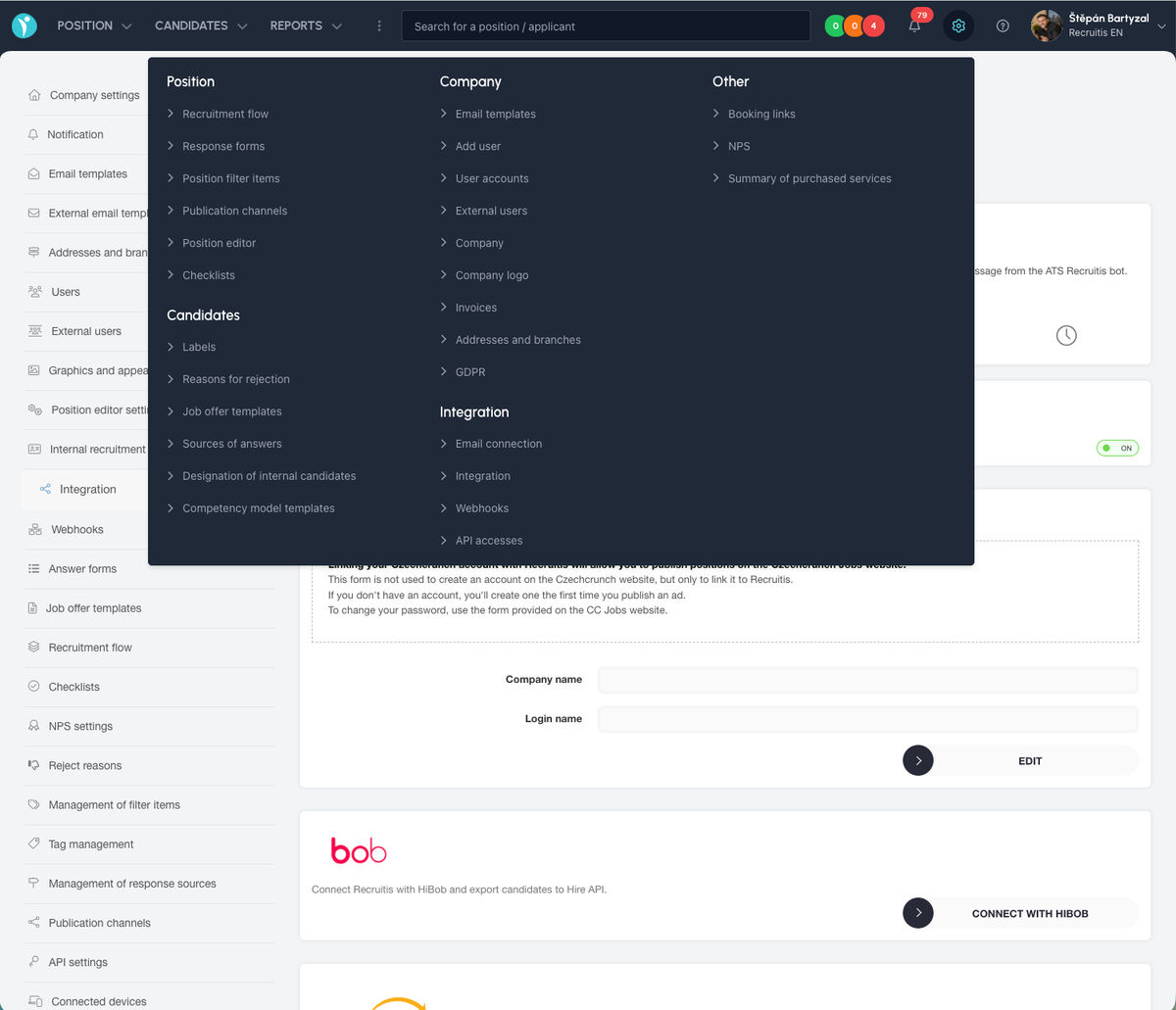
- In Recruitis, open Settings (gear icon) → Integration.
- Find the HiBob card and click Connect with HiBob.
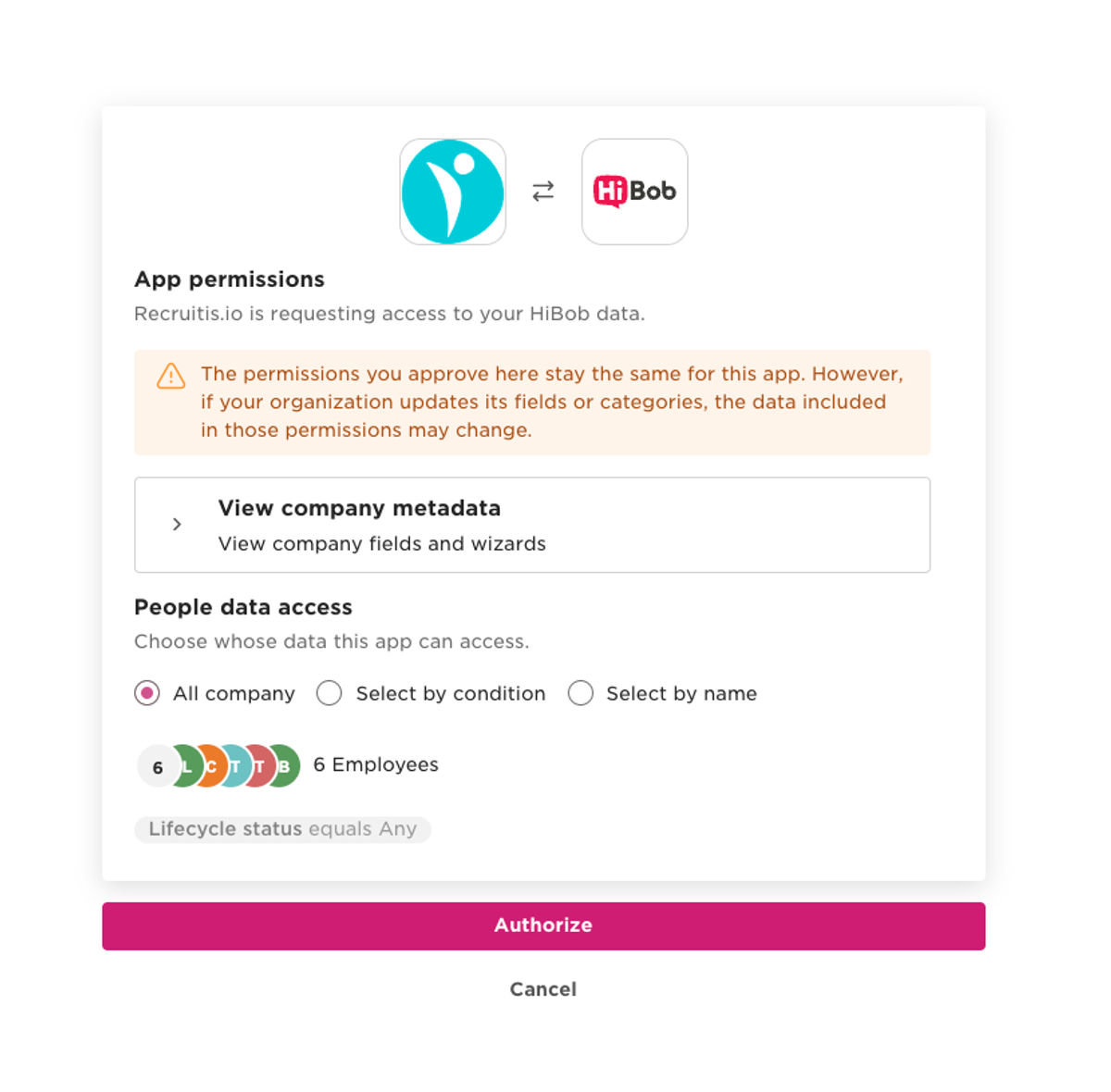
- You will be redirected to HiBob. On the App permissions screen, choose whose data the app can access (we recommend All company) and click Authorize.
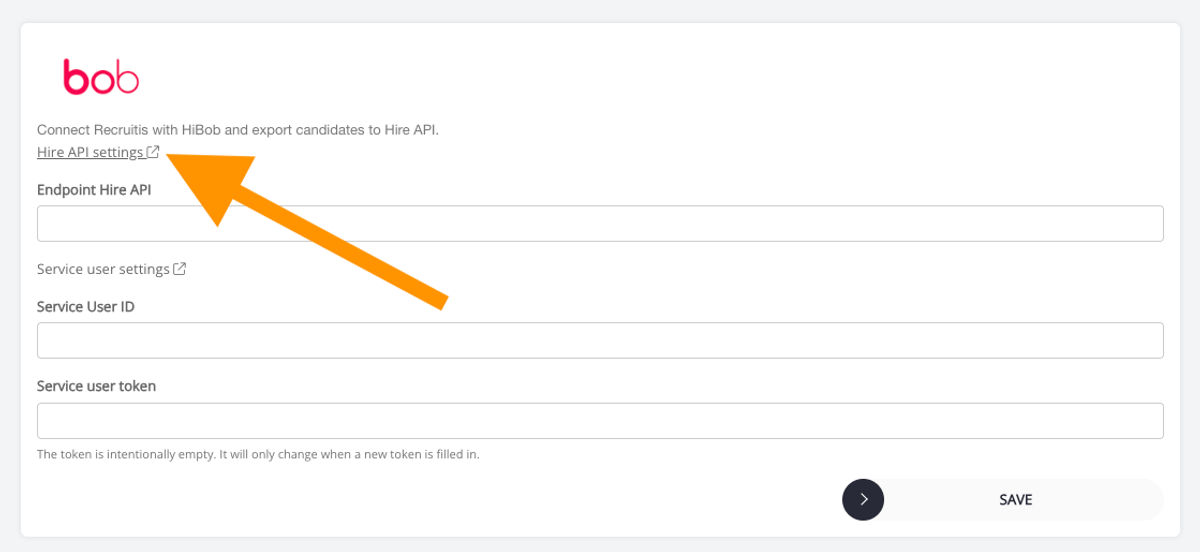
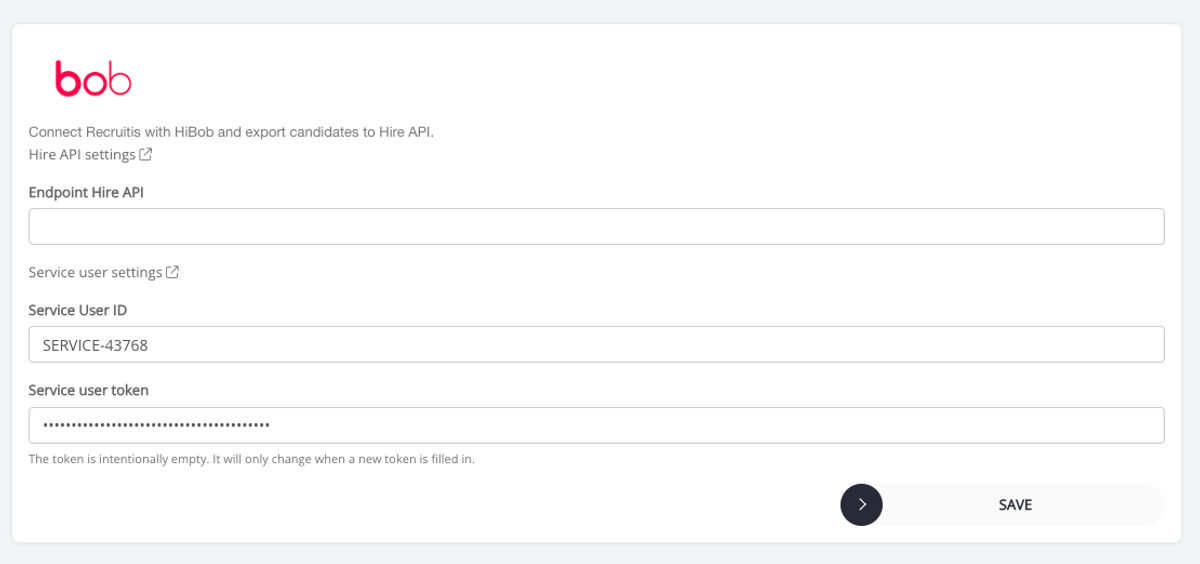
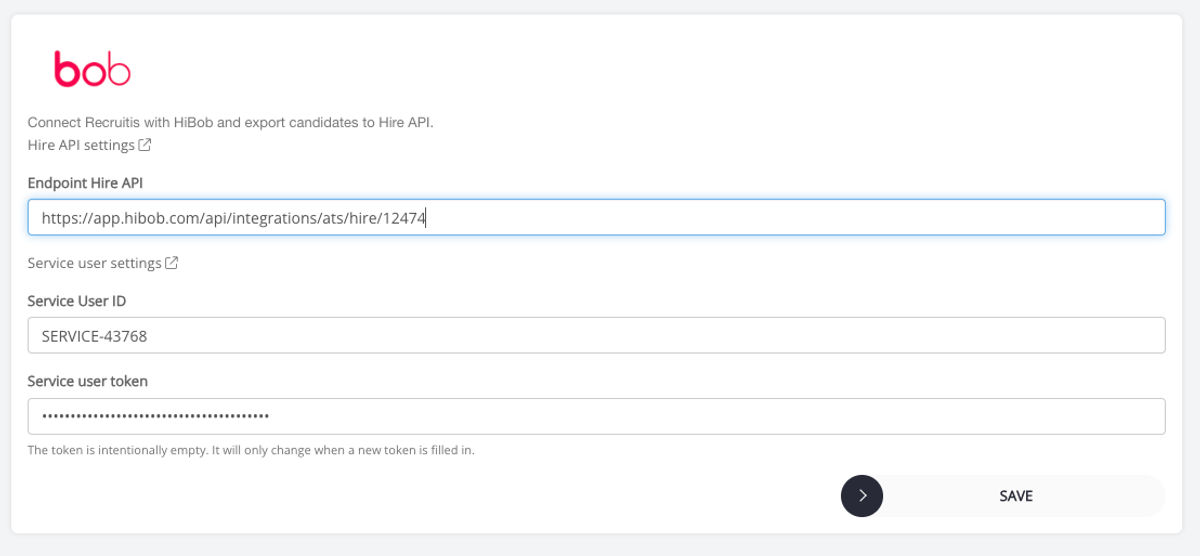
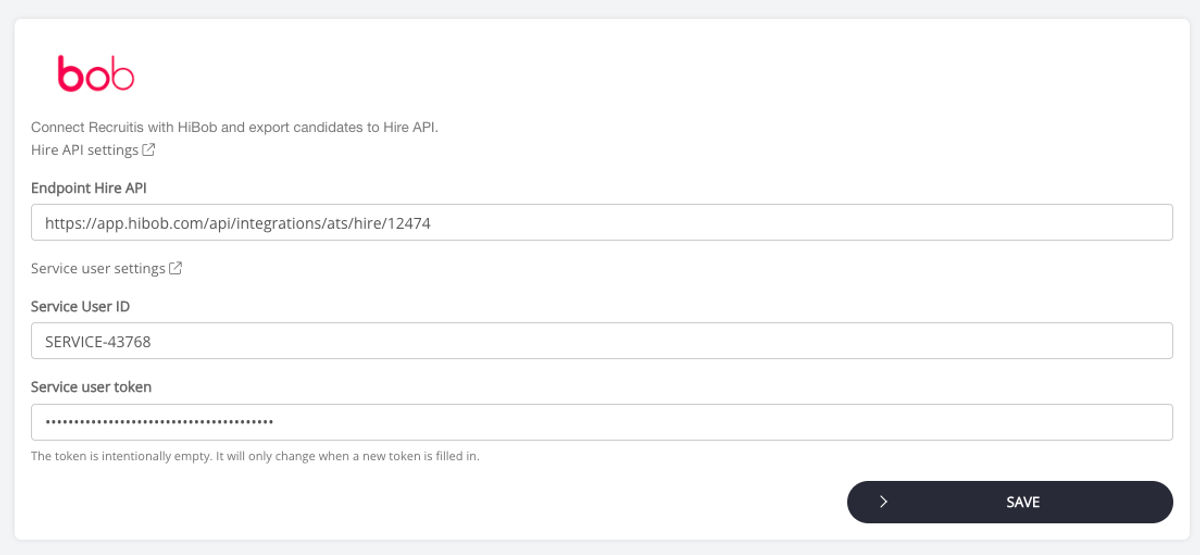
- You will be returned to Recruitis, where the HiBob settings form appears with three fields: Endpoint Hire API, Service User ID and Service user token. Keep this page open — you will fill in these values in the next steps.
Step 2: Create the Hire API integration in HiBob
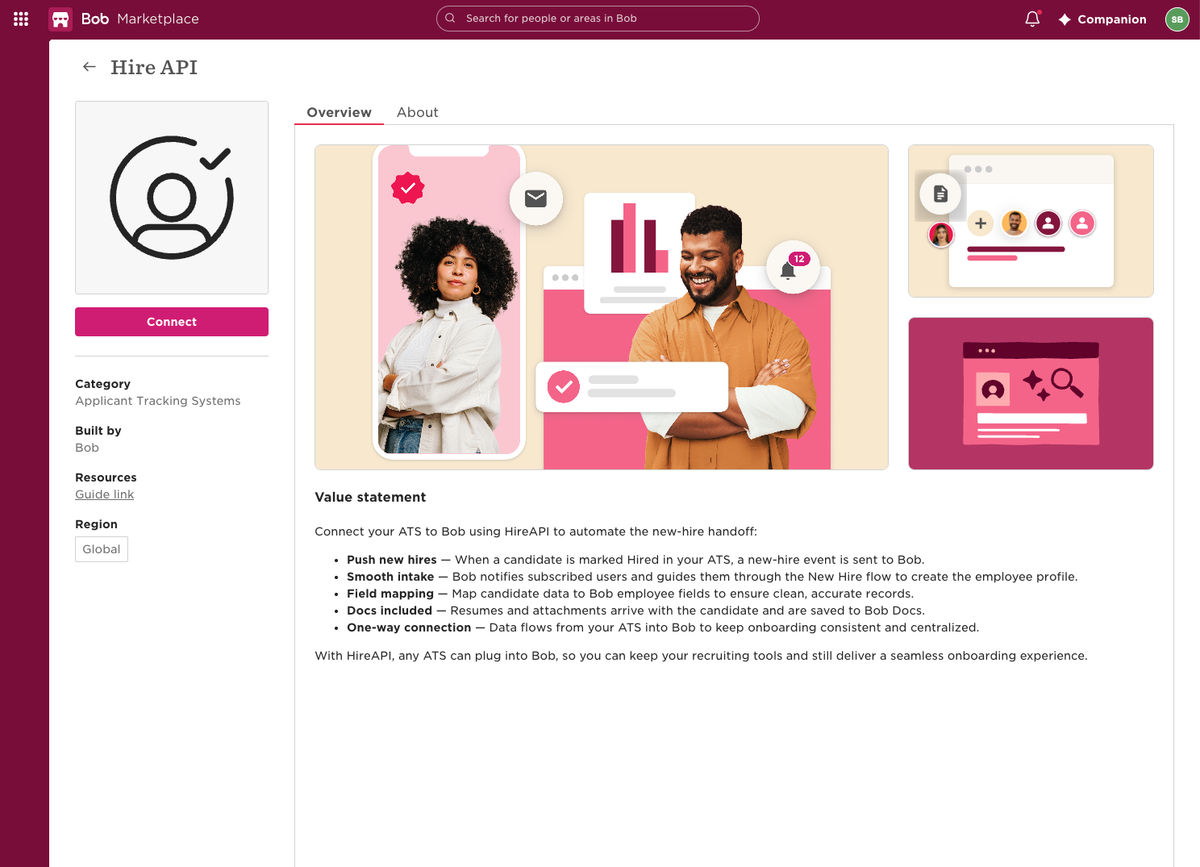
- In HiBob, go to Marketplace and open Hire API (category: Applicant Tracking Systems). You can also use the Hire API settings link in the Recruitis form.
- Click Connect (or Manage if Hire API is already enabled).
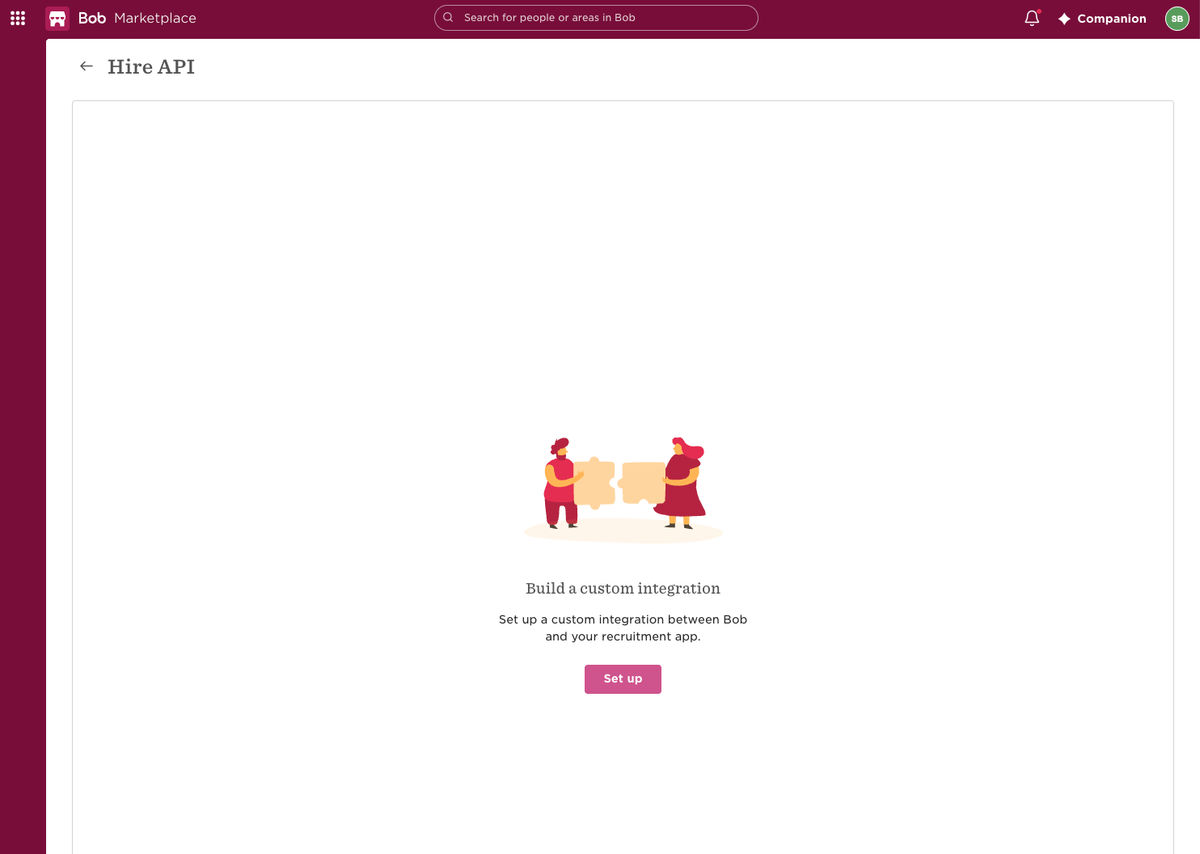
- On the Build a custom integration screen, click Set up.
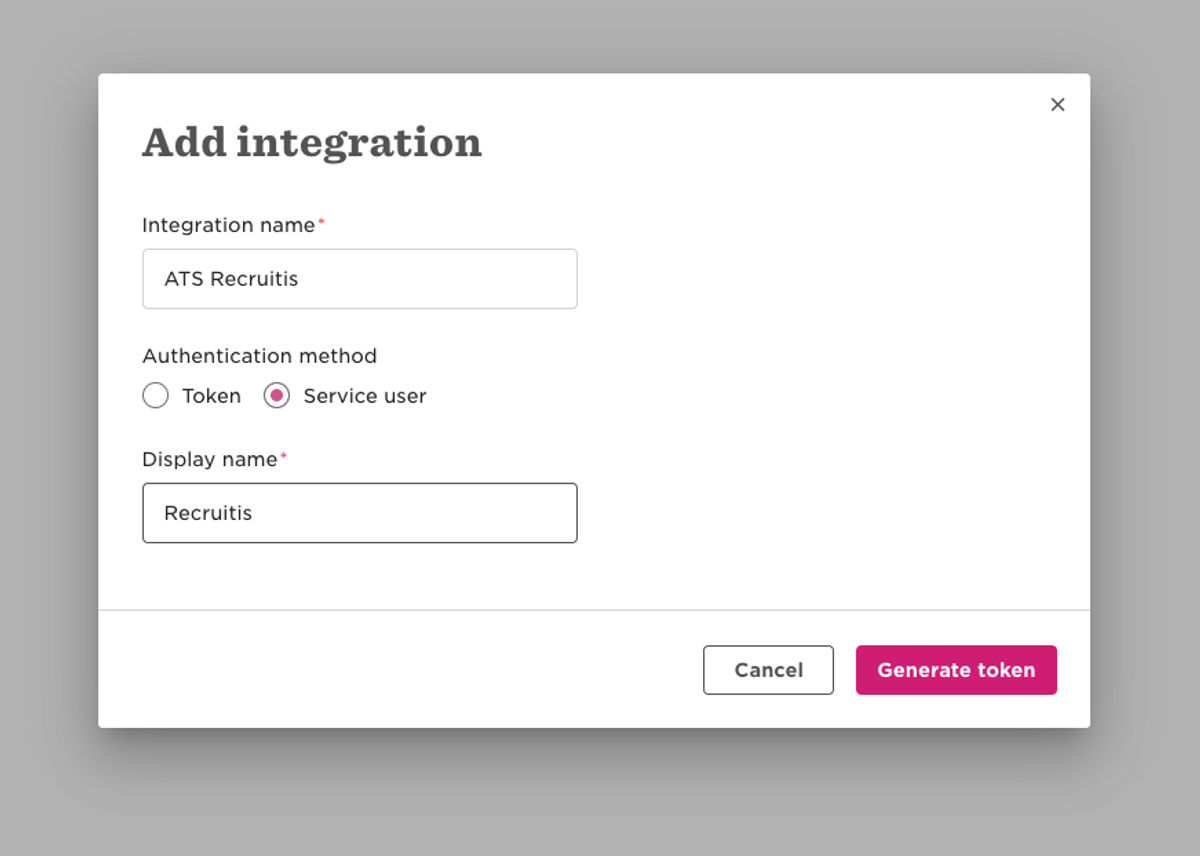
- In the Add integration dialog, fill in:
- Integration name: e.g.
ATS Recruitis - Authentication method: Service user
- Display name: e.g.
Recruitis
- Integration name: e.g.
- Click Generate token.
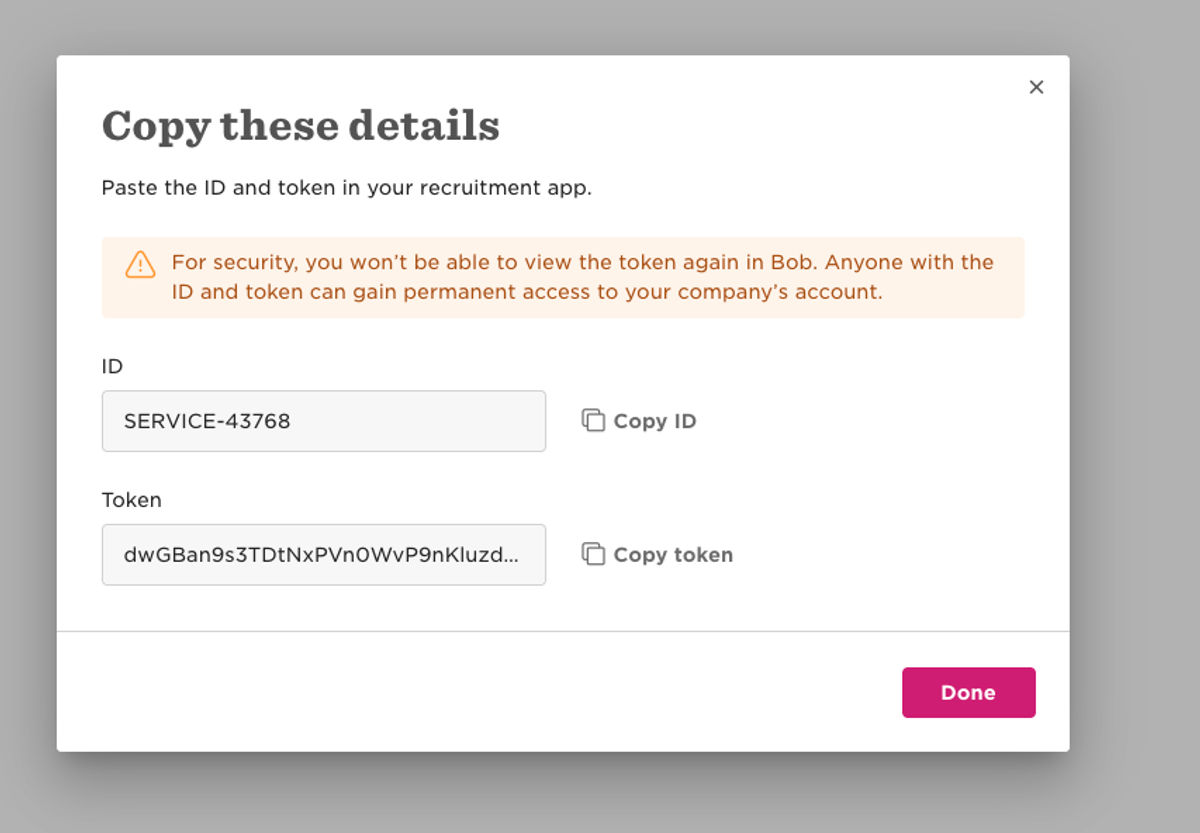
- A Copy these details dialog appears with an ID (e.g.
SERVICE-12345) and a Token. Copy both values now — for security reasons, HiBob will not show the token again. - Click Done.
Step 3: Copy the endpoint URL from HiBob
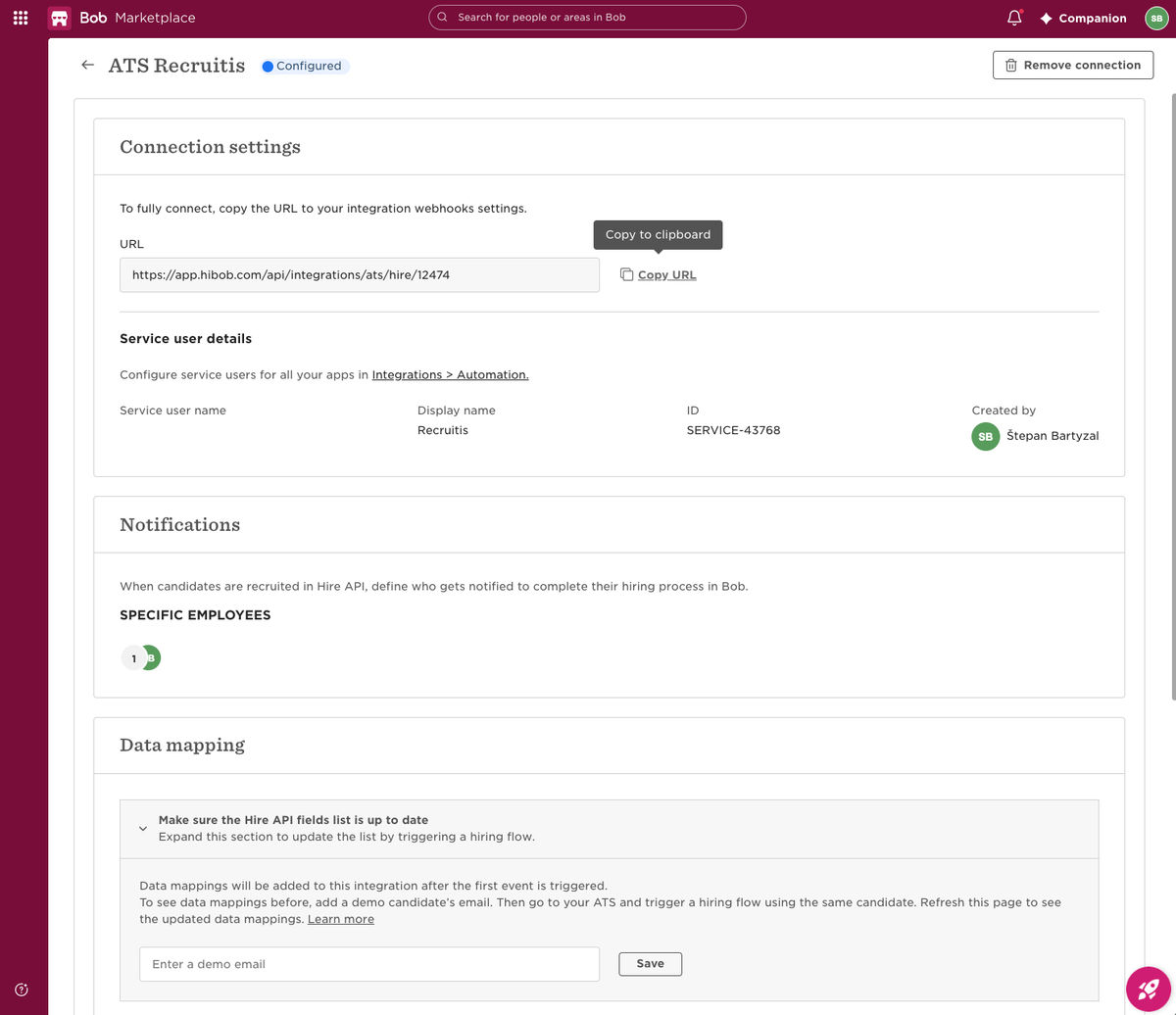
- After creating the integration, HiBob opens the integration page (e.g. ATS Recruitis – Configured).
- In the Connection settings section, copy the URL (it looks like
https://app.hibob.com/api/integrations/ats/hire/12345) using Copy URL. - Optionally, in the Notifications section, choose which employees should be notified when a new hire arrives from Recruitis so they can complete the hiring process in HiBob.
Step 4: Finish the setup in Recruitis
- Go back to the HiBob settings form in Recruitis (Settings → Integration → HiBob).
- Fill in the fields:
- Endpoint Hire API: the URL copied from HiBob in Step 3.
- Service User ID: the ID from Step 2 (e.g.
SERVICE-12345). - Service user token: the token from Step 2.
- Click Save.
The integration is now active. If you ever need to replace the token, generate a new one in HiBob and paste it into the Service user token field — the field is intentionally shown as empty and only changes when a new token is entered.
How to export a hired candidate to HiBob
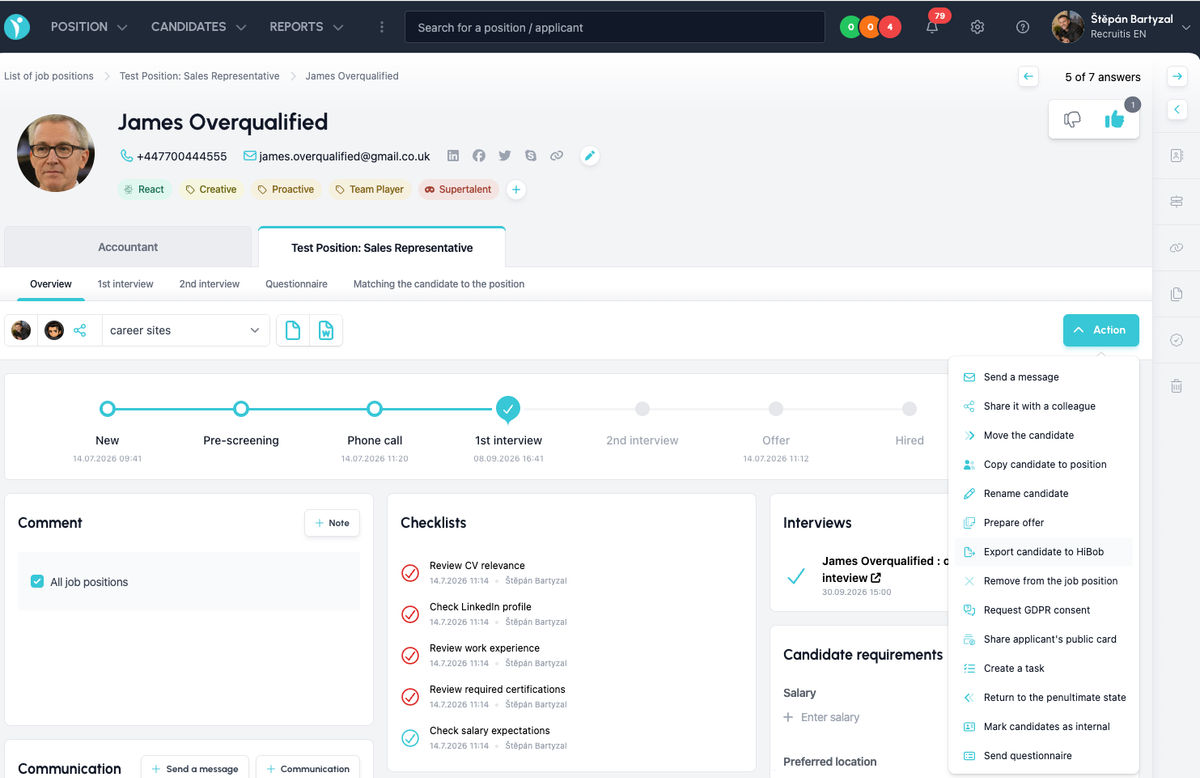
- Open the candidate's profile on the relevant job position in Recruitis.
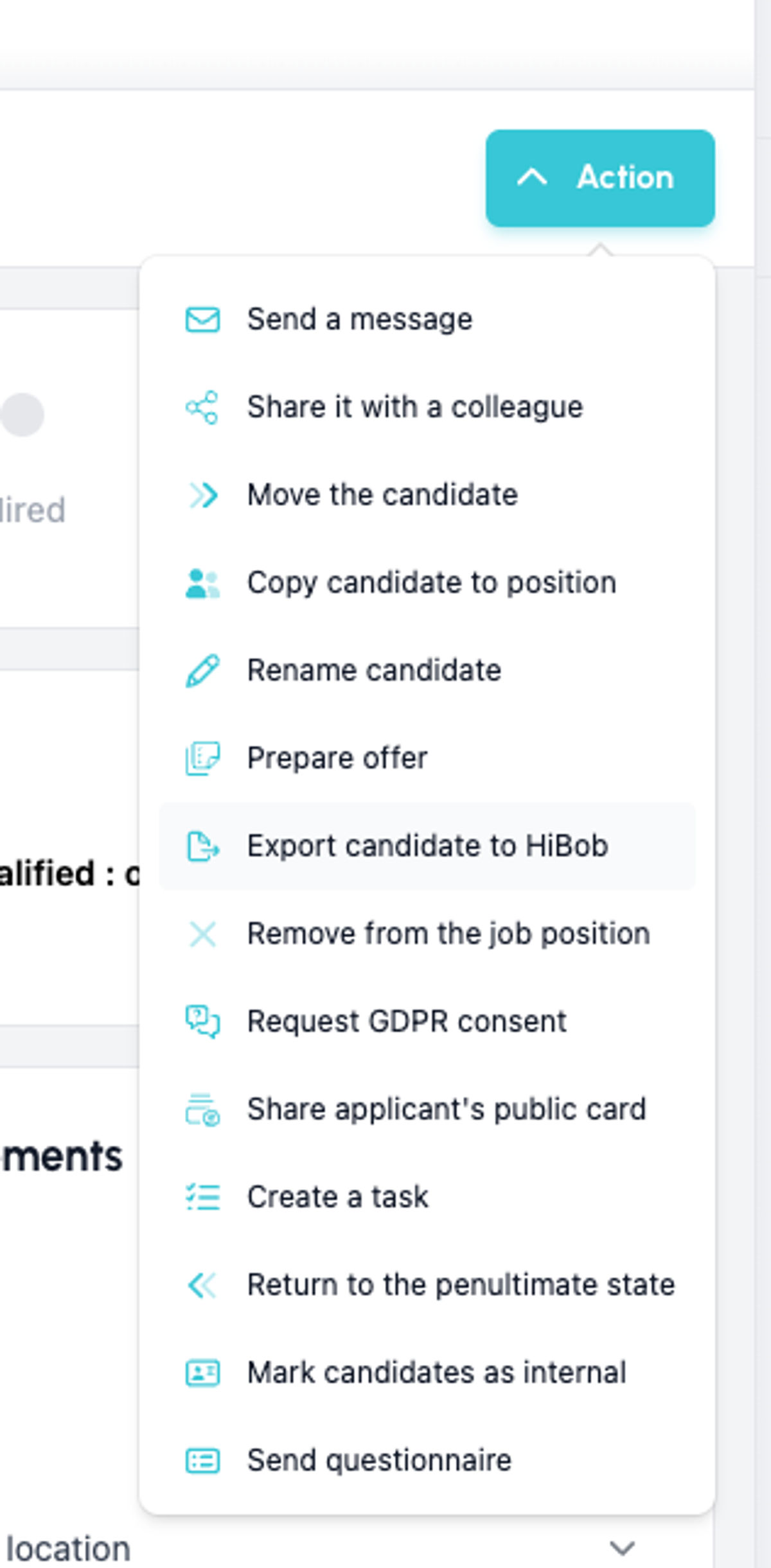
- Click Action and choose Export candidate to HiBob.
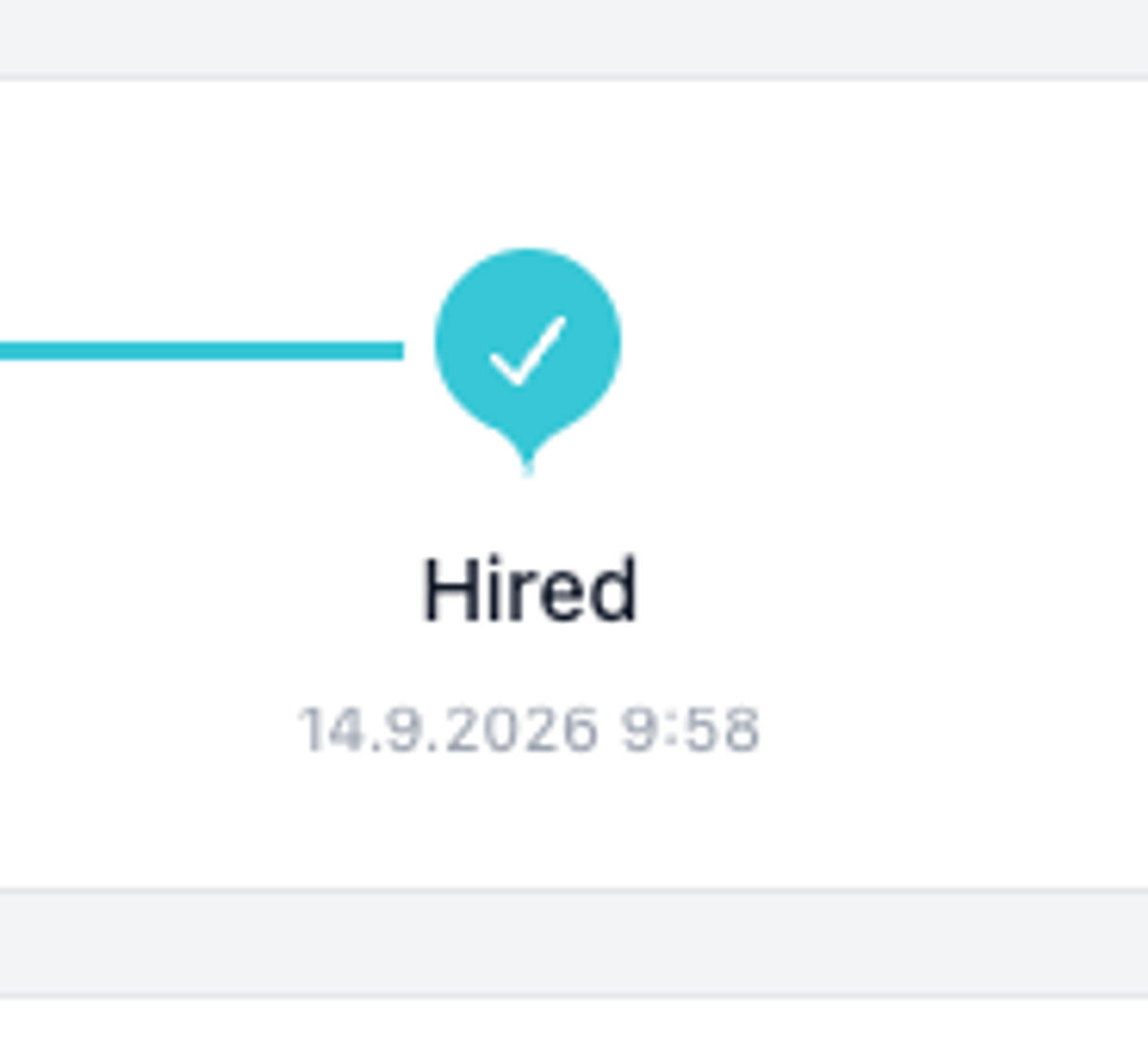
- The candidate is moved to the Hired stage in Recruitis and sent to HiBob.
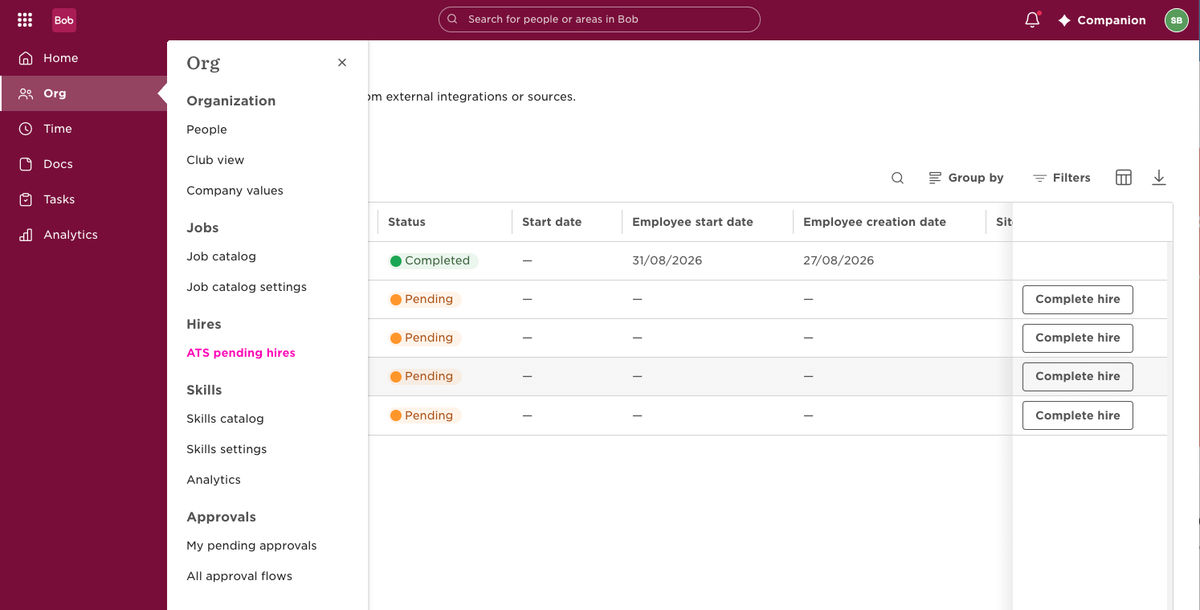
- In HiBob, go to Org → Hires → ATS pending hires. The candidate appears with the status Pending. Click Complete hire to finish the New Hire flow and create the employee profile.
Tip: Check the data mapping in HiBob
Field mappings between Recruitis and HiBob appear on the integration page in HiBob (Data mapping section) after the first candidate is exported. To review the mapping before going live, enter a demo candidate's email in the Data mapping section, export that candidate from Recruitis, and refresh the page in HiBob.

Related articles
Webhooks for the Nelisa portal
Let ATS Recruitis automatically download your candidates from the Nelisa portal.
Graphics and system appearance
Basic settings of graphic elements - logos and background.
Position editor settings
Select the optional items in the position editor that you want to display.