Completing Tasks
Where to complete tasks from?
Tasks can be completed from 3 places:
- Dashboard,
- Activity Feed on the candidate card,
- task overview.
Dashboard
To complete a task from the Dashboard, you need to enable the task widget display in the settings. This can be done by enabling changes by clicking on "Enable Editing" in the top right corner of the Dashboard, then a "+ Add" button will appear, which when clicked will show a menu of options. From there, you need to select "New Tasks". You can then move them anywhere on the Dashboard and confirm the changes by disabling editing by clicking on "Enable Editing".
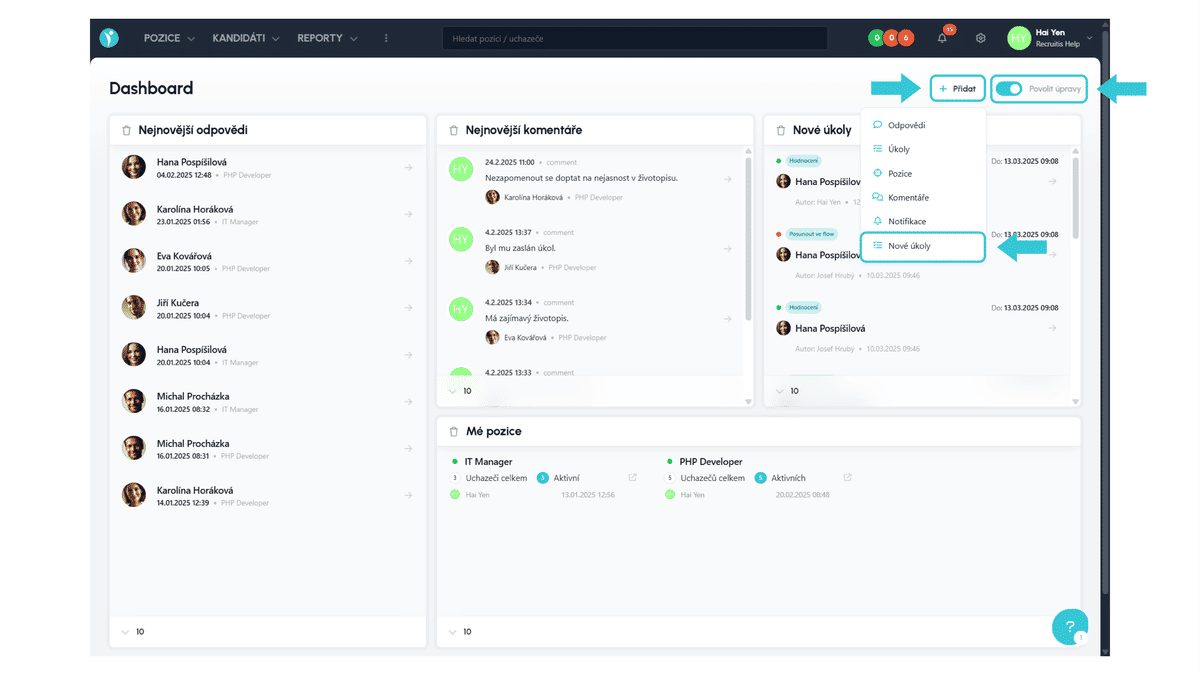
The task widget displays key information about each task such as: completed/uncompleted task indicator (red/green dot), task type, deadline date and time, name of the candidate the task is assigned to, task author and also the creation date.
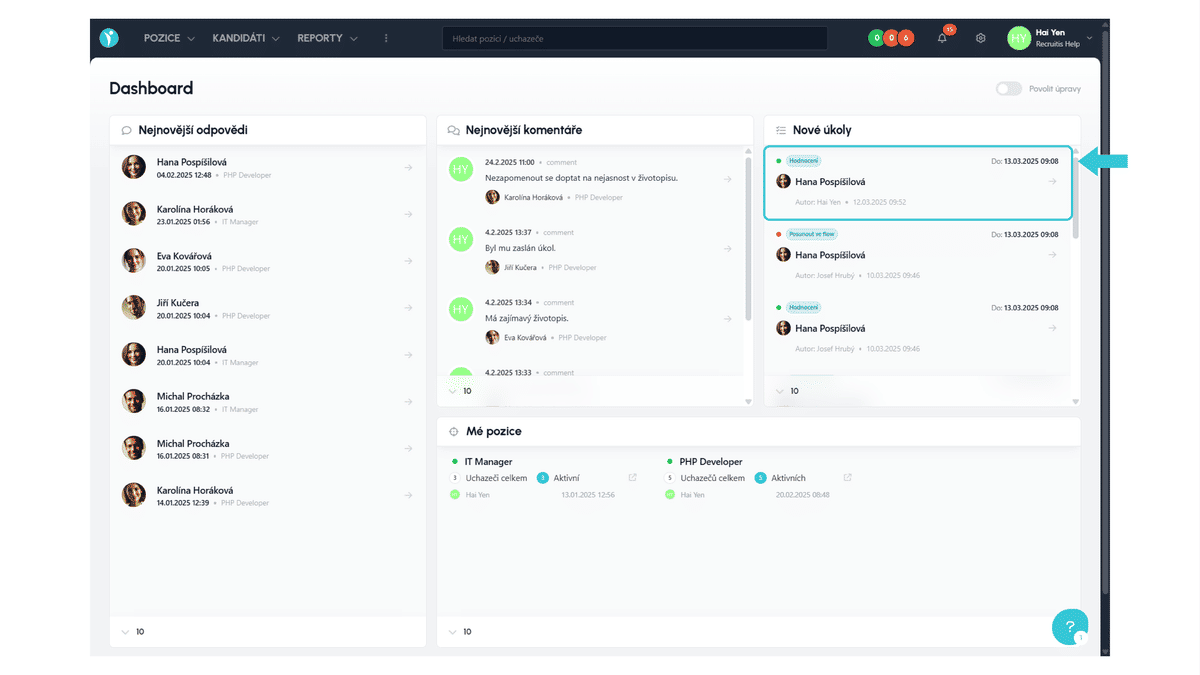
Clicking on a task opens a side panel with the candidate card and the open task detail.
Activity Feed
On a specific candidate's card, you can find individual tasks in the Activity Feed, where you can filter task records by clicking on "Tasks".
Each task record contains information about who assigned the task to whom and the time of assignment.
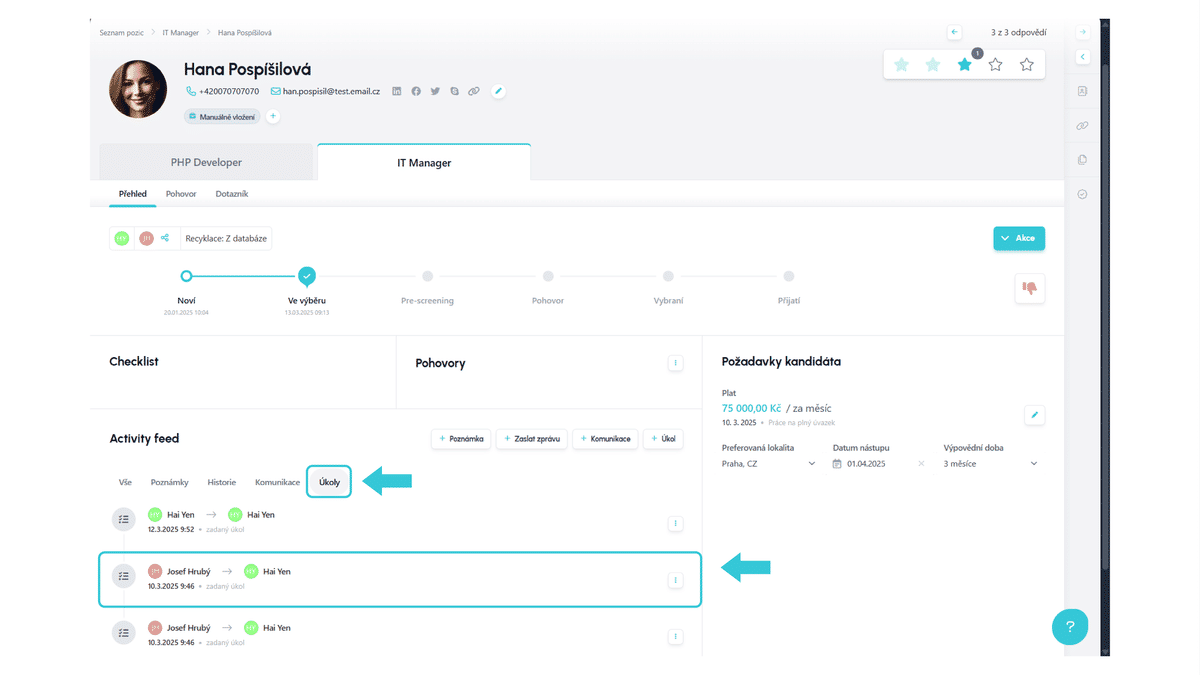
Clicking on a task opens the task detail.
Task Overview
The Task Overview can be found in the top bar under the "Tasks" tab (for admins it's accessible after clicking on the three dots). Here you will find a complete overview of all tasks linked to you - whether from the assigner's or resolver's perspective. More about the Task Overview can be found in the article Task Overview.
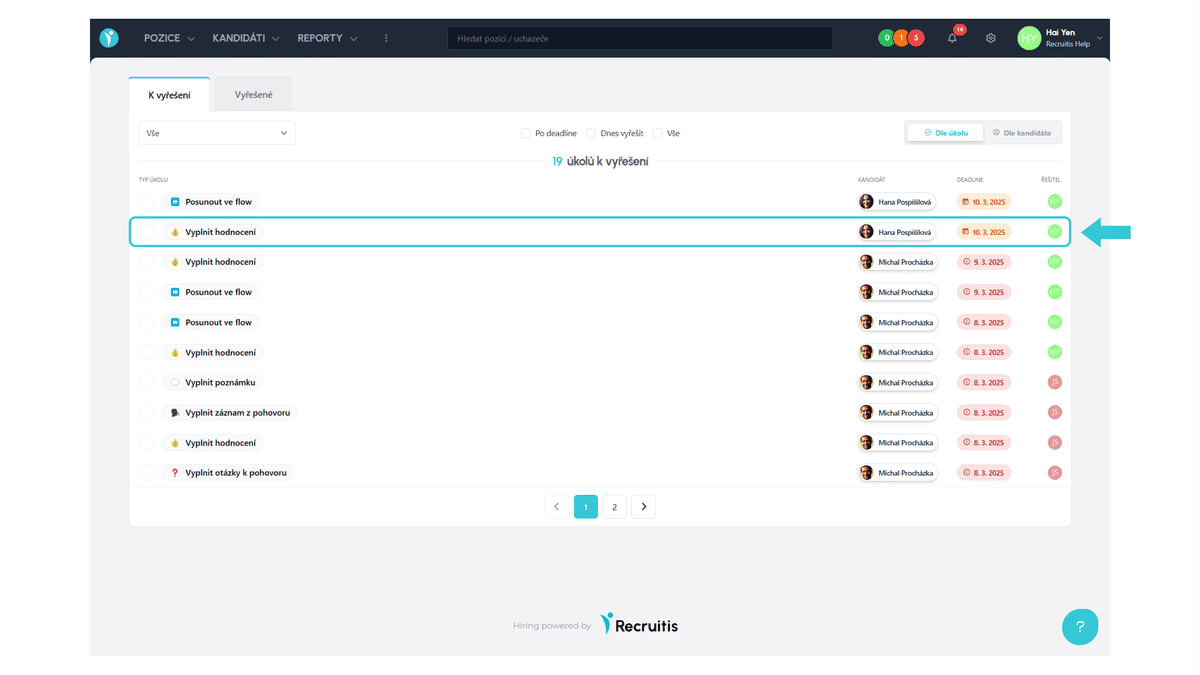
Clicking on the given task type displays the task detail.
How to complete tasks?
In the task detail, you will find which candidate the task relates to, who assigned the task and the completion deadline along with information about the task type.
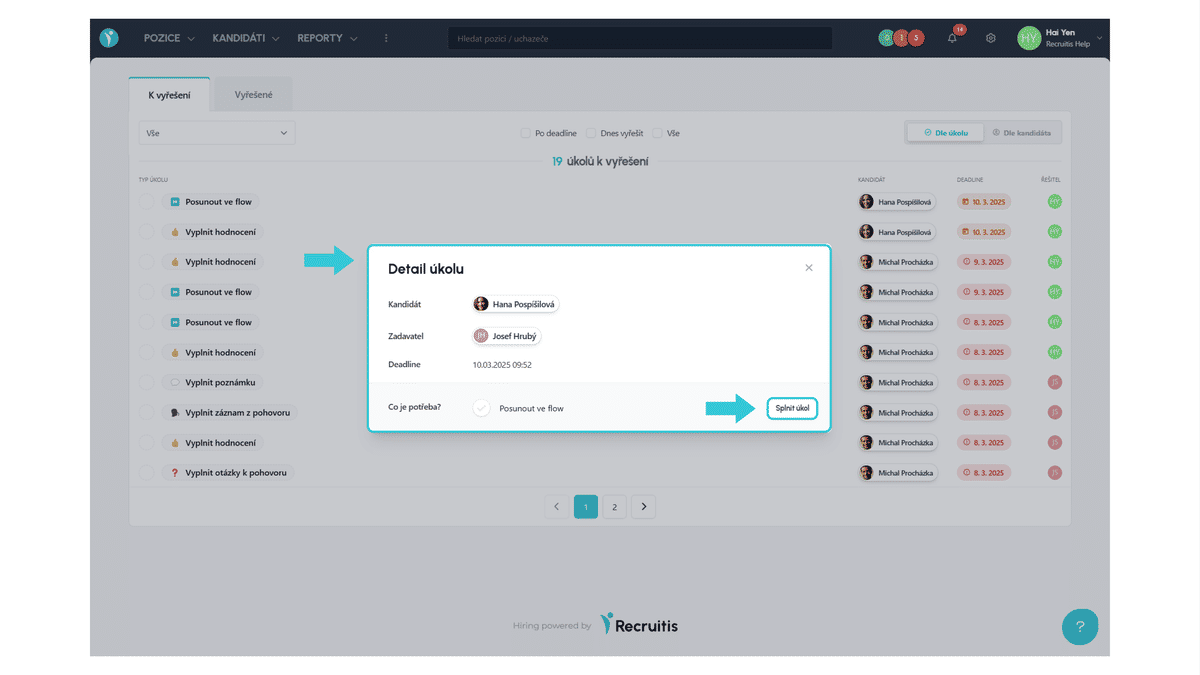
To complete a task, you need to click on "Complete Task", which will redirect you directly to the candidate card to the place where the action needs to be performed. Color blinking will guide you to the right place, displaying information about the required action. Once you complete the action, the notification disappears and the task is automatically marked as completed.
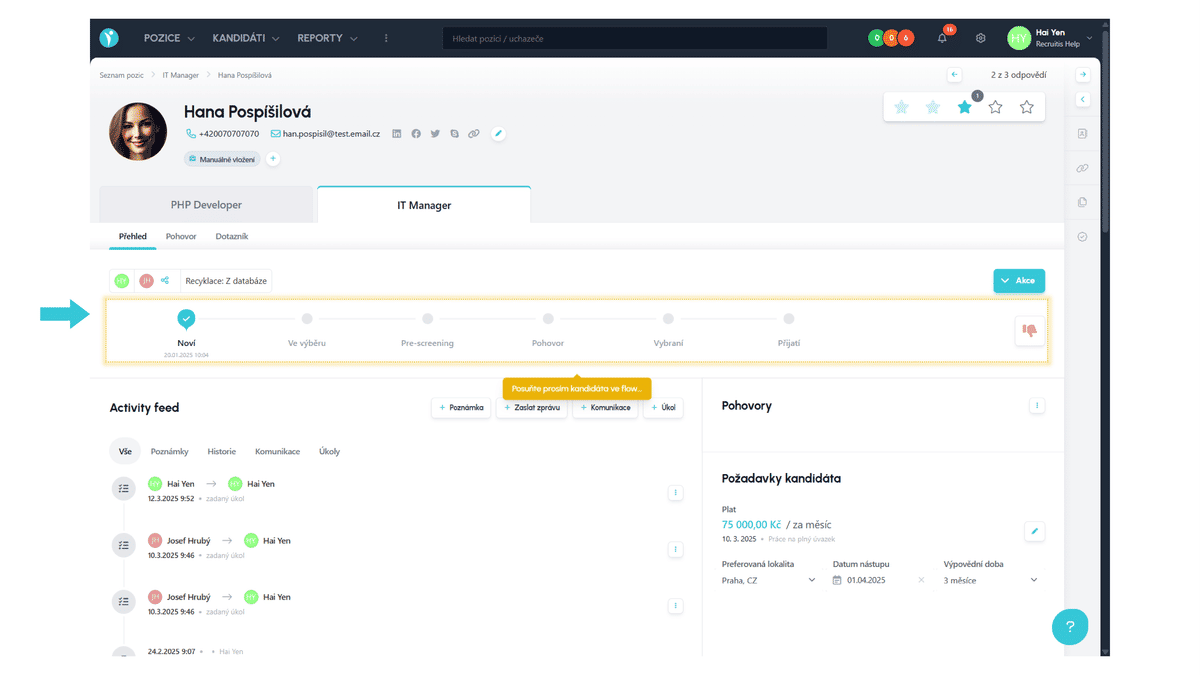
If you are already on the candidate card to which you have an assigned task, you don't need to open the task detail to complete it, just perform the given action that is marked with a blinking notification. Once you complete the action, the task is automatically marked as completed.
Good to Know
- For these tasks, you no longer need to inform the assigner about their completion, as was previously the case with the "Feedback Request" function. Once you complete a task, the system automatically marks it as completed, eliminating the need for manual confirmation.
Related articles
Webhooks for the Nelisa portal
Let ATS Recruitis automatically download your candidates from the Nelisa portal.
Graphics and system appearance
Basic settings of graphic elements - logos and background.
Position editor settings
Select the optional items in the position editor that you want to display.