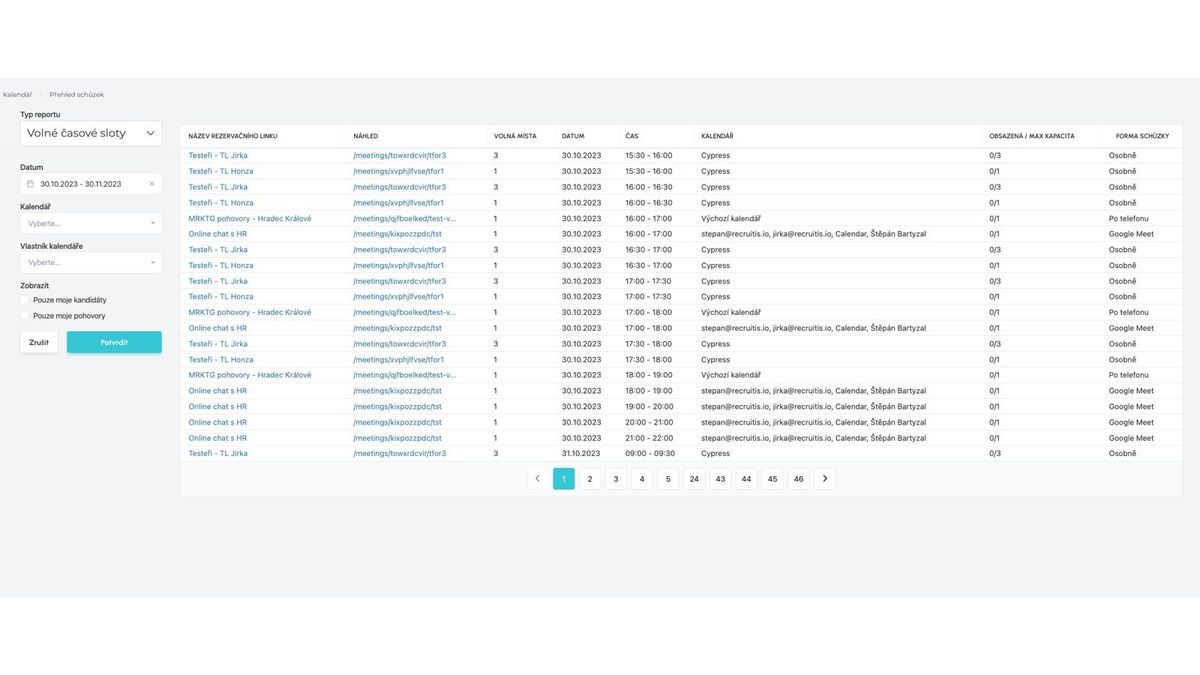
Interview overview - Meetings menu
A new menu item named "Meetings" replaces the previous "Interviews" page, which served as a clear listing of scheduled interview dates across positions and candidates in one place. In addition to a modernized appearance, "Meetings" also brings views of values based on the functionality of scheduling meetings by candidates using booking links (more about this functionality can be found in this article)
Meetings bring 2 basic views:
- Scheduled meetings
- Overview of meetings (interviews) scheduled in the filtered period
- Can also filter into the past (i.e., display already held meetings)
- Available time slots
- Overview of available slots within active booking links
- This view is always into the future - displays only slots that can be booked
You can find this listing of meetings and available slots in the menu via "three dots" and "Meetings" (direct link)

Filtering
The filtering is content-wise common to both types of data views and contains the following options:
Date
- time range for filtered events
- for the "Available time slots" view, only events in the future within the given filtered period are displayed
Calendar
- filters only events that are recorded in selected specific calendars
Calendar Owner
- filters only events that are recorded in calendars owned by selected users
Display Filtering
- "Only my candidates"
- displays only interviews with candidates to whom I have direct ownership
- this is typically useful for users with the administrator role who see all interviews in the default view, but also do recruitment and want to see only candidates from their positions or directly shared
- "Only my interviews"
- displays only interviews that I scheduled as a user
- this addresses situations where I may not necessarily schedule interviews for all my candidates or, conversely, I also schedule interviews for colleagues and therefore filtering by ownership does not cover it
Due to the difference in displayed data, the filtering resets when switching between views.

Scheduled Meetings
In this view, you will see specific scheduled events and their attributes. Using actions within the "three dots" menu on the right at the end of the row, you can directly edit events.
The scheduled meetings overview contains the following items:
CANDIDATE
- Candidate name (clickable link) with whom the event is scheduled
POSITION
- Position name (clickable link) within which the event with the candidate is scheduled
DATE
- Scheduled date of the event
TIME
- Scheduled time of the event
CALENDAR
- Name of the calendar, or multiple calendars, to which the event is recorded
BOOKING LINK NAME
- If the event was scheduled within a booking link, the name of that link is displayed
FILTER ITEMS
- Filter items related to the position for which the event was scheduled
TYPE
- Information about whether it is a meeting with an individual or a group of candidates
STATUS
- Information about whether the meeting was confirmed, rejected, or is still pending confirmation
ONLINE MEETING
- If the event also has an online meeting, its link on the respective platform (Google Meet or MS Teams) is displayed here
ACTIONS
- Edit event - an editing window with event details appears directly
Items are sorted chronologically from the meeting that takes place (or took place) closest to the default date of the time range used for filtering

Available Time Slots
This overview serves for orientation in the number of available spots within your booking links. The greatest added value is probably where you plan multiple group (so-called multi-slot) events such as assessment centers, trial days, etc.
Available time slots contain the following items:
BOOKING LINK NAME
- Link name (clickable link) that can be used to create an event
- If you are not the author of the given booking link, you do not have the editing option
PREVIEW
- Link to preview the link that can be used to create an event
AVAILABLE SPOTS
- Currently available capacity for the given date and time
DATE
- Date of the available slot
TIME
- Time of the available slot
CALENDAR
- List of calendars that are evaluated for the availability of the given slot
OCCUPIED / MAX CAPACITY
- Information about what the maximum slot capacity is and how much of it is occupied (the difference corresponds to the "Available spots" column)
MEETING FORMAT
- What meeting format the given booking link has selected (in person, by phone, Google Meet, MS Teams)