Task Overview
What is the Task Overview for?
The Task Overview collects all tasks that are linked to you - whether you created them, received them to complete, or assigned them to yourself. All tasks are clearly organized in one place, making them easier to manage and complete.
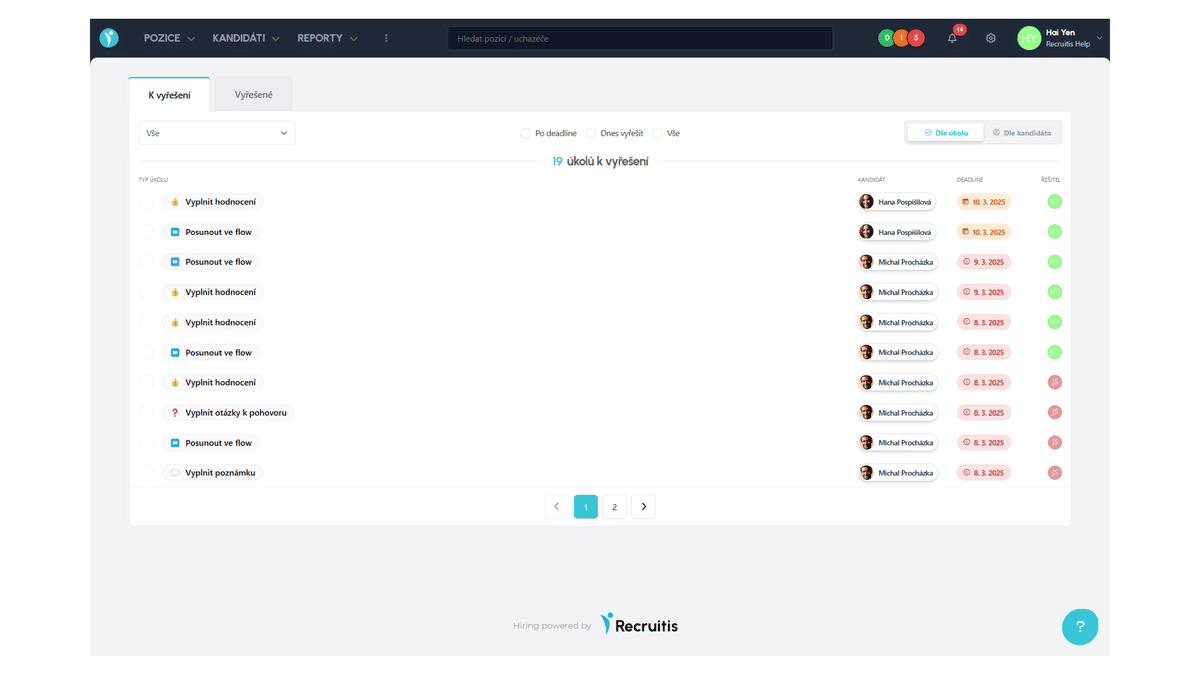
Where can you find the Task Overview?
The Task Overview can be found in the menu on the top bar under the "Tasks" tab. If you have the main admin role, tasks are accessible by clicking on the three dots in the top bar after reports.
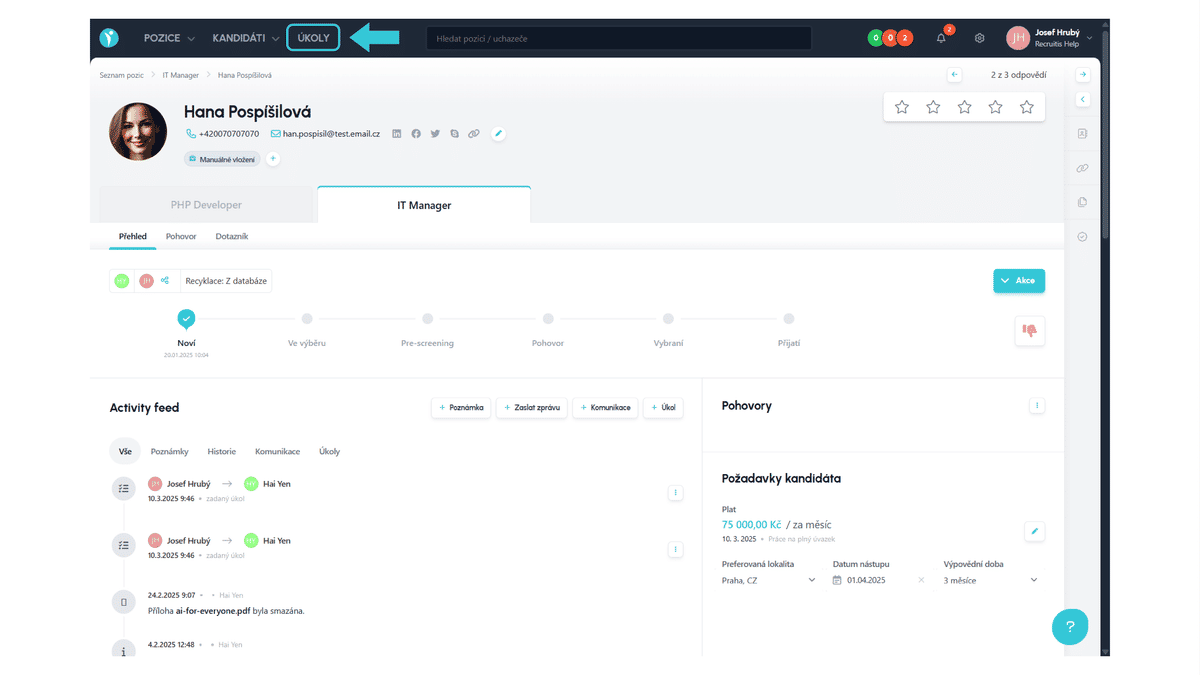
How to work with the Task Overview?
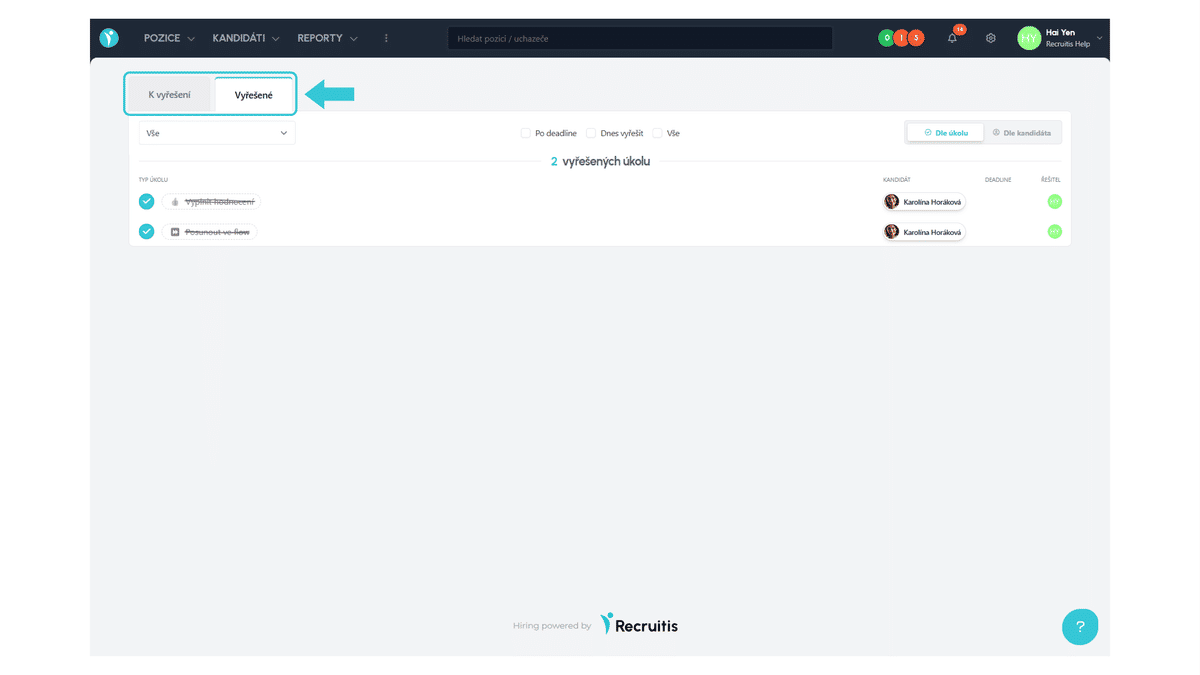
The Task Overview is primarily divided into two tabs:
- To Resolve - displays all tasks that are still waiting to be completed.
- Resolved - contains a list of already completed tasks.
This division gives you a clear overview of both current and closed tasks.
In the top bar of the window, you will find task filtering options that allow you to easily search for the required tasks. By default, all tasks are displayed, grouped by their type.
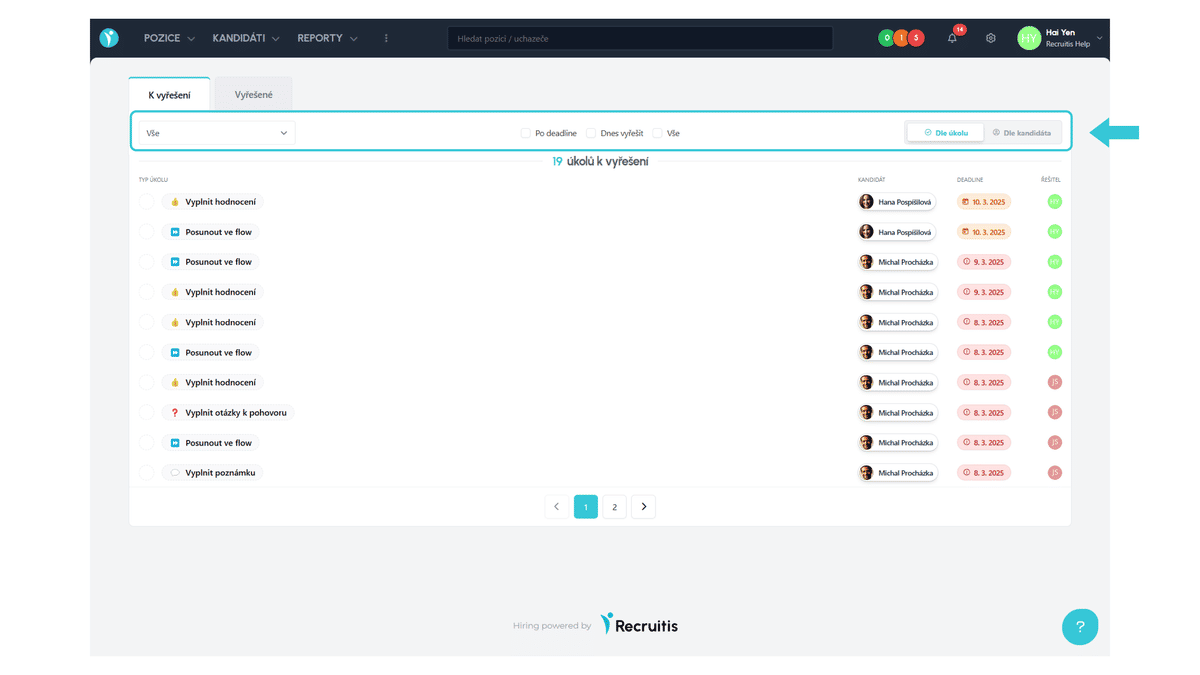
In the filtering menu, you can display tasks based on who assigned them and who they are intended for:
- Tasks you require from others,
- Tasks that are required from you,
- Tasks you have set for yourself.
Additionally, you will find quick filtering options here to help you navigate tasks better:
- Tasks past deadline - displays tasks that should have already been completed,
- Tasks to resolve today - displays only tasks with today's deadline,
- All - displays a complete overview of all tasks.
And the last option is to group tasks by:
- task type,
- candidate.
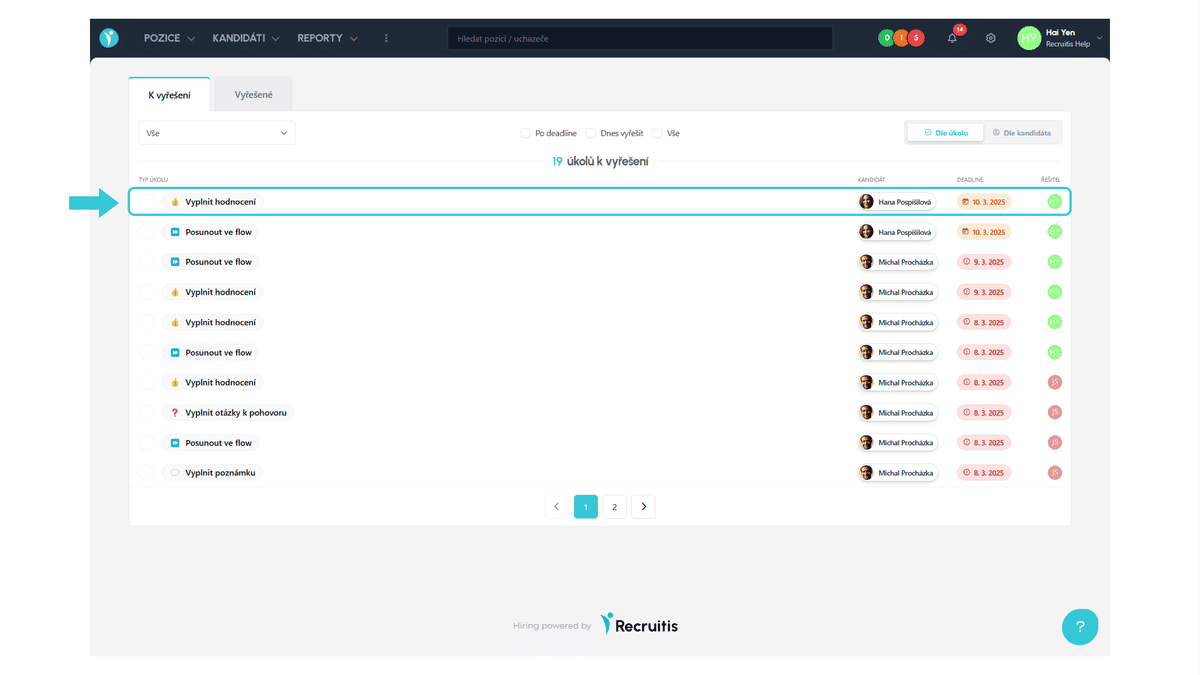
If you group tasks by task type, each table row contains the task type, the name of the candidate the task relates to, the task deadline, and the resolver's icon.
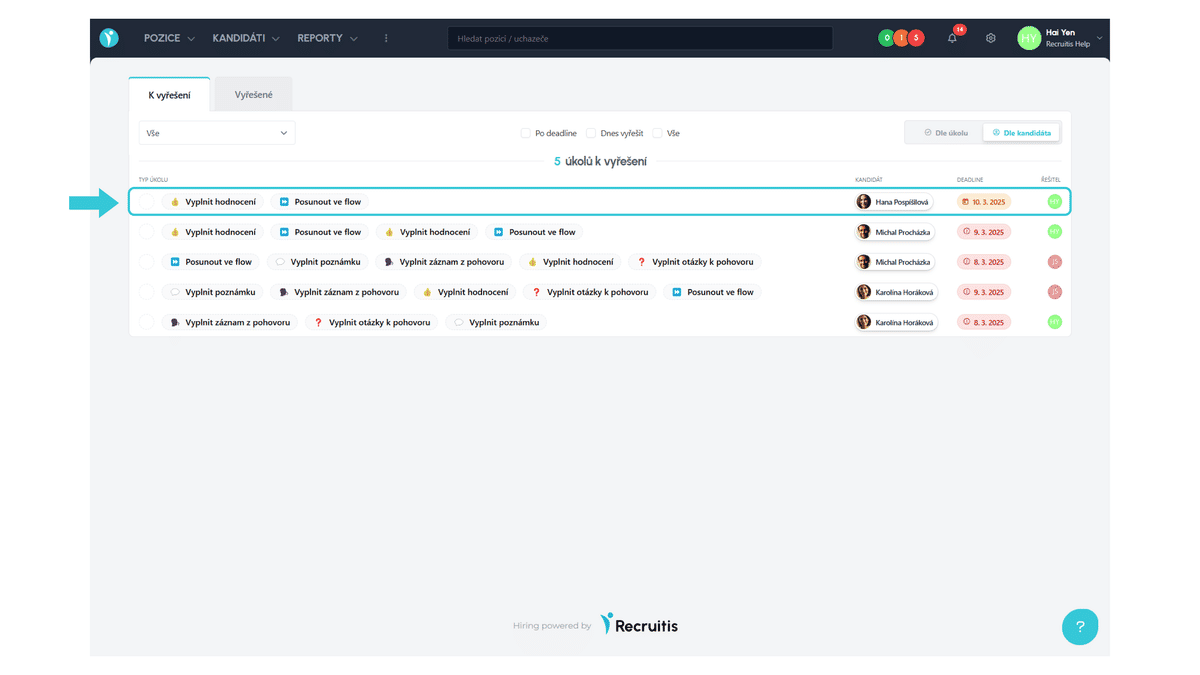
If you group tasks by candidate, all tasks associated with a given candidate and their resolver are displayed in one row. This row contains task types, the candidate's name, the latest deadline from all tasks, and the resolver's icon.
To complete a task, click on the task type to open its detail. Then click on "Complete Task" and the system will redirect you to the specific place where you can finish the task. More about completing tasks can be found in the article Completing Tasks.