Manual candidate creation dialog
The dialog for manually adding a candidate lets you quickly add an applicant to the system even in situations where they didn't apply through the standard route from a job posting – for example, when you recommend them for a selection process yourself or obtain their CV outside of Recruitis. Thanks to powerful new features and a clearer field layout in its redesigned form, you can enter all the necessary information in one place and faster than before!
The revised and improved dialog is now available in all relevant places in ATS Recruitis – that is, both in the position detail and in the database (in both the new and the old design).
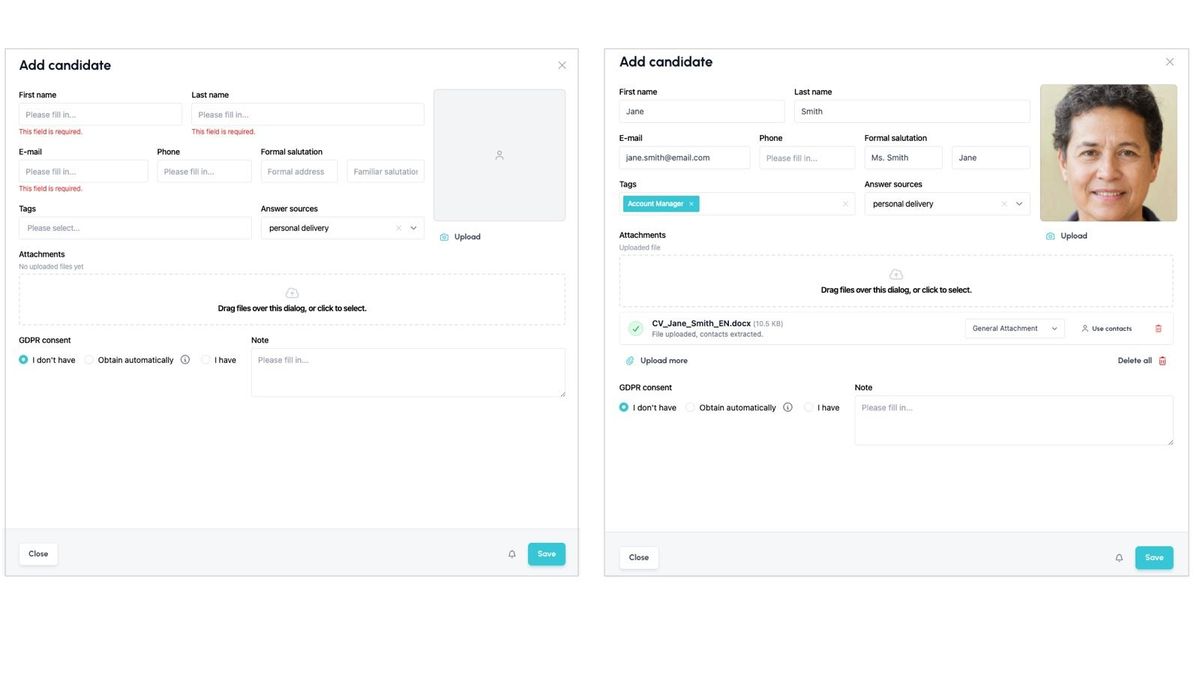
What's better about the new dialog?
You'll find the main improvements in these features:
- Candidates can be created directly from a CV (see the description below).
- You can select a profile photo, or remove it if an incorrect one was loaded from the CV.
- You can enter a salutation, or check the salutation the system suggested when loading the CV (the formal salutation is filled into the "salutation by surname" field, the informal salutation into the "salutation by first name" field on the candidate card).
Creating candidates from a CV (drag & drop)
Whether you're manually adding a candidate whose CV was passed to you by a colleague, or processing a CV sent by email, simply drag the file into the window in ATS Recruitis and the system will automatically load the key data for you – name, contact, profile photo, salutation, etc. No more manual rewriting and entering, no more clicking between windows. With a single drag, you turn any CV into a candidate card.
How to load a file?
In the position detail, click the "Add applicant" button and a right panel will open, which functions in its entirety as a so-called drop zone – so you can drag a file anywhere into it and the system will start processing it and loading the candidate's data.
If you prefer to load a file from a window on your computer, just click the upload field in the "Attachments" section.
💡 Good to know
- Supported file types: PDF, DOCX, HTML, TXT
- You can upload multiple files at once; they will be processed one after another.
- When several files have loaded data, you can choose which set of data to use.
- Manually pre-filled values or previously loaded values won't be overwritten on their own.
- E.g. if you upload 2 files and the first one contains everything except the email and the second one contains absolutely all the data, everything except the email will be loaded from the first file and the email will be filled in from the second.
- For each file, you can manually choose to use its data set.
What stays the same?
Validation
Validation of required fields and/or duplicates works the same as in the old dialog:
- The dialog checks whether a candidate with the same email or phone number already exists, and offers a link to that profile, which opens for you in the right panel.
- The dialog checks whether all required fields are filled in.
💡 Whether the email and phone fields are required, as well as the option to add a duplicate candidate in this dialog, is governed by your company settings on the ATS Recruitis side. If you want to change the dialog's behavior (e.g. to require a phone number or to disable manually adding duplicate candidates), contact our support.
GDPR consents
Handling of GDPR consents stays the same – you still have these options to choose from:
- I don't have one
- I have one (with entering a date and attaching a GDPR file)
- Obtain automatically (after the candidate is saved, this option triggers a dialog for selecting a template and sending an email)
Option to enter additional information
- Source
- Notes
- Tags (enter at least 1 character to search)
- Triggering a notification using the bell icon next to the "Save" button