Custom view for the candidate table
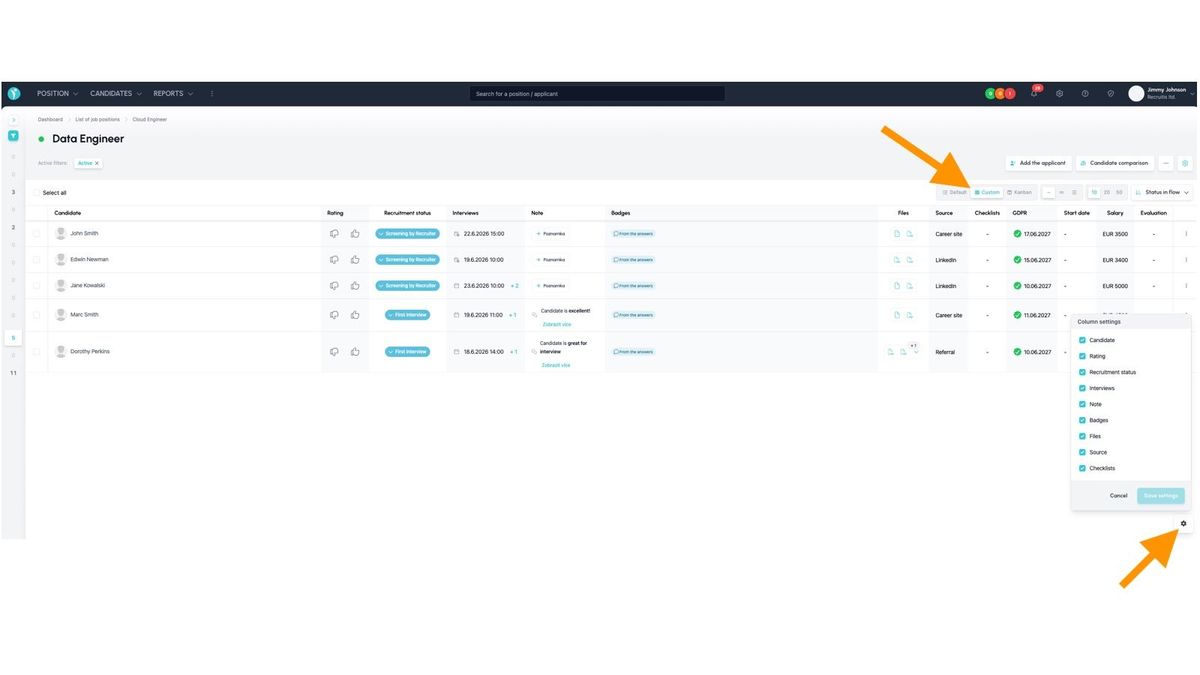
Every recruiter works differently. Some need to see the candidate source at a glance, others focus on the start date or salary. That's why we've added a custom view for the candidate table — a feature that gives you full control over what you see in the candidate overview and in what order.
Add the columns you actually use, hide the ones that get in your way, and arrange them according to your own logic. No unnecessary information, no noise — just what you need to make decisions. The result is a cleaner overview, faster navigation, and less clicking, whether you're working with five candidates or fifty.
Where to enable this view
The user-defined "Custom" view is available both in the position detail and in the talent pool.
💡 The settings are independent in each location, so you can configure different columns and a different order in each of them.
How to do it
The setup is very straightforward — in the position detail or in the talent pool, follow these steps:
- Switch to the "Custom" view
- In the position detail, click the view switcher in the top right corner and select Custom. The default and kanban views remain unchanged.
- Open column settings
- Click the settings icon (gear wheel) in the top right. The Column settings panel will open, showing a list of all available columns.
- Enable or disable columns
- Tick a checkbox to activate a column, untick it to hide it. Changes are reflected in the table immediately.
- Reorder columns to your liking
- Grab a column by its handle and drag it to the desired position. The order is saved automatically for each position separately.
- Save your settings
- Click Save settings. Your custom view will be saved and will appear automatically next time.